Goals & Progress


Open the app, see a finished plan, keep a backup
Ten minutes is enough to open the Goals & Progress Life Goals App and see what it does. The app links what matters to you with what you do today. When your days drift from your goals, you see it the same week. You install it, answer a few questions, look at a finished plan, then save a backup file.
Where you are in the journey
This is the first guide in the series, so nothing has to be ready. You need the licence code from your Gumroad receipt and about ten minutes to yourself. After this guide you pick your five values, which is guide two, Find your five values.
What you will learn
- How to install the app on your phone, and what to do on a computer.
- What you answer in the welcome guide, including the storage question.
- How the demo works, and what happens to your plan while it runs.
- How to download a save file, and why that matters today.
Work through the quick start
The Life Goals App has a quick start of four steps on its own page, Get started with the Life Goals App in ten minutes. Each step shows the time it takes.
- Paste the code from your Gumroad receipt into Your licence code, then press Unlock. About 30 seconds.
- Step through the welcome guide. About 2 minutes.
- Open the demo and look at a finished plan. About 5 minutes.
- Press Save. About 30 seconds.
Your beta password works in the same box until 5 November 2026. The app keeps you unlocked in this browser, so you enter the code once. To look around before you type anything, press Try the demo under Unlock.

It opens the example plan without a licence code. Unlock your own copy when you come back.
Install the app on your phone
On a computer the app runs in your browser, and some browsers install a copy too. An installed copy opens full screen and gets storage of its own, which a browser is slower to clear.
On an Android phone you install the app in three steps:
- Tap More, then Settings, then Your data.
- Tap Install app.
- Confirm in the box your browser opens.
You find the button in the install card, under the reminder card.

After that, open the app from the new icon and leave the browser tab alone.
Safari has no Install app button. On an iPhone or an iPad you bring your plan across yourself, in seven steps:
- Tap More, then Save.
- In Safari, tap the share button, the square with the arrow.
- Choose Add to Home Screen.
- Open the new icon on your home screen.
- Type your licence code into Your licence code and tap Unlock.
- Tap I have used the app before.
- Tap Load and pick the file you downloaded.
The new icon opens empty until you load that file. That is normal. The full route with pictures is in the app, on Start with the app and on Use the app on your phone.
Go through the welcome guide
The welcome guide runs the first time you unlock the app. It has six pages at most. Its first page asks whether you are new here or have used the app before. Skip closes it early, except on the storage page.
- Tap I’m new here.
- On Set up the app, type your first name under Your name, or leave it empty.
- Pick Essentials or Full, then tap Next.
- Pick a card on the storage page.
- Read How it works and Good to know, and tap Next after each.
- Tap Start with your values on a computer, or Start on a phone.
The second page, Set up the app, asks for your name and your mode.

Your first name stays on your device and turns up in the greeting. Leave it empty and nothing breaks. Essentials shows fewer options. You can change the mode later in Settings. The page How it works sums up the steps in four lines. They follow the Goals and Progress method.
The storage page is the one page you cannot skip. Skip and Next disappear until you pick a card. You see two or three cards, depending on your browser. They are Install it on this phone, Keep it in your Dropbox and Stay in this browser.

On a computer the install card is Install it on this computer. Keep it in your Dropbox needs a free Dropbox account. Its button is Connect Dropbox. On an iPhone and in Safari you see a Risky badge on Stay in this browser. In other browsers that badge is Manual backups.
iOS may delete data in a browser after 7 days without a visit. Pick Stay in this browser and press Continue anyway when you want to decide later. Then press Save that day to download a save file. You change the answer in Settings, under Your data.
Try the demo before you build your own plan
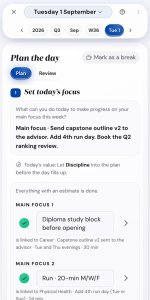
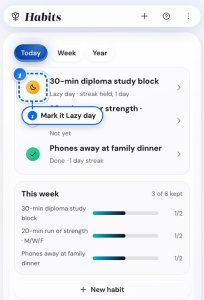
The demo is the reduced version of the app for everyone, and it runs the example data. That example is Maya Chen’s plan. She is a bank branch manager with three focus areas: Career, Physical Health and Relationships.
- On a computer, open Settings, then Your data. On a phone, tap More.
- Tap Try the demo.
- Tap Start the demo.
A card at the top of Home shows Demo mode while you are in there.

Saving, loading and reset are switched off, and the demo starts fresh each time you open it. Nothing from the demo reaches your plan.
Now walk around. Maya has 30 days of reflections and three habits, such as a 20-minute run three days a week. Open Home, Execute, Habits and Insights to see each screen with content in it.
If you have work you have not saved, download a save file before you start the demo.
Download a save file
The Life Goals App saves your plan to this browser while you type. That copy is on one device. A save file is a backup you keep yourself. You can also press Connect Dropbox in Settings, under Your data, to keep a copy in your own Dropbox.
- On a computer, press Save in the top bar. Ctrl+S does the same, or Cmd+S on a Mac.
- On a phone, tap More, then Save.
On a computer you find the two file buttons next to each other at the top of the screen.

The file goes to your downloads. To bring it back, use Load and pick the file. A load replaces what you have, so read Confirm load before you press Replace my data.
To stop yourself forgetting, open Settings, then Your data, and turn on Remind me to download it. The reminder shows on your first change of the day, and one tap makes the file. Save, load, print and reset your data covers the rest, including the print and calendar options.
Try these tips and tricks
- Download a save file before you change browser or device. There is no merge, so keep the newest file.
- On an iPhone, install first and load your save file second. The installed copy and the browser tab keep separate storage.
- After 7 days with no save file, a card shows Save and Remind me in 3 days. One press on Save makes the file.
- Work on paper first when the screen feels like too much. The Life Goals Worksheets hold the same six layers, from values down to the week.
Key takeaways
- The app runs in a browser, and a phone or a computer can install its own copy.
- In the welcome guide you set your name and your mode, and pick where your plan is stored.
- The demo runs Maya’s example plan, and it changes nothing of yours.
- A save file or Dropbox keeps a copy of your plan outside this browser. Make a save file in your first session.
Open the app now and press Save. Put the file where you will find it again. Then come back for the values guide when you have 15 minutes, and pick your five from the same 28 cards as the Core Values Finder.