Start with the app
The first ten minutes with the app, in six recipes.
On this page
Install the app to your home screen
You want to open the app from an icon, without typing the address.
- 1
Open Settings, then Profile & access, on a computer or an Android phone.
Tap Install app.
A confirm box opens.
- 2
A confirm box.
Confirm the install.
The app opens in its own window and keeps your data.
- 3
Open Settings, then Data & backups, on an iPhone or iPad.
First, tap Save.
The installed app starts empty.
- 4
The Safari toolbar.
Tap the share button, the square with the arrow.
- 5
A share menu.
Choose Add to Home Screen.
A new icon appears on your home screen.
- 6
A new icon on your home screen.
Open Data & backups and pick Load.
- 7
A file picker.
Pick the file you downloaded.
Your plan appears.
What follows
- In Settings, Install app is under Profile & access, and Save and Load are under Data & backups.
- The installed app runs with no address bar, and your browser is slower to clear its data.
- On an iPhone, iPad or Mac, the installed app starts empty, so bring your plan across with a save file.
See the welcome guide again
You want to see the welcome guide a second time.
- 1
The More menu, in Help & legal, on a computer.
Tap Replay the welcome guide.
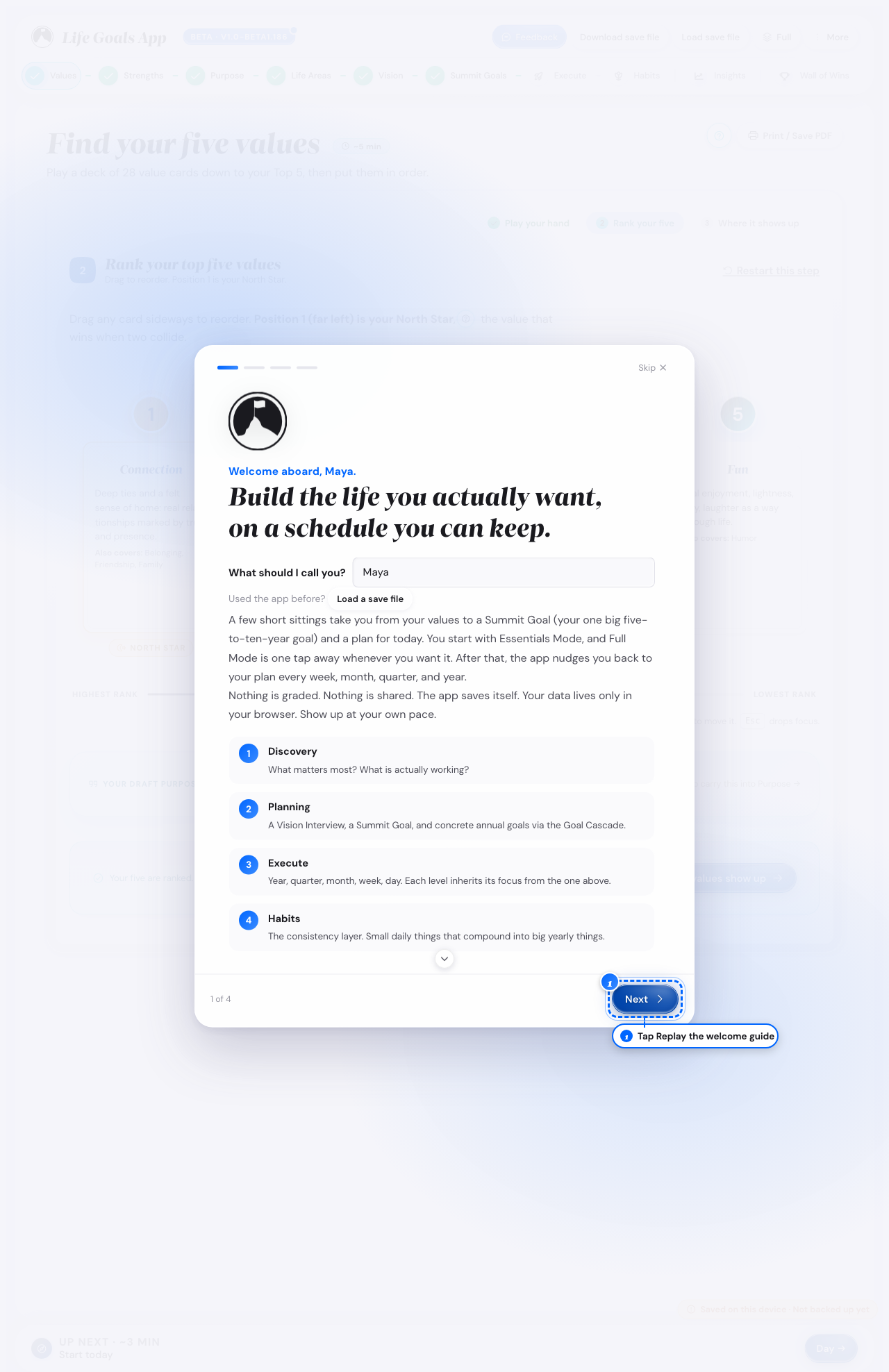
Replay the welcome guide, on a computer. - 2
The More sheet, in Help & legal, on a phone.
Tap Replay the welcome guide.
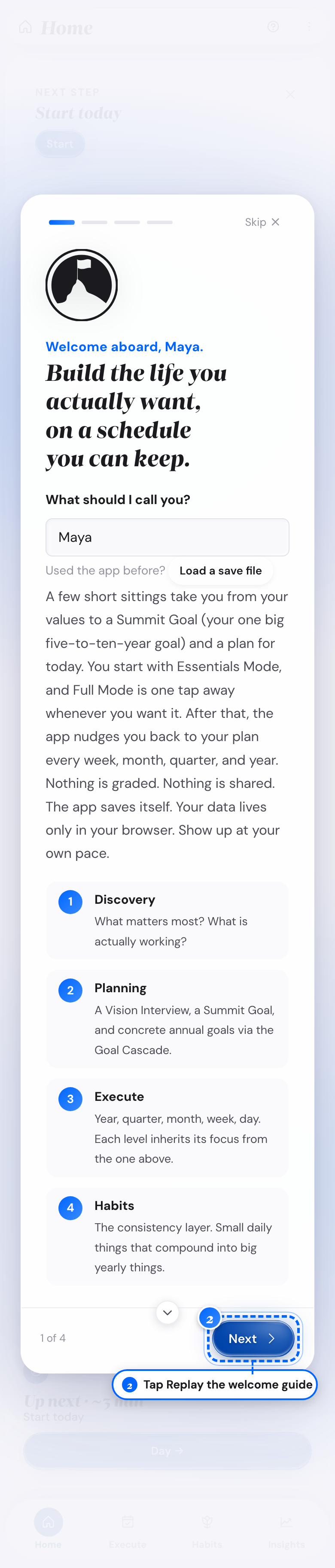
The same row, on a phone. - 3
The first page of the welcome guide.
Tap I'm new here. Then tap Next, or tap a dot.
Pages you already answered do not show again.
- 4
The last page of the welcome guide.
Tap Start with your values, or Start on a phone.
Values opens.
What follows
- The welcome guide changes nothing in your plan.
- A page you already answered comes back only if you have not answered it on this browser.
- On the last page you can also tap Explore the app to see a finished plan.
Skip ahead to habits only
You want to track a habit today and set up the planning steps later.
- 1
A phone, in the bottom bar.
Tap Habits.
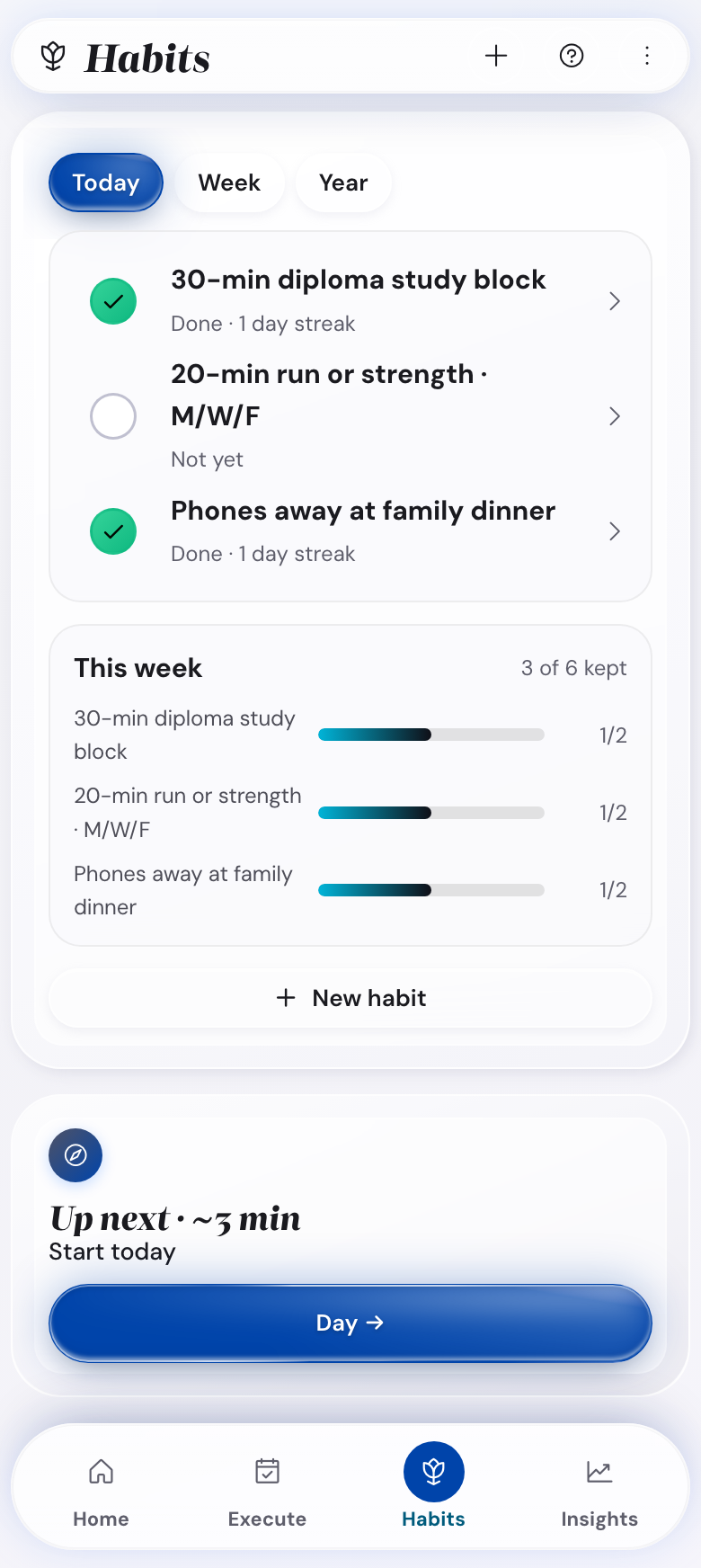
The Habits tab, third from the left. - 2
A computer, in the stepper.
Tap Habits.
The Habits screen opens.
- 3
The Habits screen.
Add one habit and use it daily.
What follows
- A habit set up this way has no Summit Goal yet.
- You can add the planning steps later, from the stepper or from Home.
- You can open Habits on your first day, before you plan a week.
Start the full walkthrough
You have about 90 minutes and want to set up your whole plan in one go.
- 1
The last page of the welcome guide.
Tap Start with your values, or Start on a phone.
Values opens.
- 2
The Home list, on a phone.
Open Values, the first step.
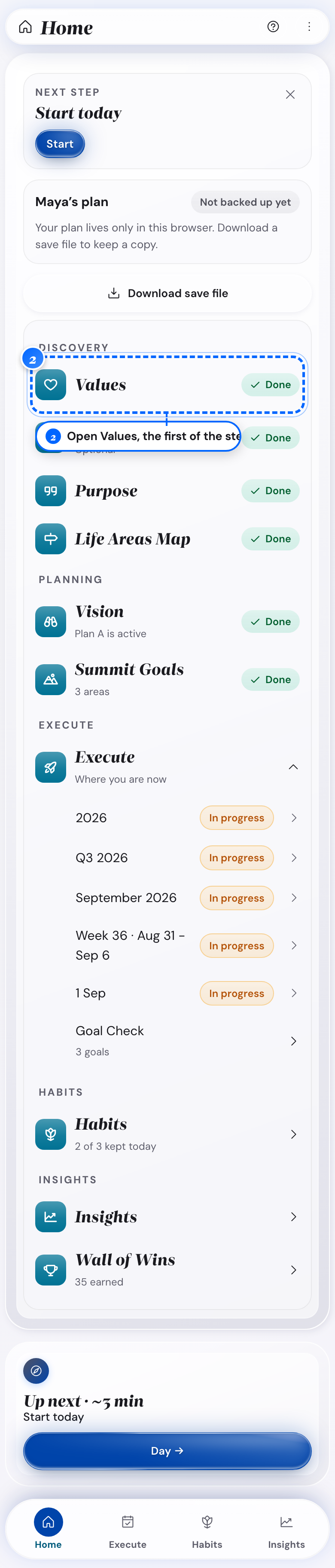
Values, at the start of the list. - 3
A computer, in the stepper.
Open Values, the first step.
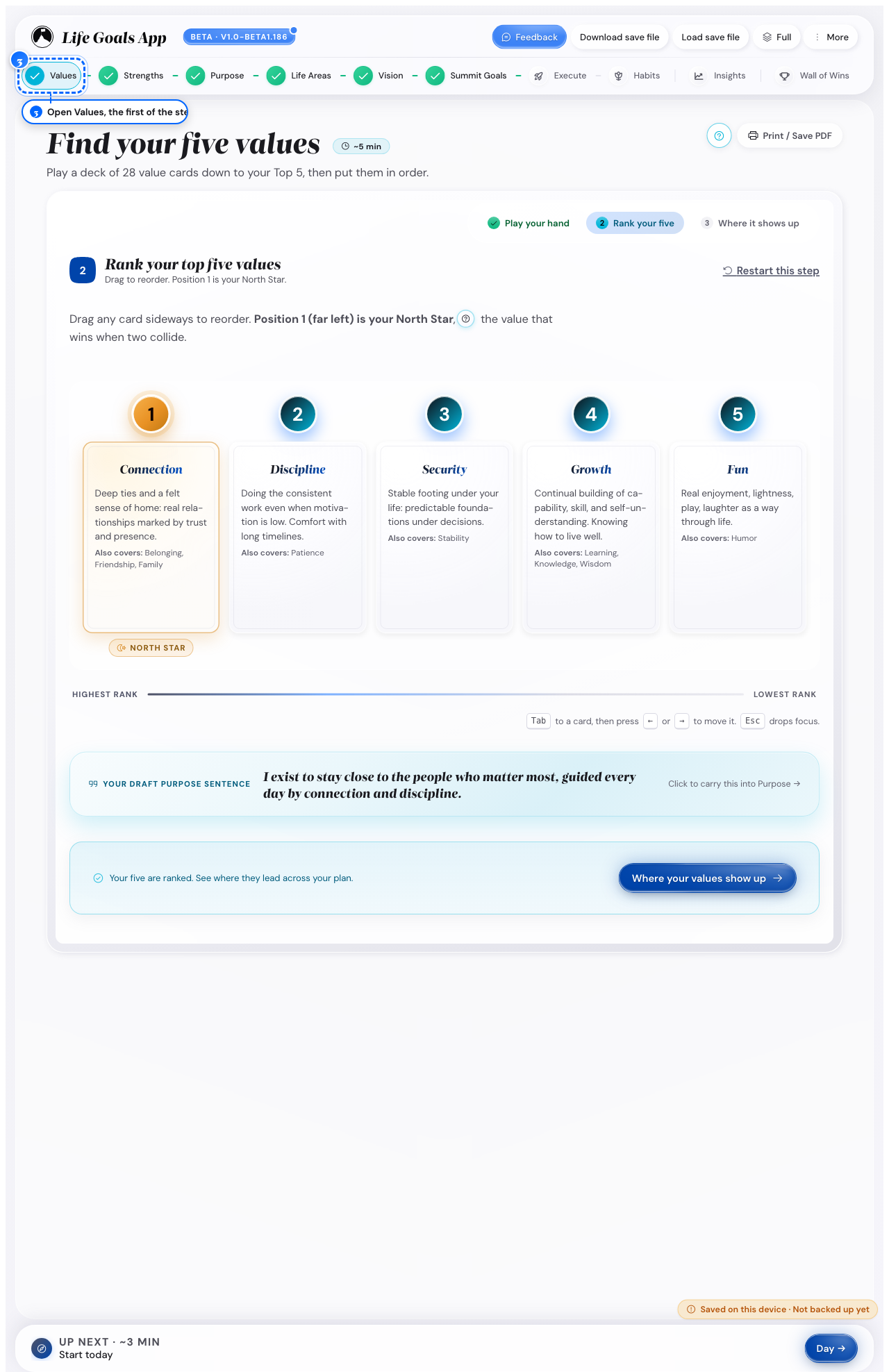
Values, at the start of the stepper. - 4
A step, at its end.
Tap Continue.
At the end of Values the button is Continue to Purpose.
What follows
- The steps run Values, Purpose, Life Areas, Vision, Summit Goals, Execute and Habits.
- In Essentials Mode you do not see the Strengths Profile step in the stepper on a computer.
- In Essentials Mode you open Strengths Profile from Purpose, or from Discovery on your phone.
- Skip a step and the steps after it have nothing to build on.
- The Wall of Wins appears in the stepper after your first achievement.
Explore the app, then go back to your plan
You want to see a finished plan before you build your own.
- 1
Open Settings, then Profile & access, on a computer.
Tap Explore the app.
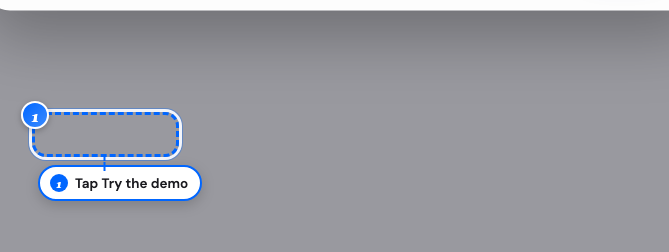
Explore the app, in Profile & access. - 2
The Your data group in More, on a phone.
Tap Explore the app.
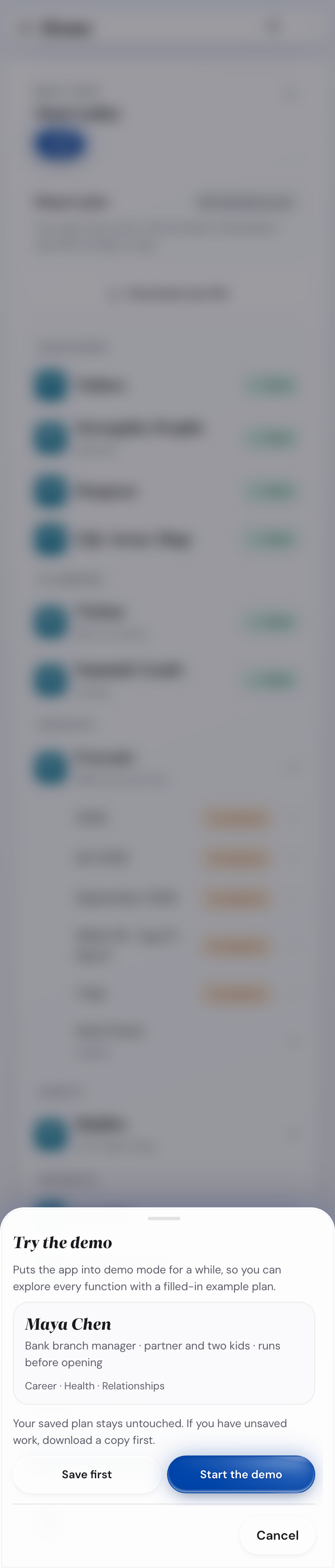
The Explore the app sheet, on a phone. - 3
A confirm screen.
Tap Explore the app.
The example plan fills the app, and your own plan stays.
- 4
A screen in the demo.
Open Home, Execute, Habits and Insights.
A banner shows Demo mode.
- 5
A banner in the demo.
Tap Back to my data.
Your own plan comes back as you left it.
What follows
- The demo keeps your own plan untouched.
- In the demo, saving, loading and reset are switched off.
- The demo starts again each time you open it.
- If you have unsaved work, tap Save first on the confirm screen.
Use the keyboard shortcuts
You want to move around and save without the mouse.
- 1
A computer, on any screen.
Press Ctrl+K.
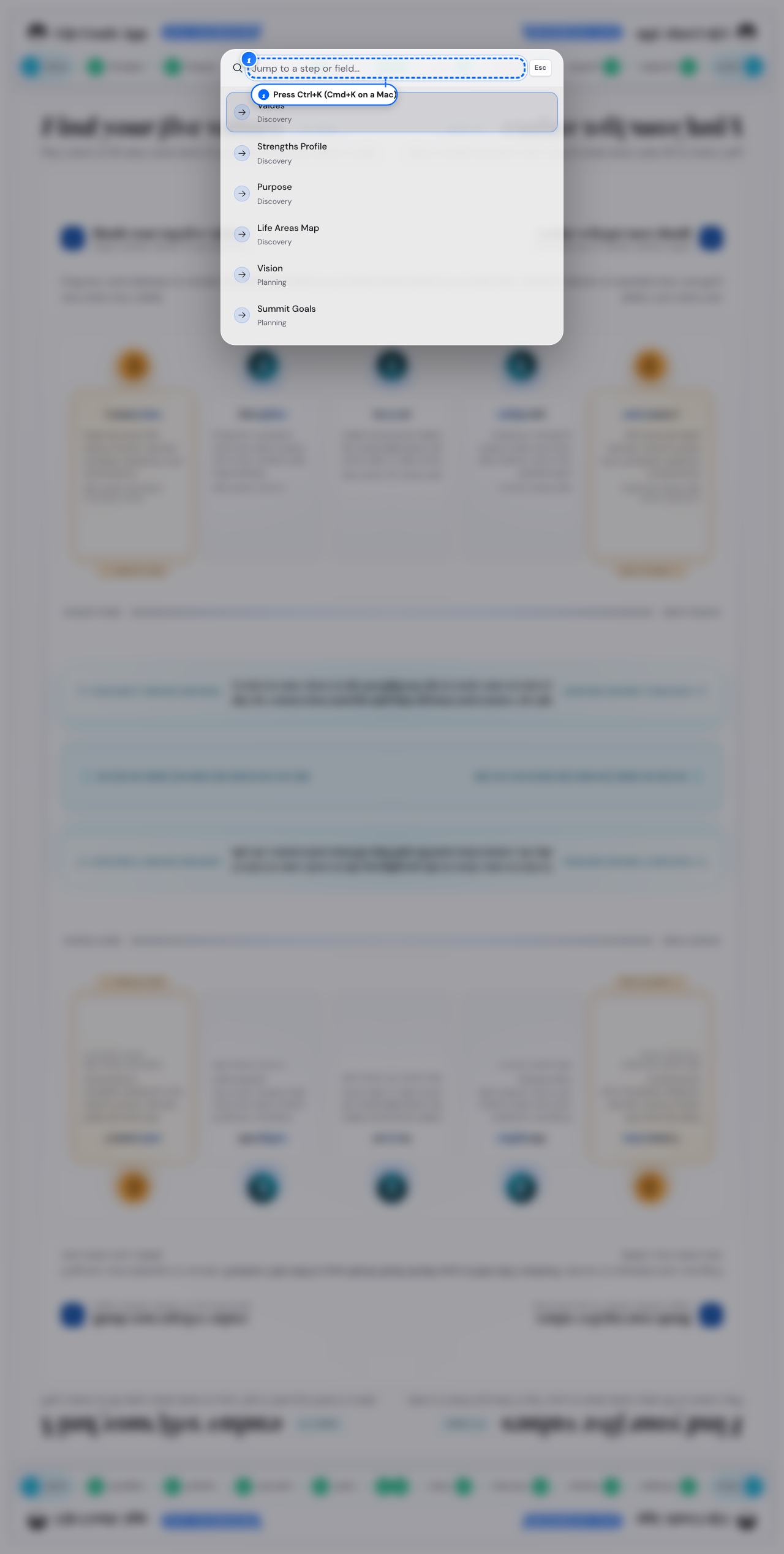
The jump window, open on a computer. - 2
The jump window.
Type part of a name and press Enter.
The app opens that step.
- 3
A computer, outside a text field.
Press Ctrl+S to save, Ctrl+O to load, or Ctrl+Z to undo.
- 4
A computer, outside a text field.
Press Alt+1 to Alt+4 for a phase, or [ and ] for the previous or next step.
- 5
A computer, outside a text field.
Press F to use the whole screen.
What follows
- On a Mac, use Cmd instead of Ctrl.
- The More menu lists these keys: open Help & legal and tap Keyboard shortcuts.
- The F key works only when no button has the keyboard focus.
- Your browser keeps Ctrl+F and Cmd+F for its own find bar.
- The jump window searches step and field names, not the text you wrote.