Change your settings
Open Settings to change how the app looks, how often you plan, and what happens to your data.
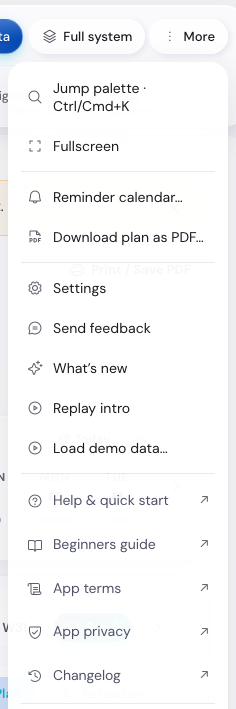
On a computer, press More in the top bar, then Settings. On a phone, tap More, then Settings.
Settings has six tabs: Profile, Appearance, Cadence, Planning, Reminders and Your data. The app keeps every change as you make it. Press Close when you have finished.
What is on this page
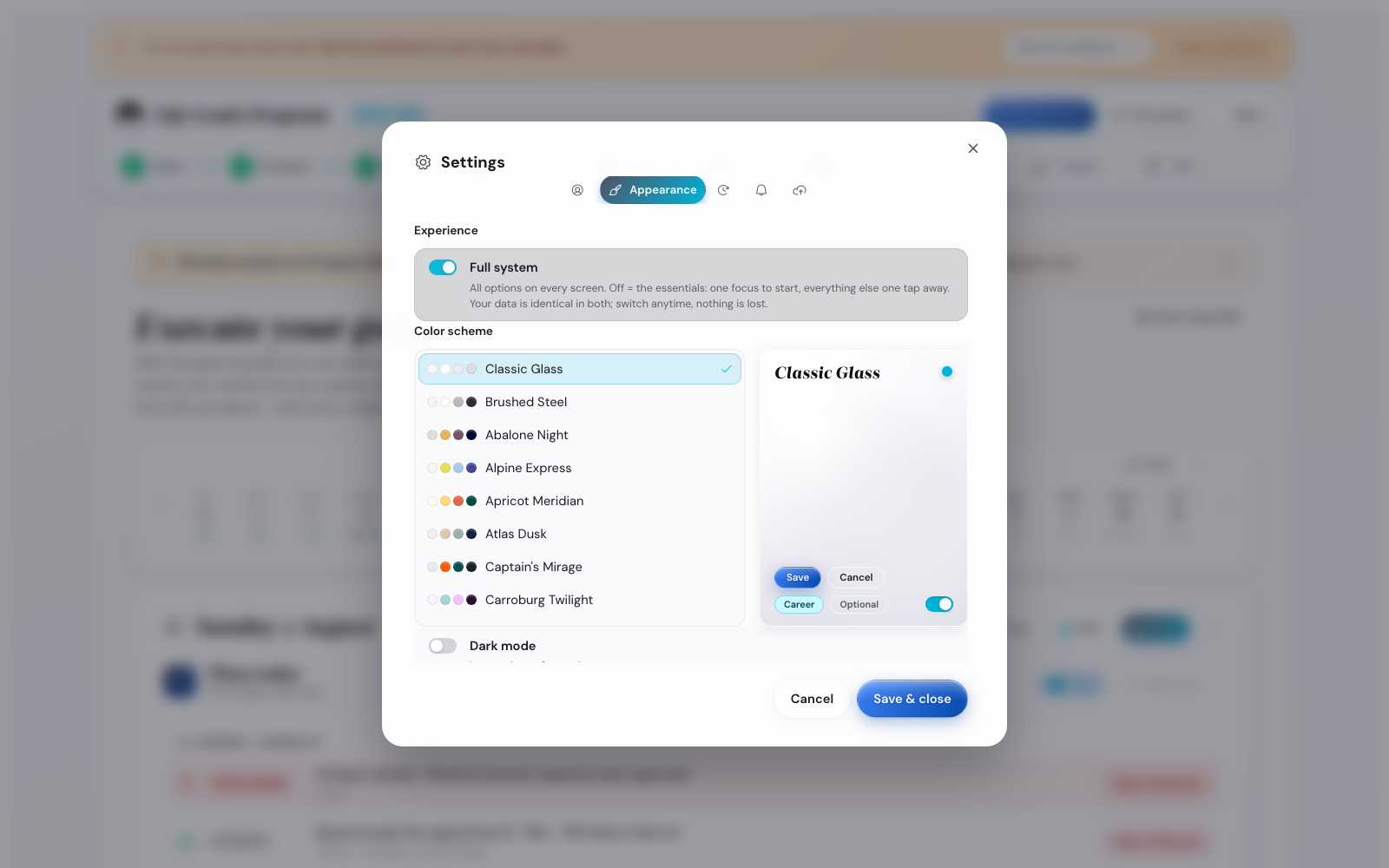
Pick a colour theme
Every colour theme has a light version and a dark version.
- Open Settings, then the Appearance tab.
- Press a name in the Color scheme list.
The new colours show at once, and they stay the next time you open the app.
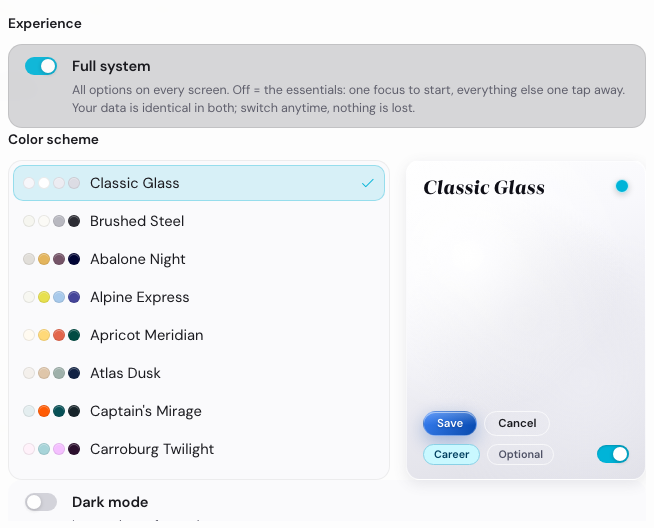
The app starts on Classic Glass. It is the only default.
Seven buttons over the list narrow it: Simple, Vivid, Colourful, Deep, Muted, Balanced and Monochrome. Press All for the full list.
To go dark: turn on Dark mode on the same tab. Every theme has a dark version.
Set the header density
On the Appearance tab, Header density sets how much each planning screen shows at the head.
- Pick Compact for one line, with your goals behind a switch.
- Pick Expanded to see your goals straight away.
- Pick Set by the mode to let your mode decide.
Turn the daily value line on or off
Each day the app picks one of your five values and suggests a way to bring it into what you planned. In the evening reflection you tick whether you did.
To switch it off, open Settings, then Appearance, then turn off Daily value line. Your earlier ticks stay.
Turn off the examples
Examples show ideas next to many fields. Turning them off is optional. It helps you find your own way without being influenced by examples.
- Open Settings, then the Profile tab.
- Turn off Show examples.
Each place that had examples then shows a Show examples button. Press it to see the examples of that place until you close the app.
Enter your licence code
The Licence code row shows if your code is active. It does not show the code.
- Open Settings, then the Profile tab.
- Press Enter licence code.
- Paste the code from your Gumroad receipt and press Unlock.
Your beta password works until 5 November 2026. You can enter your code here before that day.
Set when and how you reflect
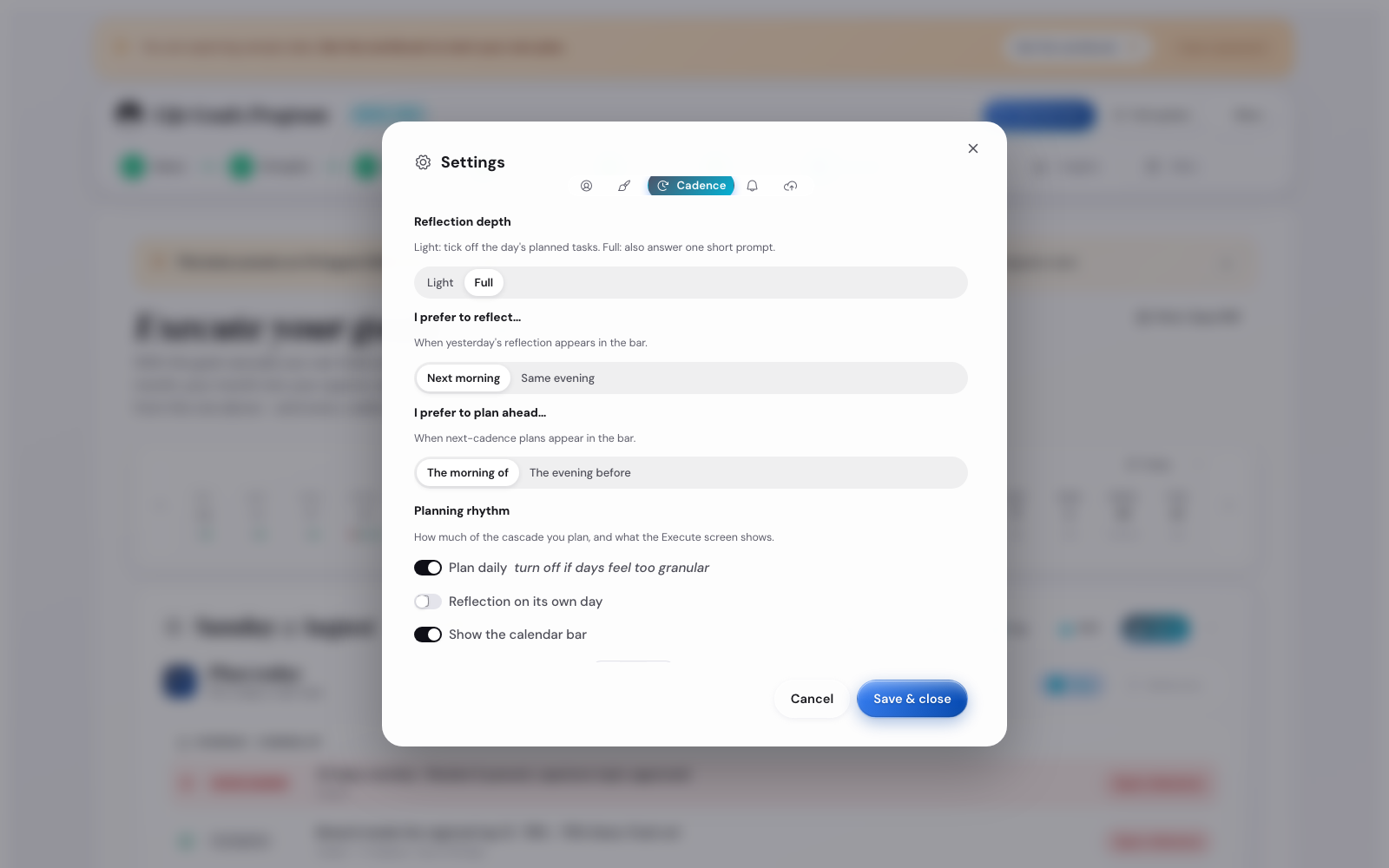
Open Settings, then the Cadence tab.
- Pick Reflection depth. Short ticks off your planned tasks. Long adds one prompt.
- Pick Set by the mode to let your mode decide. Essentials Mode keeps it short, Full Mode makes it long.
- Set Reflect on the day to Next morning or Same evening.
- Set Plan the day to The morning of or The evening before.
- Turn Daily planning on or off under Planning cadence. Week planning stays on either way.
- Use Reflect and plan on separate days to keep the reflection apart from the plan.
The Execute screen takes the new layout straight away.
Set how you plan the year
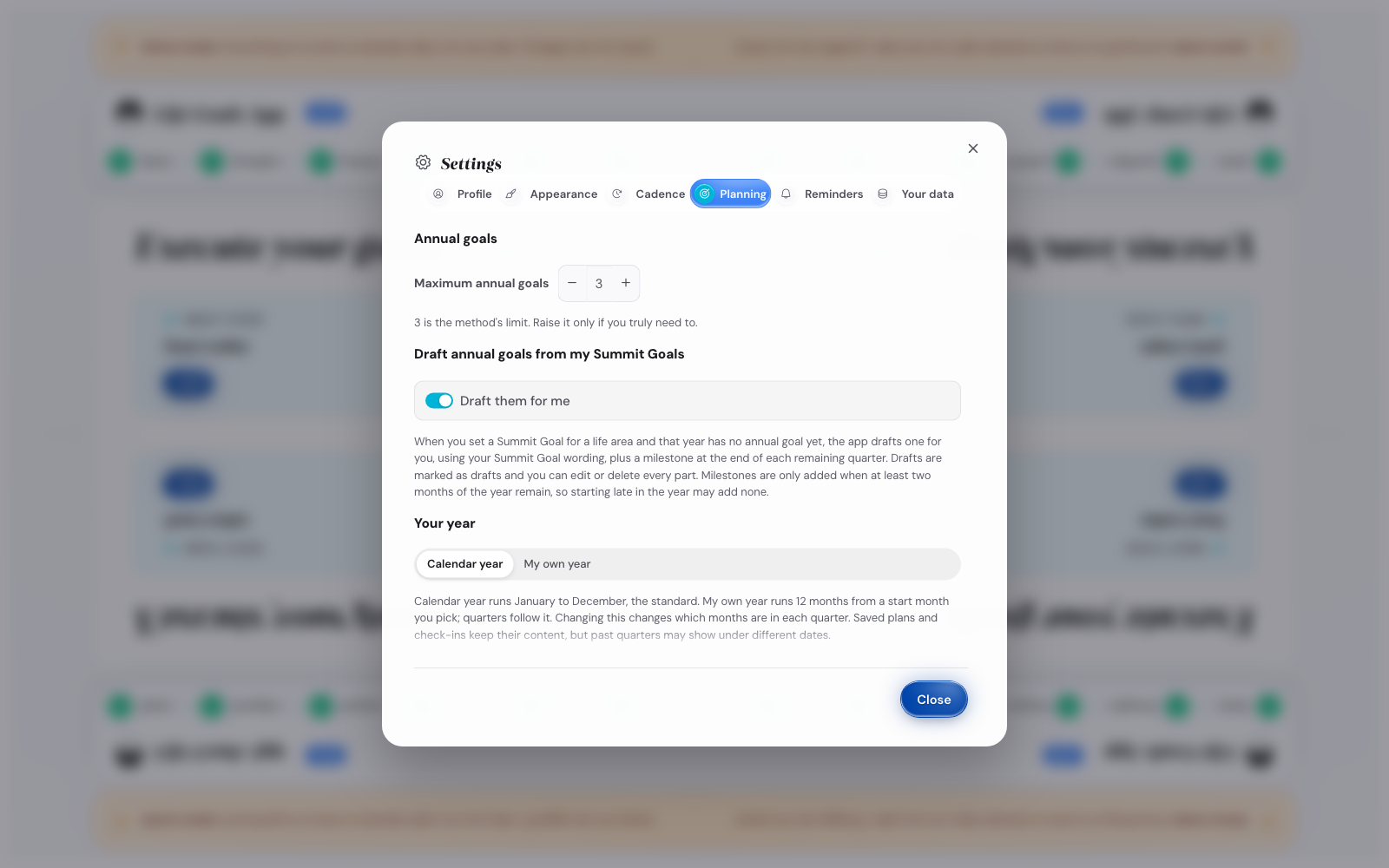
Open Settings, then the Planning tab.
Set how many annual goals you keep
Use the stepper under Maximum annual goals. Three is the limit the method suggests. Raise it only if you really need to.
Let the app draft your annual goals
Under Draft annual goals from my Summit Goals, turn on Draft them for me. The same switch is on the Summit Goals screen.
Say a life area has a Summit Goal and that year has no annual goal. The app then writes one, using your Summit Goal wording, and adds a milestone at the end of each remaining quarter.
A draft looks muted until you change it. You can rewrite or delete any part of it.
A milestone only comes when its date is at least two months away. If you begin in September, you get one, at the end of December. If you begin in December, you get none.
To edit a draft, open Execute, then Year, then the annual goal card for that life area. The goal sentence is in the Goal box, the checkpoints are on the Milestones tab.
Turning the switch off leaves every draft you already have.
Change the start of your year
Pick Calendar year to run from January until December. Pick My own year for twelve months from a start month you choose.
Your quarters follow the choice. Saved plans and check-ins keep their content, and past quarters may show under other dates.
Choose how far back missed days show
Pick Recent to see the past three days, last week and last month. Pick All to see every day and review you left open, oldest first.
Neither choice deletes anything. The choice travels with your save file.
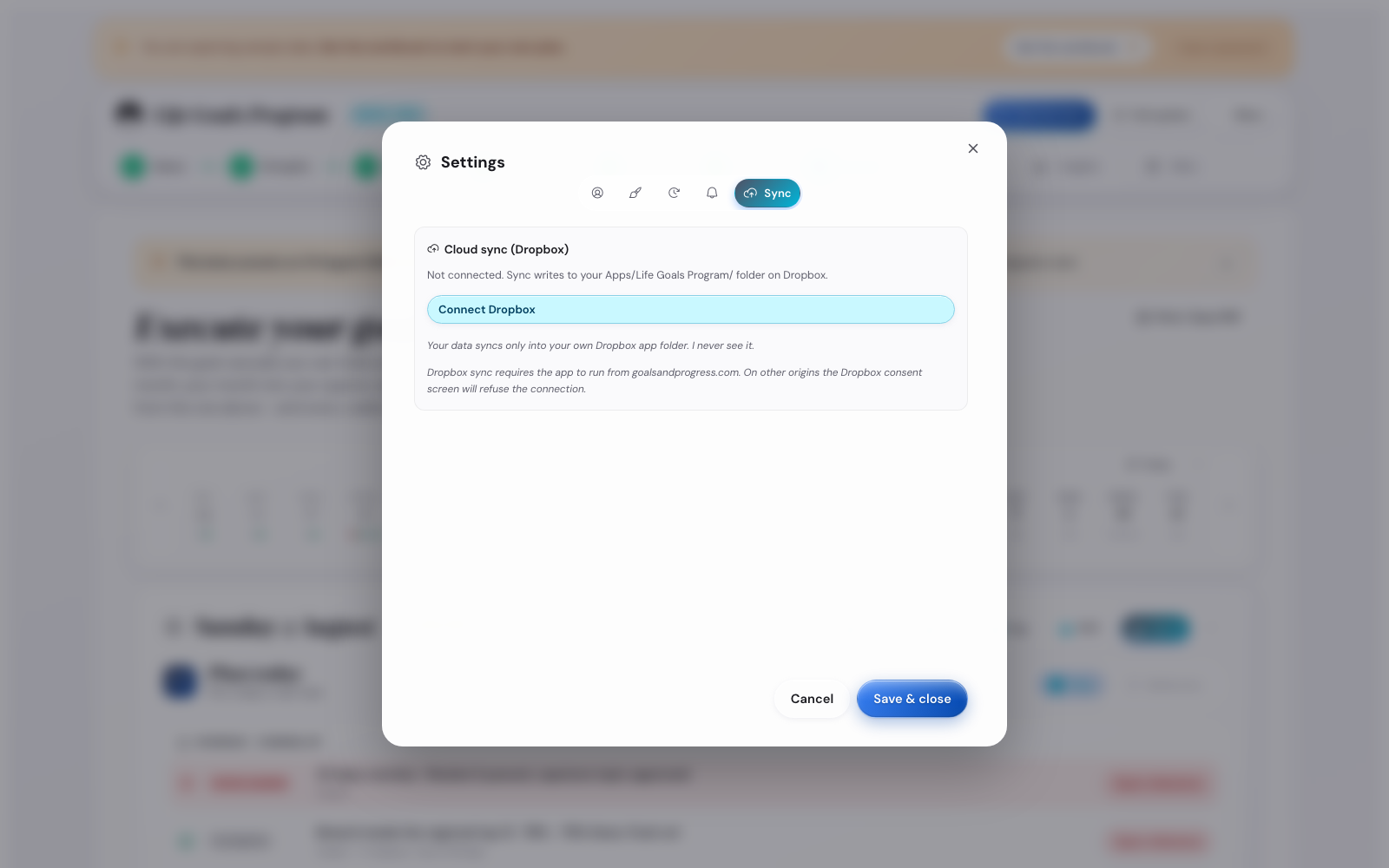
Keep your plan in Dropbox
Dropbox is optional and free. A save file works on its own, and Dropbox keeps your plan for you.
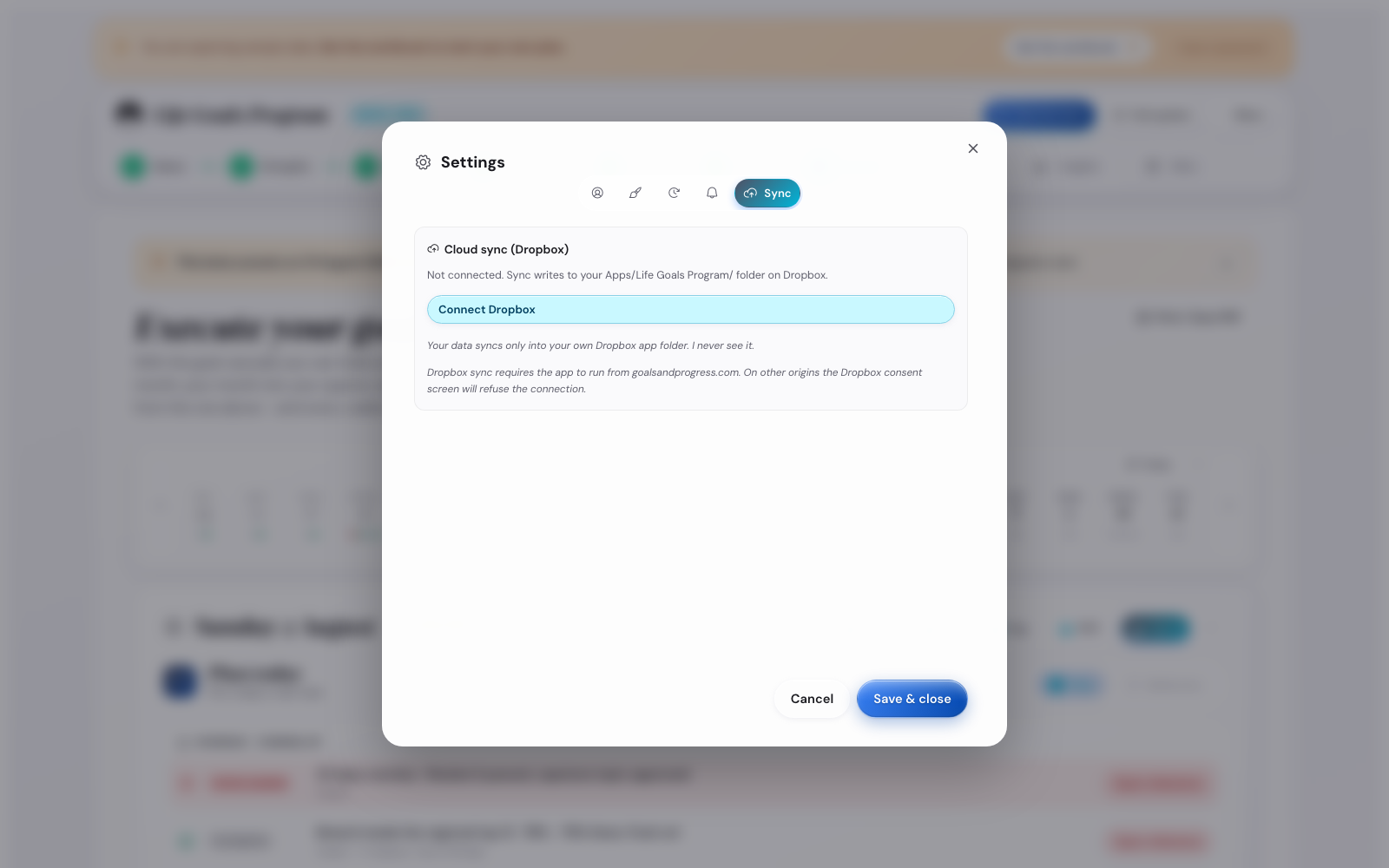
In Settings, on the Your data tab, press Connect Dropbox. Your plan then goes into a folder in your own Dropbox. Dropbox stores it, this app opens it, and I never see it.
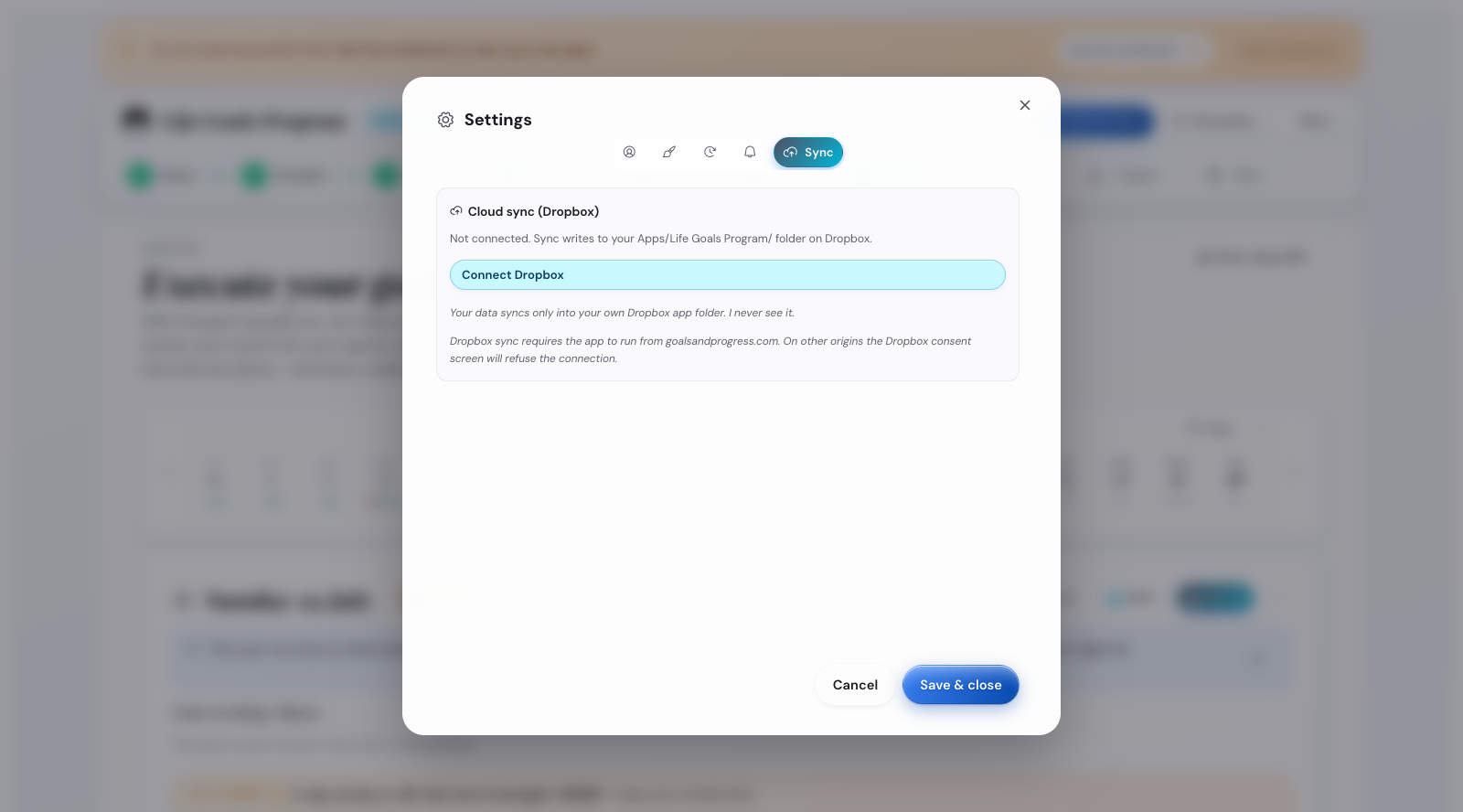
A save file as well. Press Save whenever you change something that matters.
Put your plan in your calendar
A calendar reminder is what brings most people back to the app.
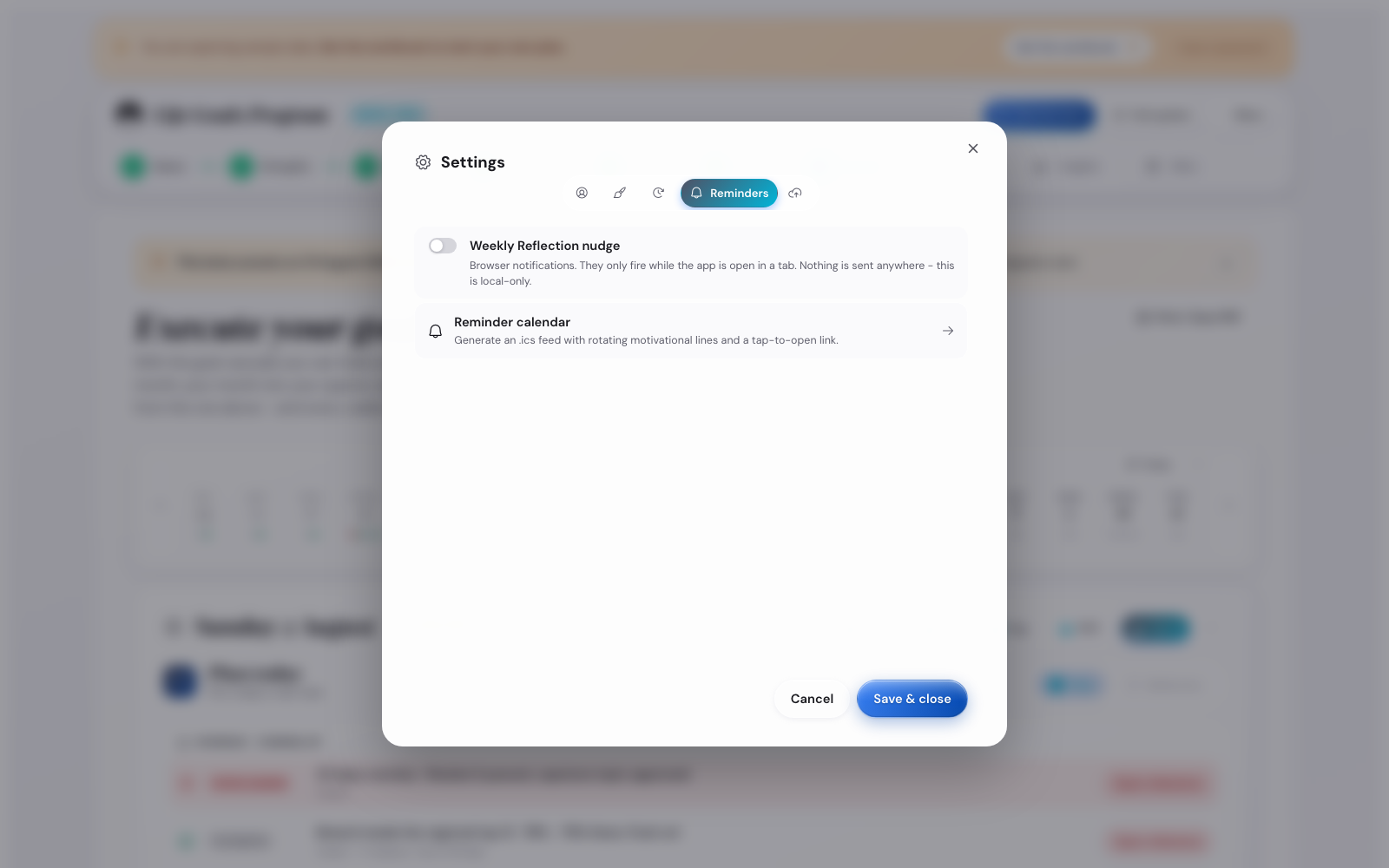
- Open Settings, then the Reminders tab.
- Press Reminder calendar.
- Go through the four steps of the wizard.
- Press Download calendar file on the last one.
Open the file you get and your calendar adds the events. They repeat on their own.
On the second step you set the time and the length of each reminder. Press Restore defaults to go back to the suggested ones.
To change your reminders later, go through the steps again and open the new file. The old events give way to the new ones.
Turn on the weekly nudge
Open Settings, then Reminders, then turn on Weekly reflection nudge. Your browser asks for permission once.
You then get a note on Sunday evening and at the end of a quarter. It works only while the app is open. For a reminder that reaches you with the app closed, use Reminder calendar.
To stop the notes, turn the same switch off.
Hide a small message, or show it again
A few small lines show up on the planning screens.
- The greeting.
- Your purpose quote.
- The daily value line.
- The weekly line from your Strengths Profile.
- The next step card.
To hide one, point at the line and press the small cross on its right. It stays away.
To bring them all back, open Settings, then Reminders, then press Show them again under Hidden hints.
Overdue milestones and break notices have no cross. Those report the state of your plan, so they always show.
Try the demo
The demo fills the app with a finished plan, so you can look at every screen. Your own plan stays untouched.
- On a computer, open Settings and its Your data tab. Press Try the demo.
- On a phone, tap More, then Try the demo.

While the demo runs, the banner shows Demo mode. Everything on screen is example data, and changes are not saved. Press Back to my data and your own plan returns.
Saving is off in the demo. Downloading, loading and reset are switched off, and the demo starts fresh each time you open it.
Save and load your plan
Your plan stays in this browser. A save file is how you keep it somewhere else.
- To keep your plan somewhere else, press Save in the top bar. On a phone, tap More first.
- To bring your plan back, press Load and pick your file.
- Press Replace my data, or press Save first to keep what you have now.
The status label in the corner reads Saved on this device and Not backed up yet until you connect Dropbox. The status label does not count a save file.
Under Your data, turn on Remind me to download it. You then get one reminder on your first change of the day.
Download a file before you switch browser, clear your browsing data or update your computer.
Install the app on your device
An installed app opens in its own window, with no address bar around it.
- Open Settings, then the Your data tab.
- Press Install app.
The button shows only when your browser can install the app. Chrome can, and Safari cannot.
If you cannot see the button, look in your browser's own menu for the entry that installs the app or adds it to your home screen.
Open the installed app once with a connection. After that it opens with no connection too.
Use the keyboard shortcuts
On a computer, eight keys work anywhere in the app, and you see them when you press More, then Keyboard shortcuts.
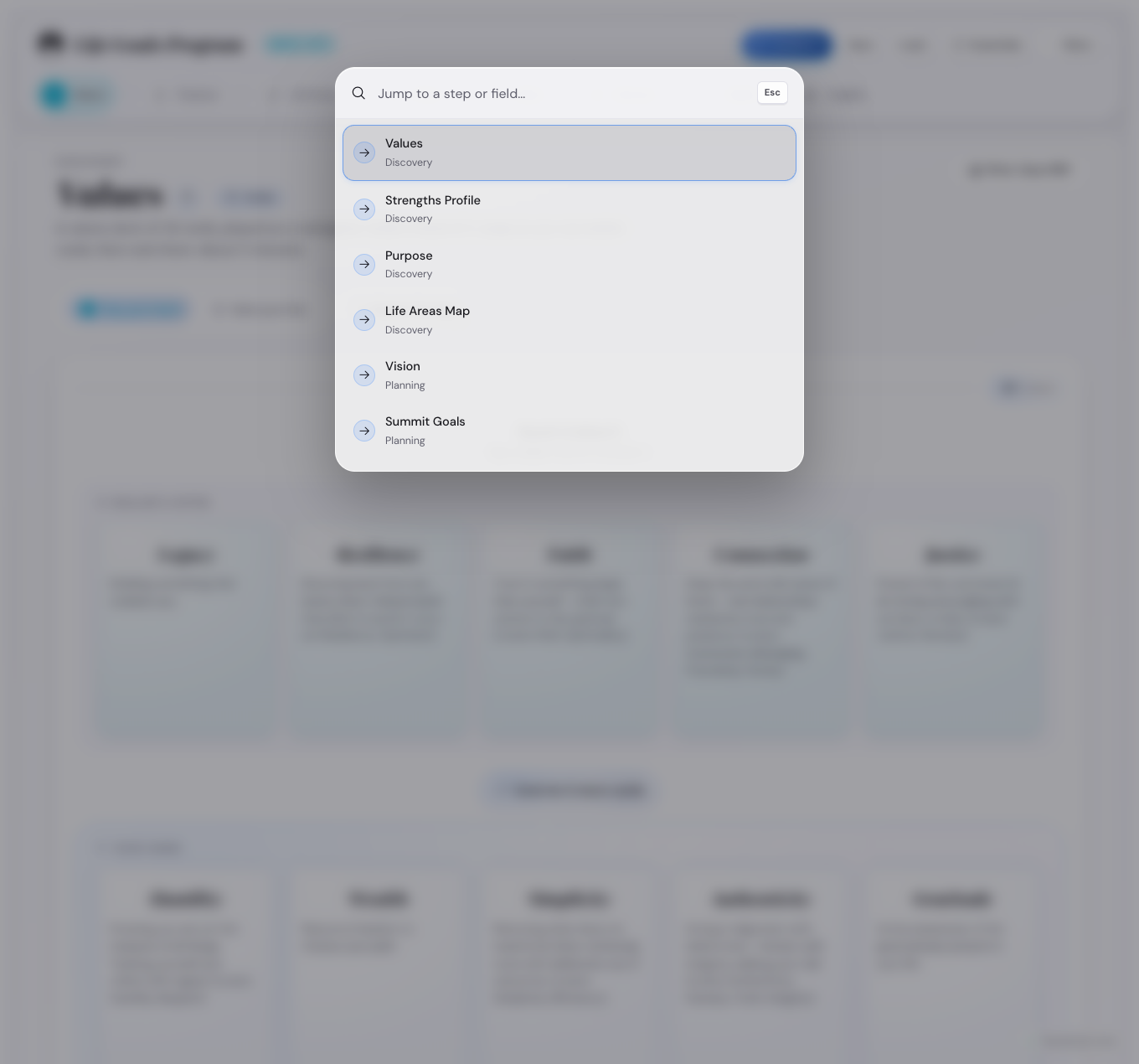
- Press Ctrl+K or Cmd+K to go to any screen.
- Press Ctrl+S or Cmd+S to download your save file.
- Press Ctrl+O or Cmd+O to load a save file.
- Press Ctrl+Z or Cmd+Z to undo your last change.
- Press Alt+1 to Alt+4 to go to a phase.
- Press [ for the step before.
- Press ] for the step after.
- Press F to use the whole screen.
The phase keys and the last three work while you are outside a text box. On a small screen the Ctrl/Cmd+K hint stays hidden, and the keys still work with a keyboard attached.
Where your plan stays
Your plan stays in this browser on this device. Nothing goes to a server of mine.
- To keep your plan somewhere else, download a save file.
- Press Send feedback to open a short form in a new tab.
What you cannot change
- The two typefaces.
- The number of steps in the plan.
- The two day rule for habits.
What the web host has to set
One safety rule cannot come from the page. The rule that stops another site from showing this app inside a frame has to come from the web host, as a Content-Security-Policy header with frame-ancestors. A meta tag cannot carry it, and the browser says so in its log. The other rules in the set work from the page.
Where to go next
- Open the calendar section to set up your reminders in five minutes.
- Open the rhythm page to see how the daily and weekly cycles work.
- Open the how-to answers for a single question.