The 90-minute first session

Walkthrough · updated 31 July 2026

This page walks you through the first session in nine numbered steps, following the app's eight-step cascade from Values to your first daily reflection. Each step tells you what to click, what to type, what to expect next, and the one mistake beginners make most often. It ends with a special cases section for the situations the straight path does not cover. Total target time: about 80 minutes plus 10 minutes for thinking breaks.

Feeling overwhelmed before you start? You do not have to do all nine walkthrough steps in one sitting. The shortest useful session is four steps, about 20 minutes. Most people who finish the whole walkthrough in one session were already half-decided about their year; if that is not you, the 20-minute version is honest and works.

The 20-minute path:

Skip Purpose, Vision, Habits-cascade, Execute setup, and the daily-reflection wrap-up for now. Come back to them next week. The cascade still works with one Summit Goal built on your values and one daily habit feeding it.

Contents

  1. Values (5 min)
  2. Purpose (5 min)
  3. Life Areas (8 min)
  4. Vision (12 min)
  5. Summit Goals (15 min)
  6. Habits cascade (10 min)
  7. Execute setup (10 min)
  8. Habit Garden (10 min)
  9. First daily reflection (5 min)

How every planning screen reads · Special cases

Before you start. Have the welcome email open in another tab so the password is one paste away. Have a glass of water. Turn off notifications. This is a thinking session, not a multitasking session.

The cascade you are about to walk

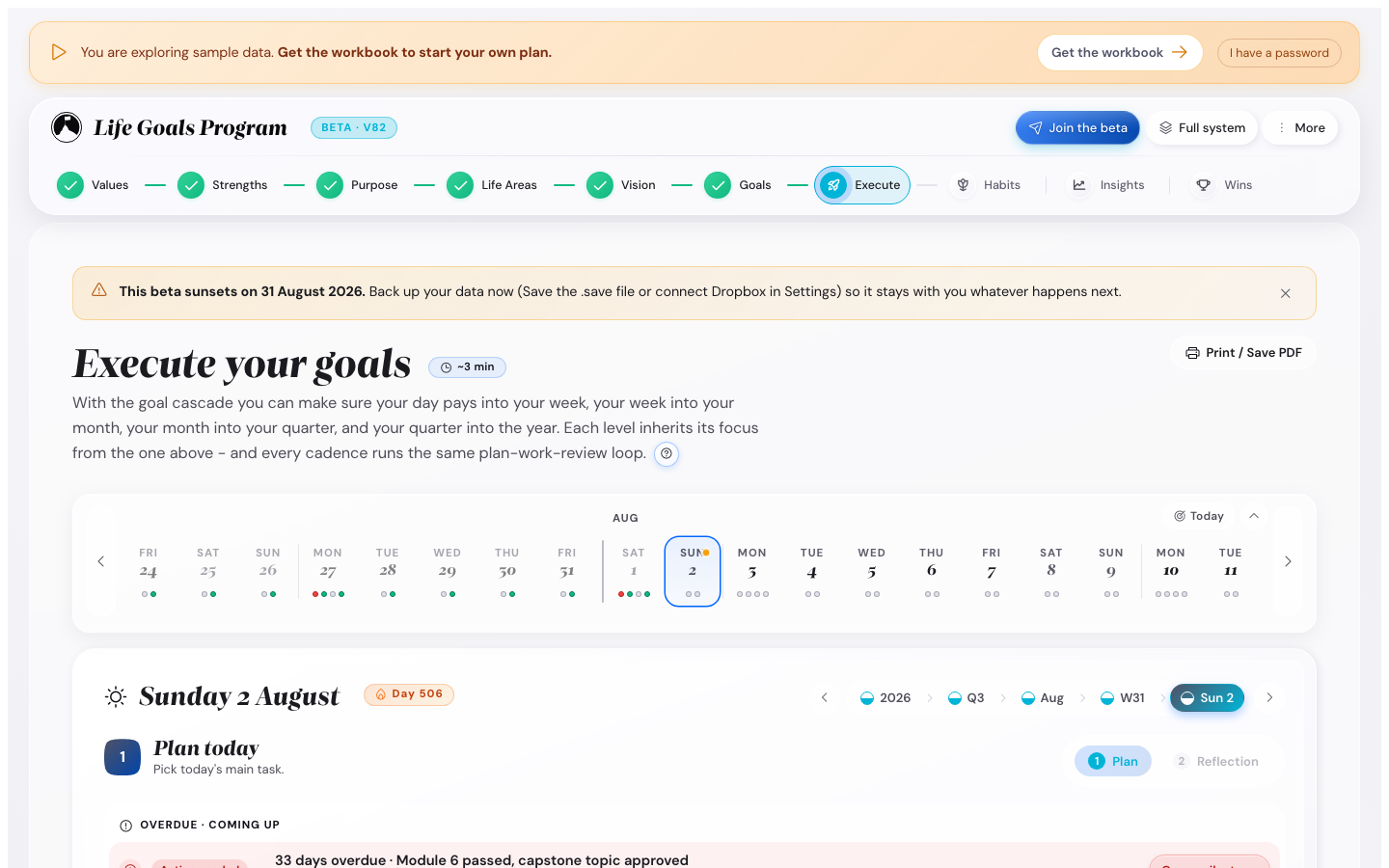
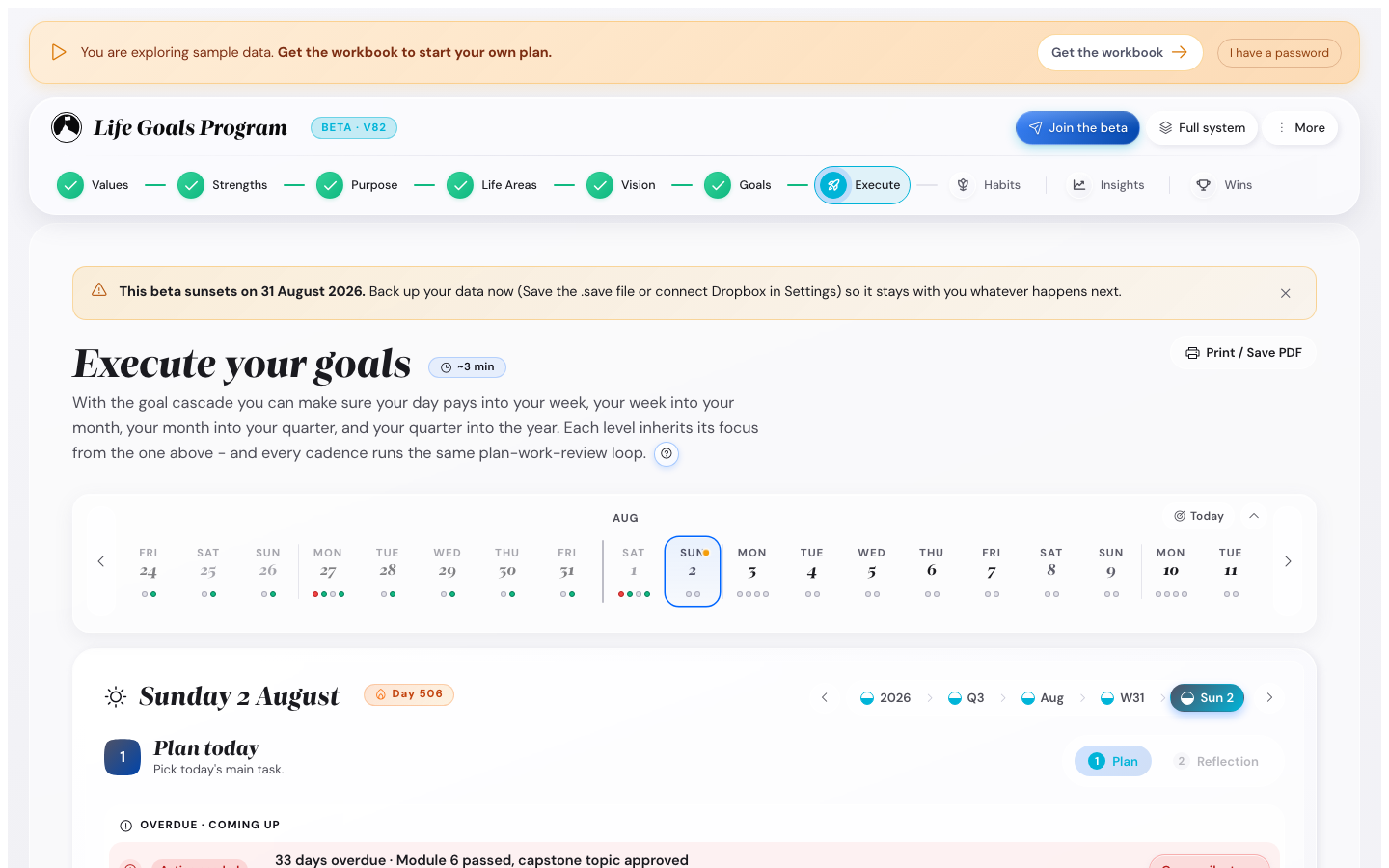
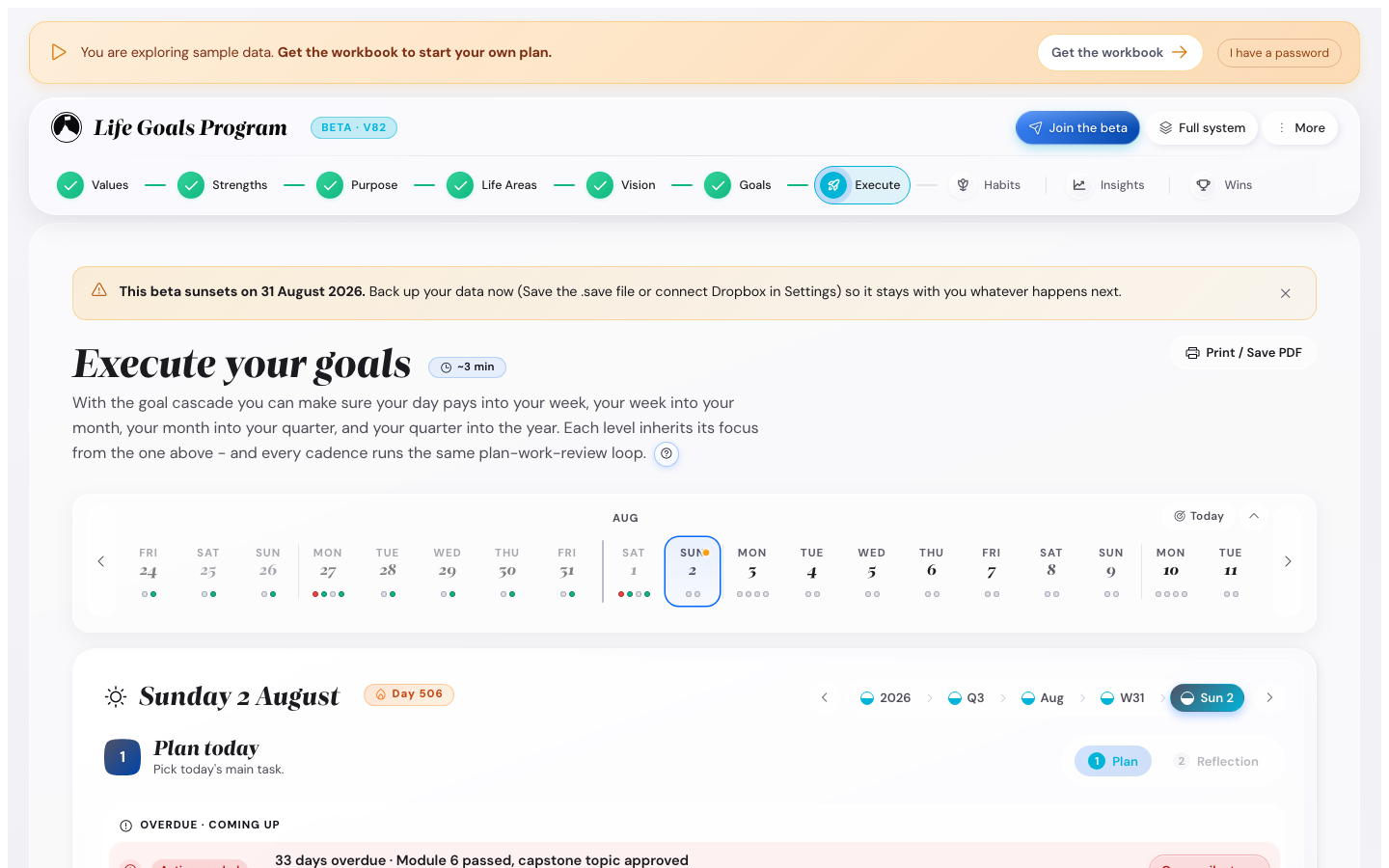
The app shows your position along a stepper bar at the top. The stepper shows the cascade in order: each step inherits from the one before it. On day one it shows eight steps (Values, Purpose, Life Areas, Vision, Summit Goals, Execute, Habits, Insights); a ninth, the Wall of Wins, appears on its own once you earn your first achievement. Here is how it looks at step one (Values active) versus step six (Execute active).

The stepper bar with Values highlighted as the active step
Stepper at step 1 (Values active). Future steps are dimmed.
The stepper bar with Execute highlighted, earlier steps shown as completed
Stepper later in the journey: green checkmarks on completed steps, Execute now active.

How every screen reads, before you start clicking

Two layouts repeat through the whole app. Learn them once here and the rest of this walkthrough is mostly deciding what to write.

A discovery step (Values, Purpose, Life Areas, Vision, Summit Goals)

Each one opens as a short row of tabs. Left to right, they are the order to work in, and the last tab of every step is always Where this leads, which shows in your own words how what you just did feeds the later steps, with a jump link to each destination. No step ends in a dead end.

A planning screen (the five inside Execute)

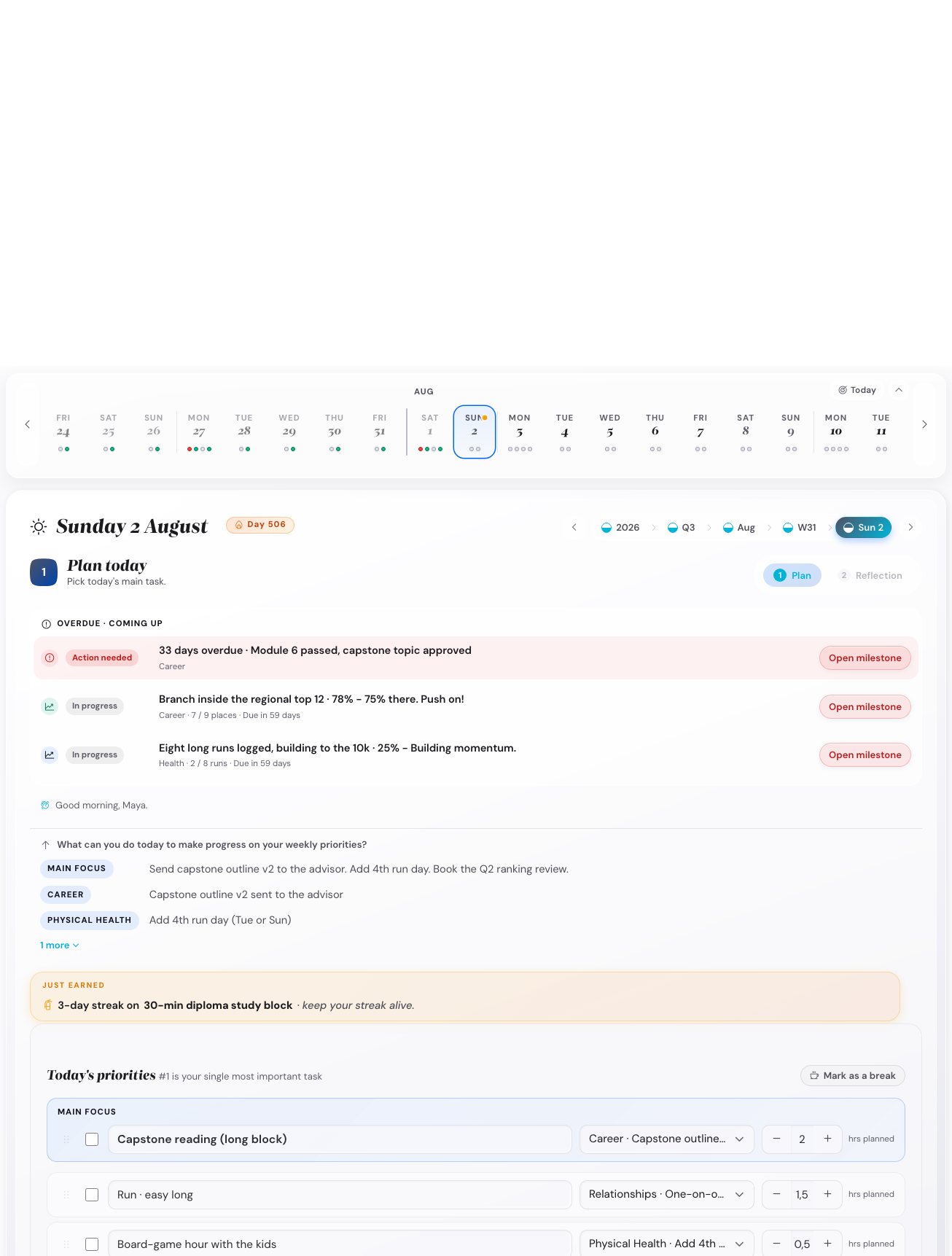
Day, week, month, quarter and year are built identically, top to bottom. The heading stays in the same place when you switch between them, so nothing jumps under your cursor:

  1. Where you are. The panel title and the five cadence tabs.
  2. What you are doing here. A numbered headline and one line of explanation.
  3. Anything that needs your attention. An overdue milestone, or a notice that you marked this period as a break. This is the only slot allowed to look like an alert, and each row carries its own chip: Action needed, Due today or Coming up. Only a genuinely late row is tinted, so a calm week does not look like an emergency.
  4. What this feeds. The level directly above. Planning a week shows your monthly goals, not your annual ones. If more than three things are relevant, three show and the rest sit behind a more toggle.
  5. The small friendly lines. The greeting, your purpose quote, the daily value anchor. Each has a small cross on hover: click it and the line is gone for good, and Settings → Cadence → Hidden messages brings any of them back.
  6. The work. Your inputs.

The calendar strip above the panel follows the zoom you are on. Day, week and month show the next two weeks of days. A quarter shows its three months, a year shows its four quarters. Each cell carries what is planned, due and overdue, and clicking one jumps you there. A small toggle switches a quarter or year back to the day axis if you prefer it.

If a planning screen feels too busy, or too bare. Settings → Cadence → Header density controls how much sits above the work. Compact puts the detail behind a toggle, Full shows it straight away, and the default follows whichever view you are in. It takes effect immediately.

Step 1 · Values

1

Pick + rank your top five values

Target time: 5 minutes · the Values step (T1A)

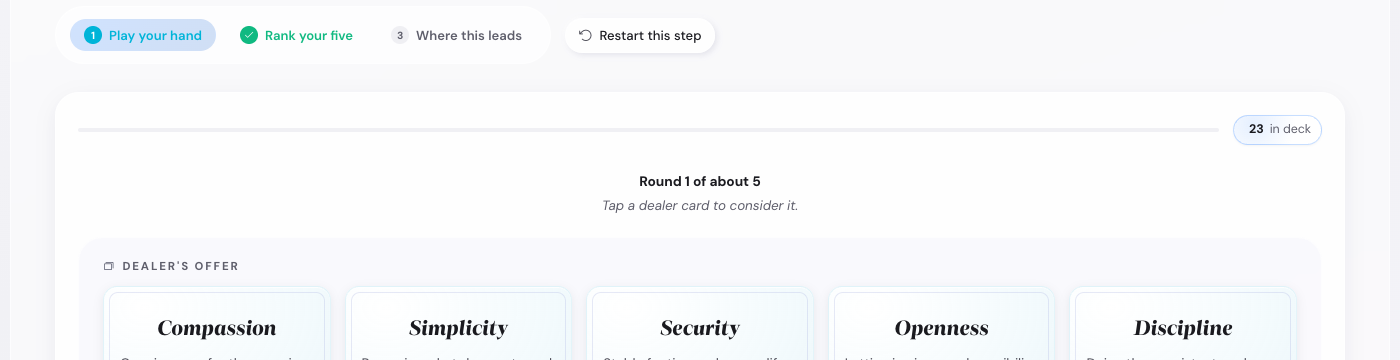
The app deals from a deck of 28 value cards (Growth, Adventure, Health, Connection, Creativity, and so on). You hold a hand of five: swap any card you do not love for the next one off the deck, and keep going until your final five feel right. Trust your first reaction. The cards you keep coming back to are the real ones.

The Values step title showing 'Values' headline, Discovery eyebrow, and a 5-minute time estimate
The step title carries the eyebrow ("Discovery") and an honest time estimate (~5 min).

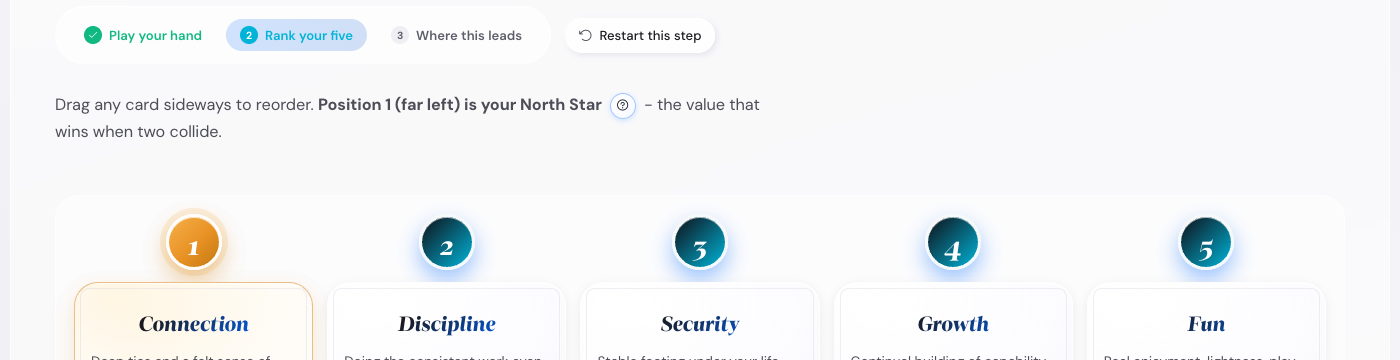
The step has three tabs: Play your hand (the card game where the dealer offers cards one round at a time), Rank your five (where you drag the five you kept into order), and Where this leads (which shows how your ranked five feed the later steps).

The Values step in Play-your-hand mode showing the dealer's offer with face-down cards and the first revealed card (Power)
Play your hand: the dealer offers cards round by round from a 28-card deck. Tap a card to swap it into your hand.

Once you have a hand of five, switch to Rank your five. Drag the five cards into rank order. Number one is what you would not trade. Number five is on the edge of the list. When all five are ranked, tap Where this leads to see how they feed the rest of your plan, then Continue to Purpose.

The Values step in Rank mode showing five cards with names (Creativity, Authenticity, Impact, Health) ranked left to right
Rank mode with named cards. Position 1 (far left, gold) is your North Star.
Example top five 1. Family · 2. Health · 3. Creative work · 4. Learning · 5. Adventure

Common pitfall. Aspirational values. The diagnostic question: which one of your top five did you violate this week, and did it feel like a betrayal? If nothing came up, the list is what you wish you were. A list like that stops working within about four months, and by then it is hard to tell why your Summit Goals no longer feel important.

Step 2 · Purpose

2

Write one sentence that explains why you exist this year

Target time: 5 minutes · the Purpose step (T1P)

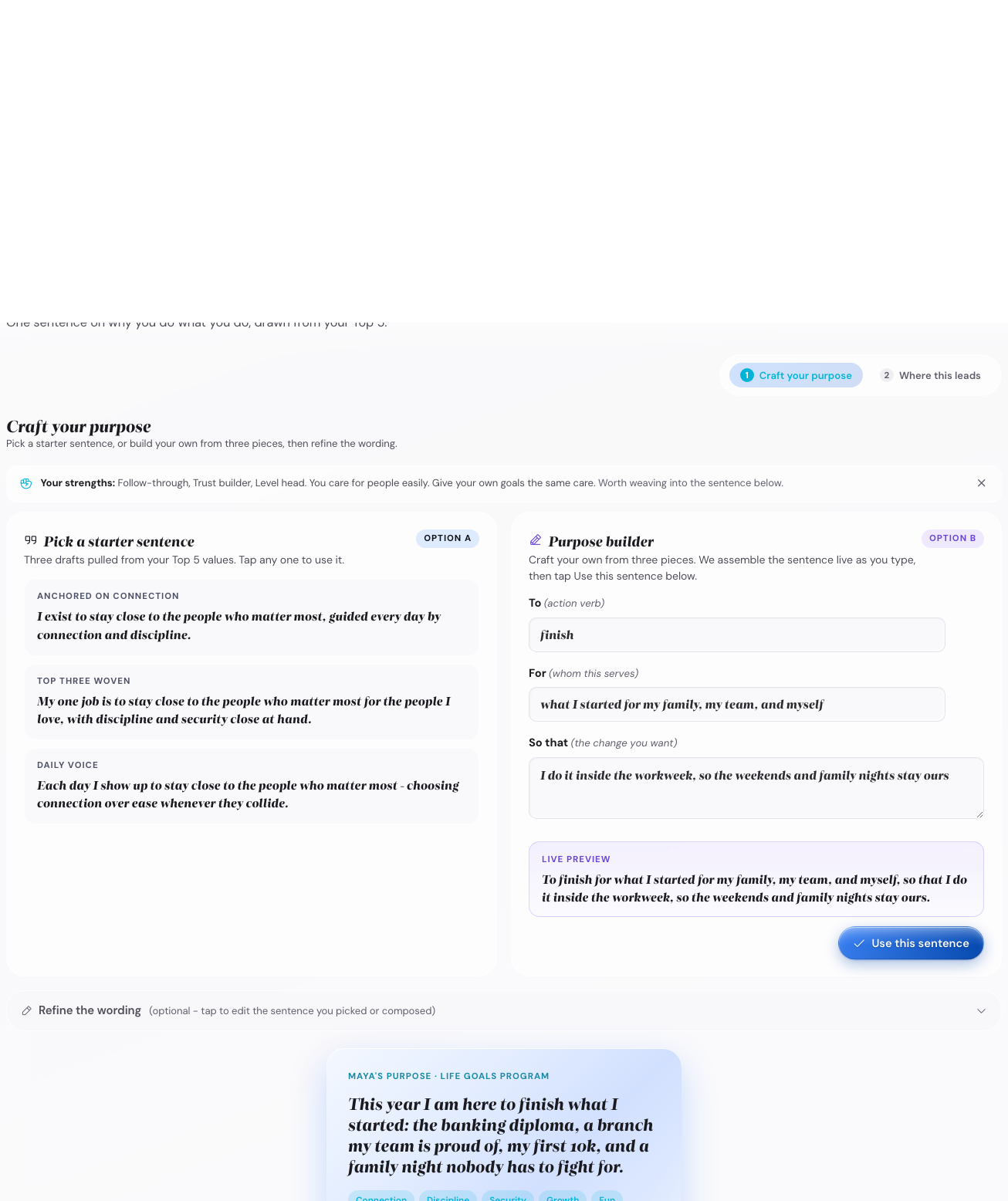
The Purpose step has two tabs: Craft your purpose and Where this leads. On Craft your purpose you have two ways to write your sentence. Option A: pick one of three starter sentences the app drafts from your Top 5 values. Option B: build your own from three pieces, To <verb> (the action), For <whom> (who it serves), So that <change> (the difference it makes), and the app builds a clean sentence below as you type. Use your top values and keep it honest. It does not have to be poetic.

The Purpose step with a writing area and prompt
One field and one sentence. The prompt does more work than it looks.
Example purpose This year I am here to be present for my family, ship one creative project I am proud of, and rebuild a body that can hike for hours without complaint.

Tip. The purpose sentence becomes the framing for everything downstream. Summit Goals get tested against it. Each monthly check-in rereads it. Do not try to make it perfect now. You will refine it at the quarterly check-in.

Common pitfall. Writing the purpose for the wrong year. If you are in the middle of a sabbatical or a recovery, the purpose for this year may not look like the purpose for "your life." That is fine. Year-purpose is short-term; values are long-term.

Step 3 · Life Areas

3

Score each life area today and pick two or three to focus on

Target time: 8 minutes · the Life Areas step (T1B)

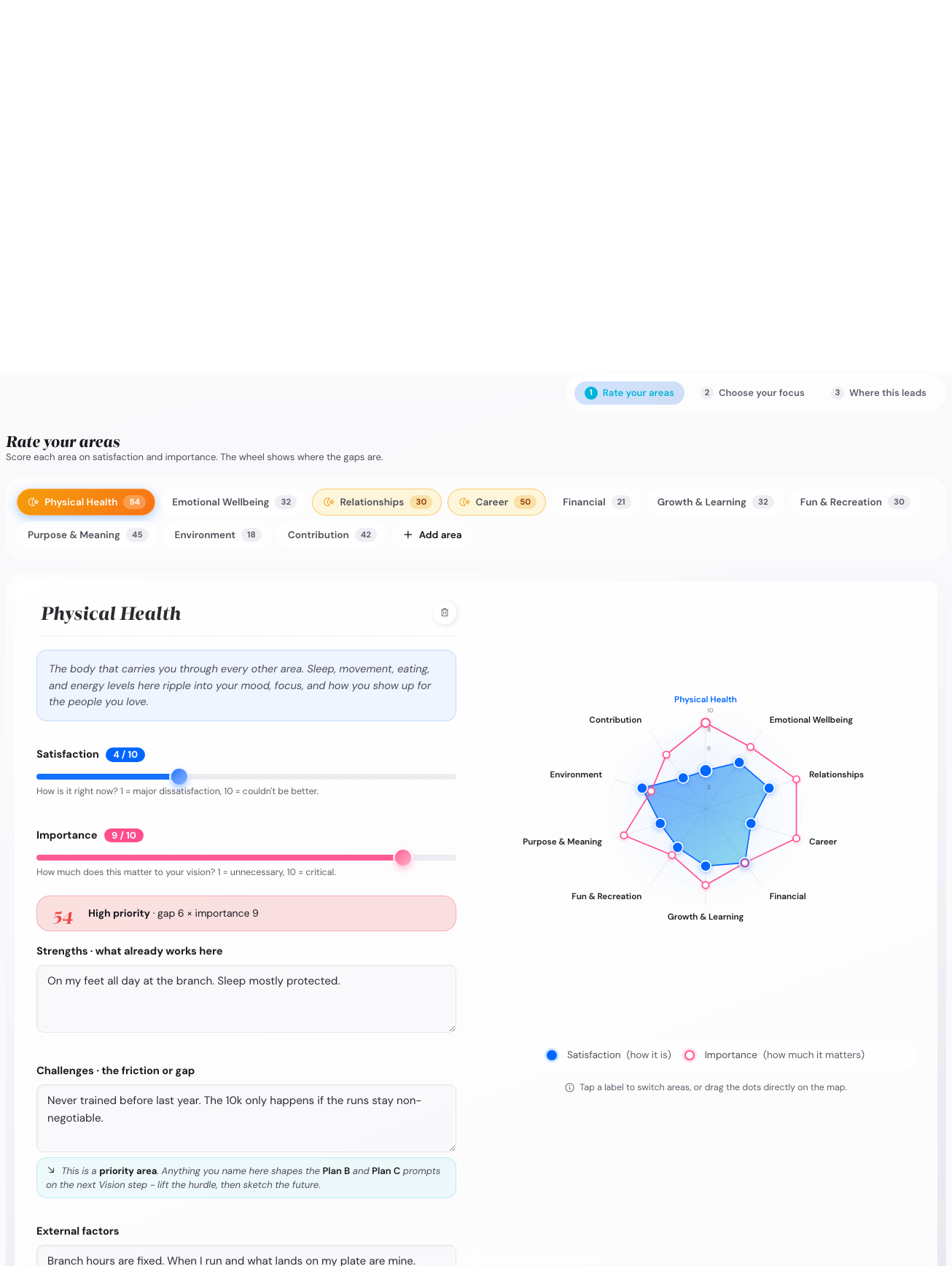
Life Areas has three tabs: Rate your areas, Choose your focus, and Where this leads. On Rate your areas, ten candidate areas each get two 0-10 sliders: satisfaction (how it is right now, shown in blue) and importance (how much it matters to you, shown in pink). The ten are Physical Health, Emotional Wellbeing, Relationships, Career, Financial, Growth & Learning, Fun & Recreation, Purpose & Meaning, Environment, and Contribution. Score where you actually are today, not where you wish you were. The satisfaction-by-importance map on the right highlights your two biggest gaps.

Don't see your category? The list is a starting point, not a fixed list. At the bottom of the area chips there is an Add area button (plus icon). Click it to add your own. Areas worth considering when none of the ten fit: Side project, Caregiving, Volunteering, Sobriety, Garden. Each custom area gets the same 0-10 sliders + focus toggle as the built-in ones. Custom areas you create stay with you across all cadence steps.

The Life Areas step with sliders for ten candidate areas
One slider per life area. Each can be marked as a focus area for the year.

Then, on Choose your focus, mark two or three as focus this year. The Life Areas Map (and the Goal Cascade you build next) will build on the focus areas. Non-focus areas stay tracked but do not get Summit Goals.

Example focus picks Health (current score 4, focus to rebuild) · Creative (current score 5, focus to ship) · Family (current score 8, focus to preserve)

Two or three, not five. The default human urge is to focus on everything. The app gently caps you at three because the planning stops working past three. If you really feel pulled in five directions, pick three this year and add the others next year.

Common pitfall. Focusing on every low-scoring area at once. Picking Health (4), Finance (3), and Creative (2) sounds responsible, but you have just signed up to rebuild three weak areas simultaneously. Pick at least one focus area where you are already strong (preserve it through the focus year) so the plan is not three weak areas at once.

Step 4 · Vision

4

Sketch one to three alternate five-year futures, then pick the one you want to walk toward

Target time: 12 minutes · the Vision step (T2A)

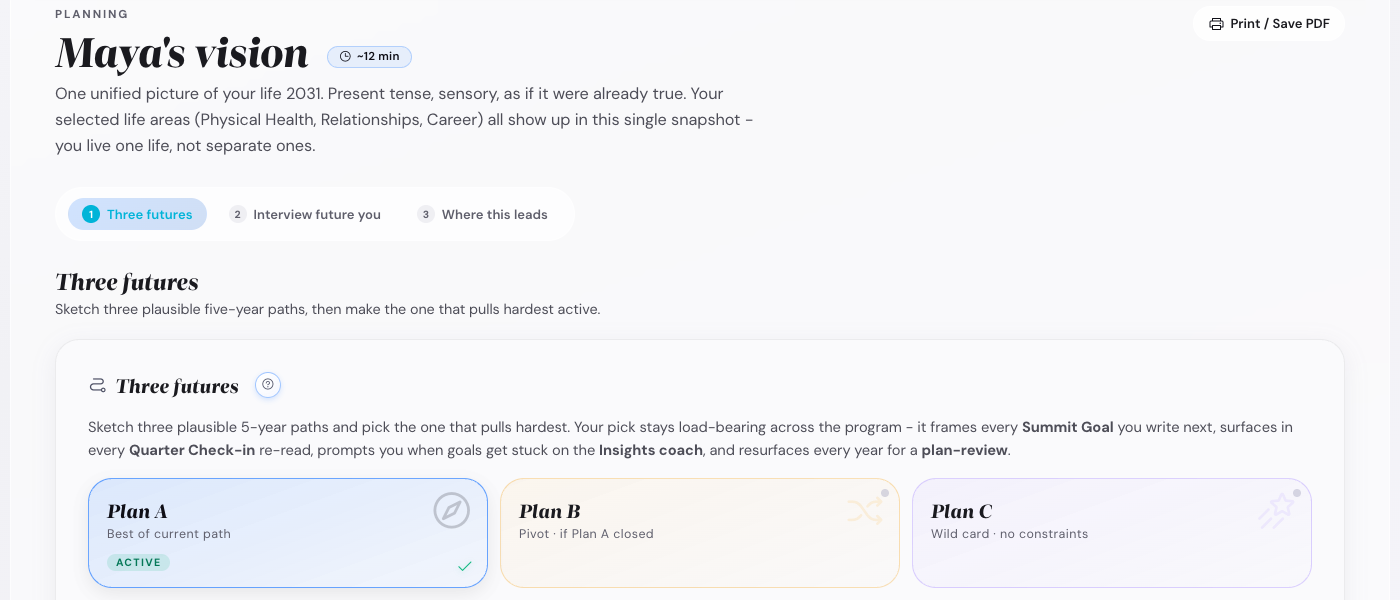
The Vision step has three tabs: Three futures, Interview future you, and Where this leads. It opens on Three futures. Plan A (the best of your current path) is always there; tap Compare three futures to sketch Plan B and Plan C beside it. Each is a short paragraph describing a plausible 5-year version of your life; they share your values, purpose, and focus areas but differ in the path. Once you have picked your active path, Interview future you turns it into one unified present-tense picture of your life five years out.

The Vision step with three alternate future tabs (Plan A, B, C)
Three plan slots, each with its own framing. You pick one to make active.
  • Plan A usually compounds what is already working.
  • Plan B is different but reachable, and it should feel uncomfortable one year out.
  • Plan C is the deliberate stretch: the one you would never choose if you were playing safe.

Write each one in present tense, as if you are already there. Then tap Make Plan X my active vision on the one you want to walk toward. The active vision is then used by every later step.

Example Plan B (active) It is May 2031. I work three days a week as a freelance product designer for climate startups, and the other two on a long-form essay practice that has a paid newsletter audience of 2,000. My weeks have a real shape. I run two short trail races each year. My partner and I host one dinner per month and travel to a new country together every spring.

The other plans are not deleted. They sit in the background as a comparison whenever you do a quarterly check-in or an annual wrap-up.

Common pitfall. Plan A only. The pattern is predictable: Plan A always reads as "keep going, but better." Without B and C as contrast, you cannot distinguish "the right plan" from "the safe plan." A test: if you can draft a Plan C that you would find uncomfortable to actually choose, you have a real choice. If you cannot, you have one option written out three times.

Step 5 · Summit Goals

5

One big-enough goal per focus area, dated and measurable

Target time: 15 minutes · the Summit Goals step (T2B)

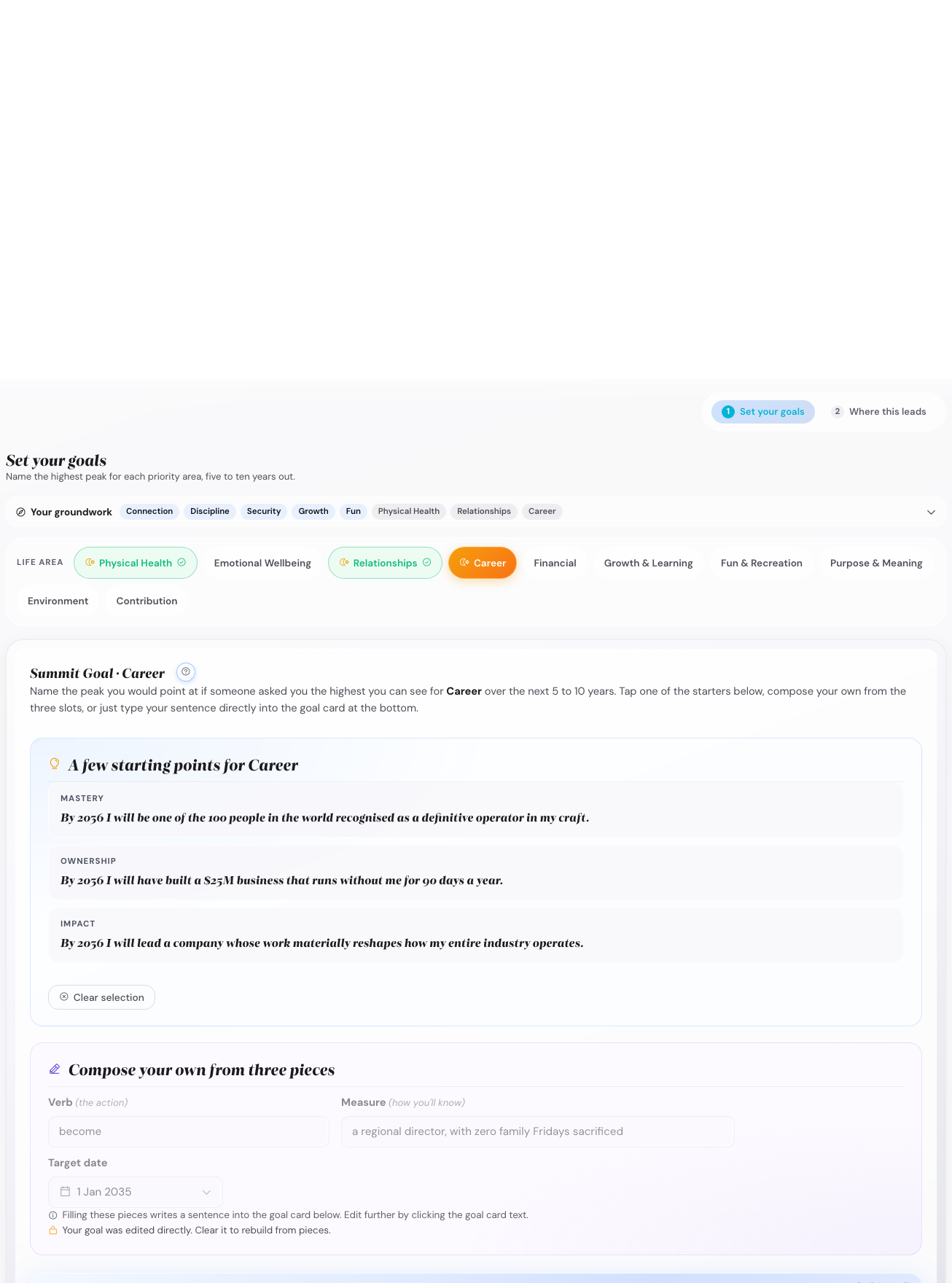
For each focus area you picked in step 3, write one Summit Goal. It has to be:

  • Outcome-shaped. "Run a sub-2:00 half marathon by Oct 2027." Not "run more."
  • Dated. A target date 12-36 months out is normal.
  • Defensible. If a friend asked "how will you know you got there?" you should have an answer.
The Summit Goals step showing dated outcome goals per focus area
One Summit per focus area. The active vision is shown at the top so you can sanity-check each Summit against it.

If your Summit points in the opposite direction from your vision, one of the two is wrong.

Example Summits (focus areas: Health, Creative, Family) · Health. Finish a 21 km trail race in under 2:15 by October 2027 with no injury setback longer than two weeks.
· Creative. Publish 12 long-form essays in 2026 and grow the newsletter list past 1,000 subscribers by December.
· Family. Hit 50 weekly family dinners in 2026 (4-week rolling average measured each Sunday).

Before you leave this step: the Where this leads tab

Open the step's last tab, Where this leads. It shows how each Summit routes down into your year, and it carries one switch worth understanding now, because it decides what step 7 starts with:

Draft annual goals from my Summit Goals, on by default. Leave it on and the app writes a first draft of this year's plan from what you just typed, so step 7 does not start on a blank page. Turn it off and every annual goal starts empty. The same switch also lives in Settings → Cadence, and switching it off later never deletes anything already drafted.

Common pitfall. Summits that are actually habits. The one-question test: can you do your Summit today, and again tomorrow, and again the next day? If yes, it is a habit. A Summit can only be done on a specific date, with specific evidence that it is done. "Meditate daily" fails. "Complete a 10-day silent retreat by June 2027" passes. The habit feeds the Summit; they are not the same thing.

Step 6 · Habits cascade

6

The supporting habits that make each Summit Goal easier to reach

Target time: 10 minutes · a thinking step (you will enter these in the Habit Garden at step 8)

For each Summit Goal, name one or two habits that, if done consistently, would make hitting the goal almost inevitable. A habit is not the goal. The Summit is the outcome; the habit is the daily input.

Each habit gets a Trigger / Action / Reward. Trigger is when. Action is the smallest version of the thing. Reward is what you give yourself when it is done.

Example habit for the half-marathon Summit Action: 30-minute easy run, four mornings per week.
Trigger: Right after my morning coffee, shoes already by the door the night before.
Reward: Mark the habit done in the Habit Garden + black coffee at the cafe on Saturday long-run days.

One or two habits per Summit, not six. One habit you keep does more than five you do not. The two-day rule in the app catches drift: miss one day and nothing happens, miss two and it flags you.

Common pitfall. The trigger field stays empty. The research finding is worth repeating: people who write "I will X when Y happens" follow through 2-3x more often than people who just intend to X (Gollwitzer's implementation-intention studies, replicated in dozens of domains since 1999). The trigger field is not decoration. It is what decides whether you still do the habit in March.

Step 7 · Execute setup

7

Cascade your year down to a first-quarter plan, then a first-week plan

Target time: 10 minutes · the Execute step (T3X)

The Execute step has five tabs along the top: Year, Quarter, Month, Week, Day. Start at Year and work down.

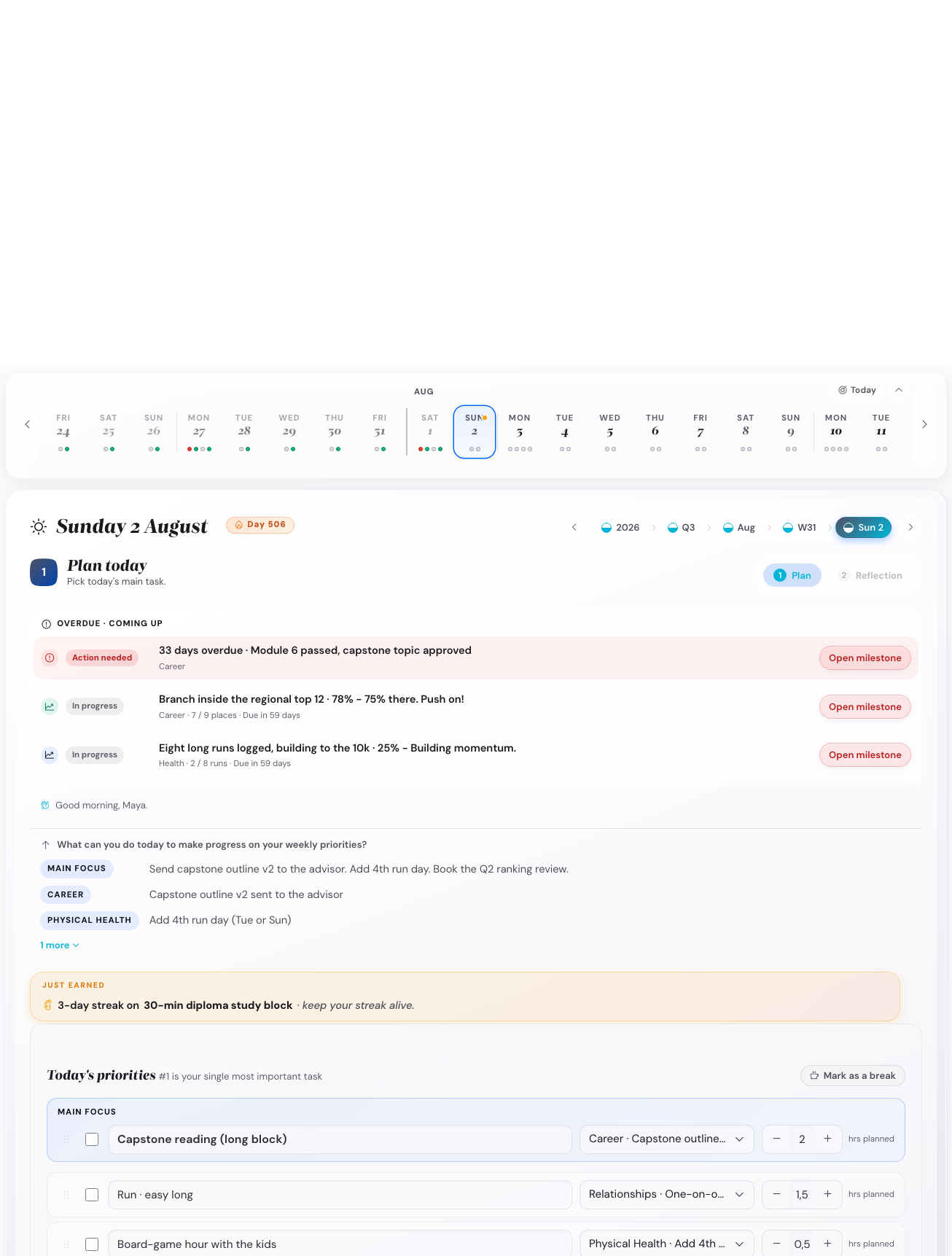
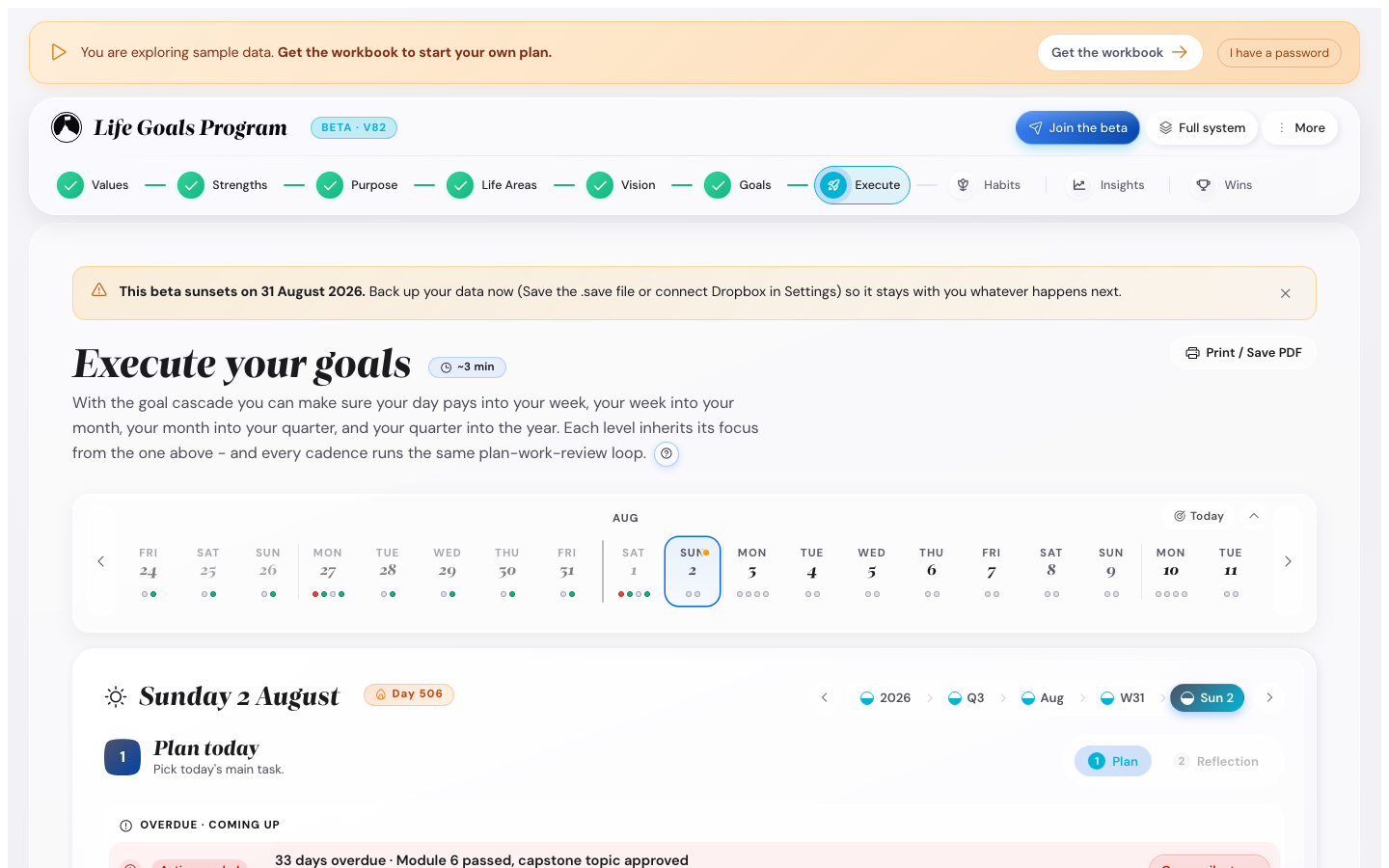
The Execute view date strip showing days with dots indicating activity
The Execute view's day strip. Dots underneath days mark scheduled activity.
The Execute view week plan panel showing milestones, coming-up items, and a year-overview prompt
The week panel shows the cascade in action: milestones carried down from the Year and Quarter views.

The five cadence chips at the top of the Execute step (Year, Quarter, Month, Week, Day) switch the panel view in place. Each one shows the cascade at that level. Swipe through the views below to compare.

← swipe to compare cadence views →
Execute Today view with daily check-in card
Today · your three priorities + habits + reflection
Execute Week view with weekly plan and milestones
Week · three to five week priorities pulled from the month
Execute Quarter view with Q2 plan card and 12-week focus milestones
Quarter · the 12-week focus block with milestones per focus area
Execute Year view with annual goals overview
Year · the long view, milestones across all four quarters

First: what is already on the page

Unless you switched drafting off in step 5, Execute → Year is not empty when you arrive. For every focus area that has a Summit Goal, the app has written a first draft: one annual goal, worded from your Summit, plus a checkpoint at the end of each remaining quarter.

  • Drafts look like drafts. Anything in the app's words shows in muted grey, and a short note above the checkpoint list says how many are still drafts. The moment you type over one it becomes yours: the grey goes and the note stops counting it.
  • You may have fewer checkpoints than you expect, or none at all. A checkpoint is only drafted when at least two months of the year are still ahead of you, because a target six weeks out is not enough time to move an annual goal. Starting in January gives you three, June gives you one, and September gives you none. Nothing is ever placed at the end of December, because the Annual wrap-up already closes the year. If you got none, the Milestones tab says so and invites you to write your own. That is the rule working.
  • Read it as a starting point, not a decision. The fastest way through this step is to fix the wording rather than to delete everything and start over.

What to do with each drafted card, in order:

  1. On the card's first tab, click into the Objective box and type over it so it says what you actually mean, in your words rather than your Summit's.
  2. Open the Milestones tab. Give each checkpoint a real name in place of "Q3 checkpoint", and a success measure if you have one.
  3. Change the date if the quarter end is not the moment that actually matters.
  4. Use the trash icon on any row you do not want, and Add milestone to write one of your own.

Then: the five levels

  • Year opens on the Annual goals tab. Each goal is numbered on screen, Goal 1, Goal 2, Goal 3, with its life area beside it, so three goals on one screen stay easy to tell apart. Break each Summit into up to three annual goals per focus area. Each annual goal sits on its own card with three tabs: The goal, Friction Map, and Milestones, where you name the milestones and their dates. (The second year tab, Annual wrap-up, stays locked until you lock the year's plan.)
  • Quarter has three tabs: Slice the year, Monthly priorities, and Check-in. On Slice the year, name a theme for the quarter, then tick the milestones you commit to (a goal you count, like three runs, gets a three-cell split across the months). On Monthly priorities, everything you committed waits in an Unplaced tray you place into each month.
  • Month carries in three lanes from the quarter: Main focus (up to two, plus a lighter stretch slot, or a third when a third genuinely is the point), Milestones this month, and Small goals you keep ticking.
  • Week turns the month's focus into a week's set of 3-5 priority tasks.
  • Day is the smallest unit: pick today's three priority tasks from the week list.

You only need to fill out Year, Quarter, and Week for this first session. Month and Day will populate automatically as the cadence starts running.

What happens when you skip a level, which you will on day one

Because you are filling Year, Quarter and Week and leaving Month empty, the week screen will tell you so. That is intended, and it is worth knowing what you are looking at:

  • It names what is missing, in plain words. "No monthly goals set yet, so this week has nothing closer to connect to." If more than one level is empty it names all of them rather than only the nearest.
  • It shows the nearest level that does have something as a labelled stand-in, so the screen still tells you what this week is in service of.
  • It offers a button to the missing level. The button goes to the level it names. Taking it is optional: this is a recommendation, never a gate. You can plan and run a week with no month behind it, and the app will keep saying so until you fill it in.

Three special cards on the Year level

As your year fills in, the Execute → Year tab and its Annual wrap-up surface three extra cards:

  • Summit Anchor sits at the end of the Annual wrap-up. It reminds you of the long-term vision your year-Summits come from. Click to re-read.
  • Plan-Review panel appears on the Year overview once the active vision has been in place ~9 months. It asks whether this is still the plan you want most, or whether that has changed, and offers a Switch plan link back to the Vision step. It helps you catch vision drift early.
  • Loose Ends surfaces milestones that have been Amber or Red for 30+ days without action, with an amber wash that reads as "needs attention." Three buttons per loose end: rescue, reschedule, retire.

None of these appear in the first session; they show up as your year accumulates data.

The cascade is the Goal Cascade in action. Each level inherits from the one above. If you change a milestone in Year, the app flags the Quarter view that depends on it ("you changed your Year plan, review Quarter when ready"). That amber flag is called the upstream-change ripple.

Common pitfall. Overpopulating the Week tab on day one. You will be tempted to fill in 15 priority tasks for next week. Stop at 5. The week's priorities are the ones you would do if everything else went wrong, not the things you wish you would do.

Step 8 · Habit Garden

8

Set the daily inputs that feed your Summits

Target time: 10 minutes · the Habit Garden step (T4A)

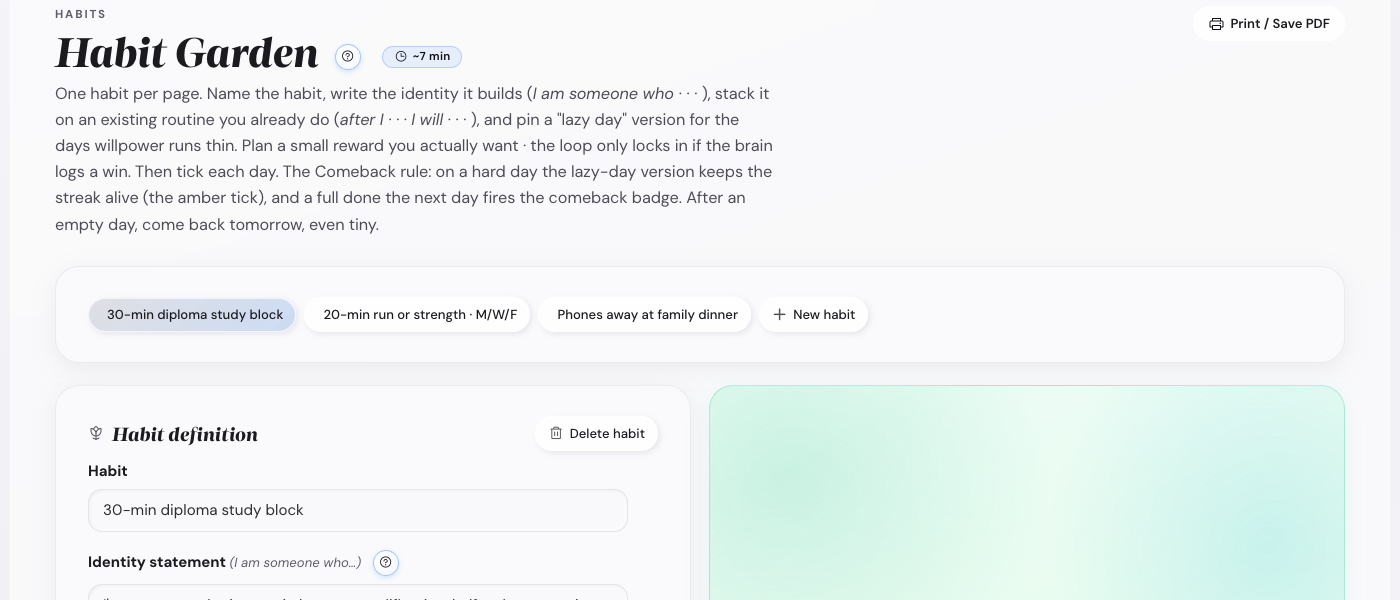
The Habit Garden takes the one-or-two-habit-per-Summit list from step 6 and turns each into a daily tracker.

The Habit Garden showing daily habit rows with cadence and lazy-day fields
The Habit Garden. Each row carries the action, the cadence, and the lazy-day version.

For each habit you set:

  • The action (already drafted in step 6).
  • The cadence (daily / weekdays / weekends / Mon-Wed-Fri / etc.).
  • The lazy-day version (the smallest acceptable action when you cannot do the full thing).

The Lazy Day version matters. It is the difference between "I missed today" and "I shrunk today." For a 30-minute run habit, the lazy day might be "10-minute walk + 5 push-ups." That keeps the streak honest without forcing perfection.

Calling it a Garden is also not decoration. Habits need soil (the trigger context that already exists in your day, like the morning coffee), sun (the cadence you can keep without dreading it), water (the lazy-day version you fall back on in a bad week), and weeding (the willingness to archive a habit that is not working without calling it failure). A Garden in February is not a failed Garden. Less grows in winter, and that is normal.

Example habit row 30-min easy run · Mon-Fri · Lazy day: 10-min walk + 5 push-ups

Common pitfall. No lazy-day version, or a lazy version that is still too ambitious. If your lazy day for a 1,000-word writing habit is "300 words," that is still hard on a sick day. Better: "voice memo, one minute." The lazy day exists so the streak never has to break.

Step 9 · First daily reflection

9

End the session with the daily rhythm you will run from tomorrow

Target time: 5 minutes · the Execute step (T3X), Day tab

Jump to Execute → Day. The Day view has two tabs: Plan and Reflection. On Plan you set three priority tasks and see your habits row (the ones you just set up); lock the plan and the Reflection tab opens for the end-of-day note.

On Plan, fill in three priorities for tomorrow (not today, since today is mostly done) and check off any habits you already did today. Then open Reflection and leave it blank or write one line about how this session felt.

The one new thing on this screen: your daily value anchor

Above the work there is now a line naming one of the five values you ranked in step 1, with a suggestion for bringing it into what you planned. It is the only place your values appear in an ordinary day, and it works like this:

  • It rotates. A different one of your top five each day, not always your number one, and the wording is drawn from twenty prompts so you do not stop reading it.
  • The reflection asks one thing about it. A single tick: did you bring that value into the day. There is nothing to write.
  • Blank is not a no. A day you never answered counts as unanswered, not as a failure. A blank day never counts against you.
  • The value is stored with that day. If you re-rank your values in three months, tomorrow's anchor changes and your history does not get quietly rewritten.
  • After a few months it becomes the useful part. The ticks show which of your values you are living and which ones you keep leaving out. A value you ranked highly and almost never tick usually points back at your Life Areas rather than at the value.

If you would rather not have it: hover the line and click the small cross, or switch it off under Settings → Cadence → Daily value anchor.

You are done with the first session. Tap topbar Save to download a backup, then close the tab. Do not expect the reflection to feel worth doing on day one. It is a habit like any other: the first week is you building it, and the part people tend to keep coming back for, the Insights chart, needs a few weeks of data before it shows anything.


What happens tomorrow

Open the app. The password gate is gone (it remembered you). The app lands you on the Day view because that is where the cadence starts.

Five minutes:

  1. Check off the habits you did.
  2. Write one line about yesterday in the reflection box.
  3. Pick today's three priority tasks (or accept the three you set yesterday).

That is it. Close the tab. The next bigger session is Sunday's weekly reflection (10 minutes).

The weekly reflection card with wins, challenges, and next-week priorities
The Sunday card prompts wins, challenge, and the coming week's priorities.

And at the end of each quarter

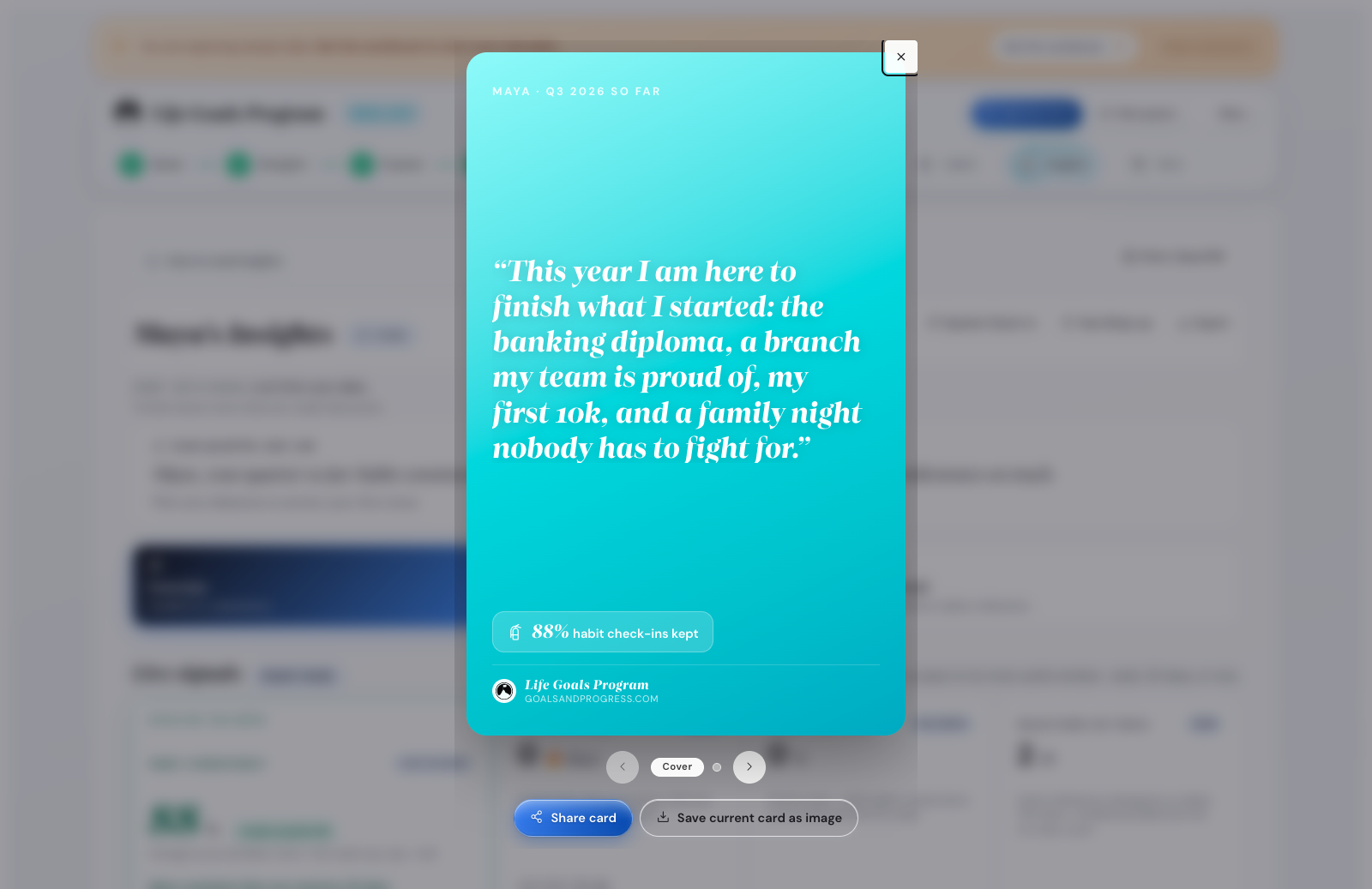
At the end of each quarter, open Execute → Quarter → Check-in. The Check-in tab unlocks once you have locked the quarter's plan. Re-read the active vision banner, rate the quarter, review your measures and milestones, and set the next quarter's focus. About 60 minutes. For a shareable recap, the Insights step's Quarter Check-in button builds a card you can save as an image from the same data.

The Quarter Check-in poster-grade recap of milestones, traffic-light scores, and a re-read vision banner
The Quarter Check-in poster. Built from the Insights step and saved as an image.

Special cases

The nine steps above describe the straight path. These are the situations that come up often enough to be worth naming, with what the app does and what you should do about it.

You are starting in the second half of the year

This is the most common one, and it changes what step 7 looks like. The app drafts a checkpoint only where at least two months of the year are still ahead, so a July start gets one and a September start gets none at all. The Milestones tab says so and invites you to add your own.

What to do: do not try to squeeze a year's plan into the months that are left. Write annual goals that are honestly sized for the remaining time, and treat the first Annual wrap-up as a short chapter rather than a full year. It does not matter that you joined in August. What matters is that the level above the one you are working on says something true.

You would rather start from a blank page

Switch off Draft annual goals from my Summit Goals, either on the Summit Goals step's Where this leads tab or in Settings → Cadence. Every annual goal then starts empty.

Switching it off later never deletes anything already drafted, so if you want a clean page you also need to clear what is there. Switching it back on drafts goals for any year that does not have them yet, and leaves years that do alone.

You already have a checkpoint that was overdue the day you got it

If you were using an earlier version, you may be carrying a checkpoint dated before you ever arrived. This update removes it and puts a reachable one in its place.

What survives untouched: anything you made yours. If you renamed a checkpoint, changed its date, graded it, or gave it a success measure, a note or a target, it is treated as your data and left exactly as it is, even when its date is in the past. Only untouched drafts that were impossible from the start are replaced.

You want to plan a week or a day with nothing above it

Allowed, and the app will say so rather than block you. The screen names every level that is empty, shows the nearest level that does have something as a stand-in, and offers a button to the missing level. Take the button or ignore it. The message is a recommendation, not a gate, and it will keep appearing until the level above says something.

You want to redo a step you already did

You re-rank your values months later

Tomorrow's daily anchor follows the new ranking. Days you already recorded keep the value they were actually anchored to, so your history stays a record of what happened rather than a recalculation of what would have happened. Nothing you have ticked is lost.

You are going to be away, or you already have been

A small line on a planning screen is not helping you

Hover it and click the small cross on its right. It goes for good, not just for this session, and Settings → Cadence → Hidden messages lists what you have hidden and restores everything with one button.

Overdue milestones, the coming-up list and the break notice have no cross on purpose. Those are the state of your plan rather than messages. If an overdue milestone is wrong, the fix is to open it and change the date. Every row has an Open milestone button that takes you straight there from whichever tab you are on.

None of the ten life areas is the one that matters to you

The ten are a starting point, not a fixed list. Use Add area at the bottom of the area chips in step 3. A custom area gets the same two sliders and the same focus toggle as the built-in ones, and it appears at every cadence level.

You want to see a finished plan before building your own

More menu → Load demo data opens a fully populated multi-year plan you can click through. Back to my data returns you to yours. The demo never touches your own plan.

You are doing this on a phone

Everything works, but the first session is a laptop job: you are typing paragraphs into Vision and Summit Goals. Do the setup on a desktop and run the daily and weekly rhythm on the phone, which is what the small-screen layout is built for. Tabs you are not on shrink to plain numbers so no row ever wraps.

If you got stuck

The five most common first-session mistakes

  1. Picking five focus areas. The cap is three, because the planning stops working past that.
  2. Writing Summits that are really habits. Outcome vs input. Re-read step 5.
  3. Skipping Vision because it feels vague. The Vision is what makes a Summit worth doing. Without it you usually lose interest by month three.
  4. No lazy-day version for any habit. One bad week ends the streak. The lazy version is what you do instead.
  5. Trying to fill in Year + Quarter + Month + Week + Day all on day one. You only need Year + Quarter + Week. Month and Day fill in as the cadence runs.