Use the app on your phone
Your phone shows the same plan as your computer.
On this page
Move between the four tabs
The bottom of the screen has four tabs.
- On Home, see your next step and your whole plan.
- On Execute, plan your day, week, month, quarter and year.
- On Habits, check off your habits by day, week or year.
- On Insights, see how your weeks are going.
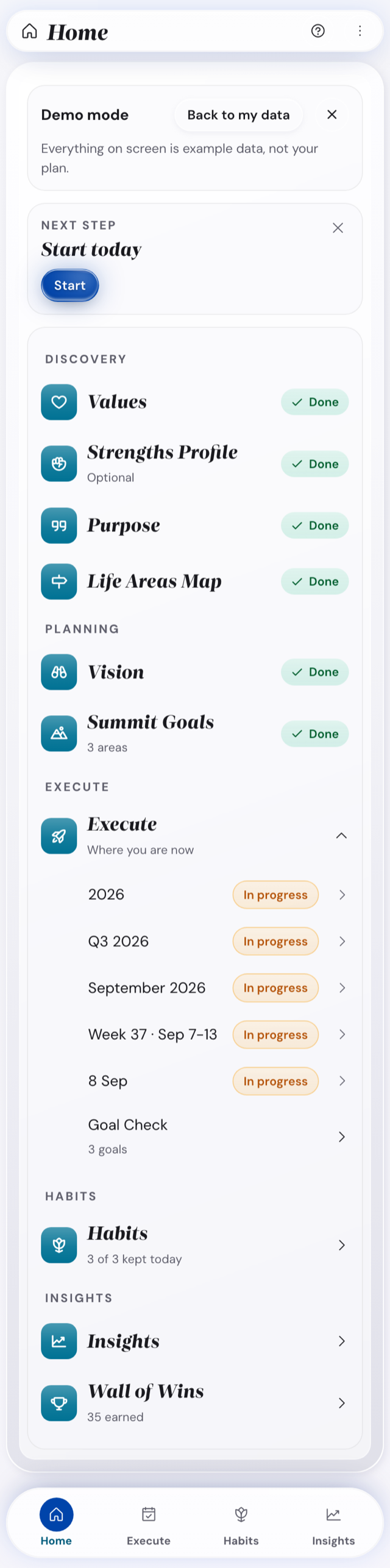
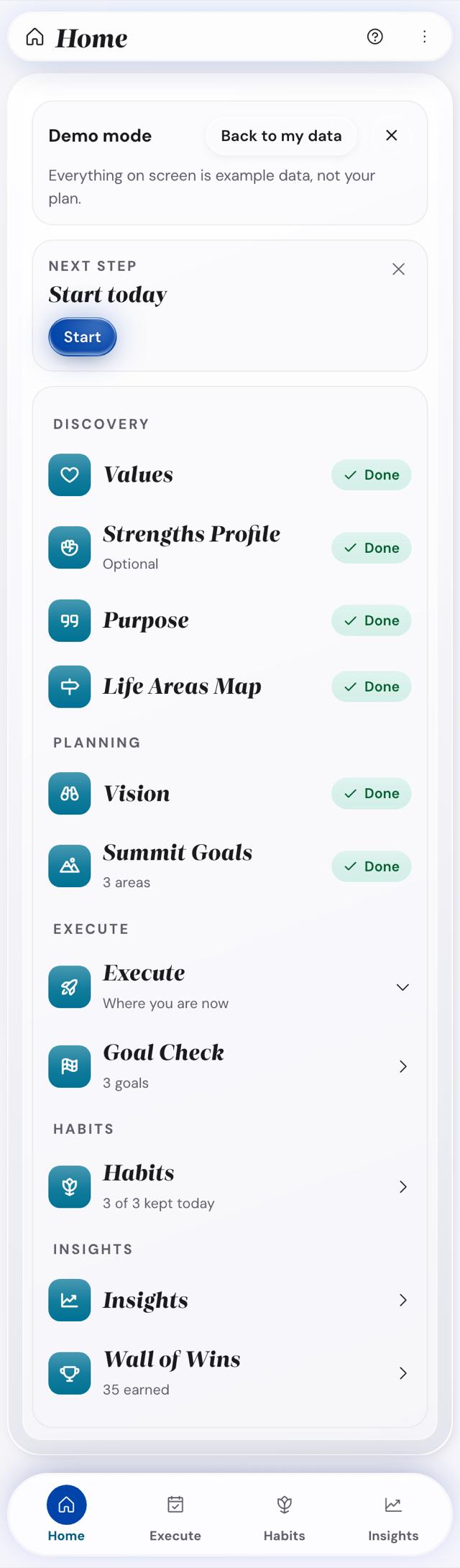
Find your next step
Every screen shows what to do next. On Home it is the first card. On the other screens, one button at the bottom takes you there.
Add the app to your home screen
An installed app opens full screen and has storage of its own on the device.
On an iPhone or iPad
- Tap More.
- Tap Save.
- In Safari, tap the share button, the square with the arrow.
- Choose Add to Home Screen.
- Open the new icon.
- Paste your code into the box and tap Unlock.
- Tap I have used the app before.
- Tap Load.
- Pick the file you downloaded.
The new icon opens with nothing in it until you load that file. That is normal.
On an Android phone
- Tap More, then Settings, then Profile & access.
- Tap Install app.
- Confirm in the box your browser opens.
The app then starts from its own icon, like any other app.
Keep your plan safe on a phone
Your plan stays on your device. On an iPhone or iPad, the browser deletes it after 7 days without a visit.
- In More, open Settings, then Data & backups, to see where your plan is.
- To get a daily reminder, turn on Remind me to download it.
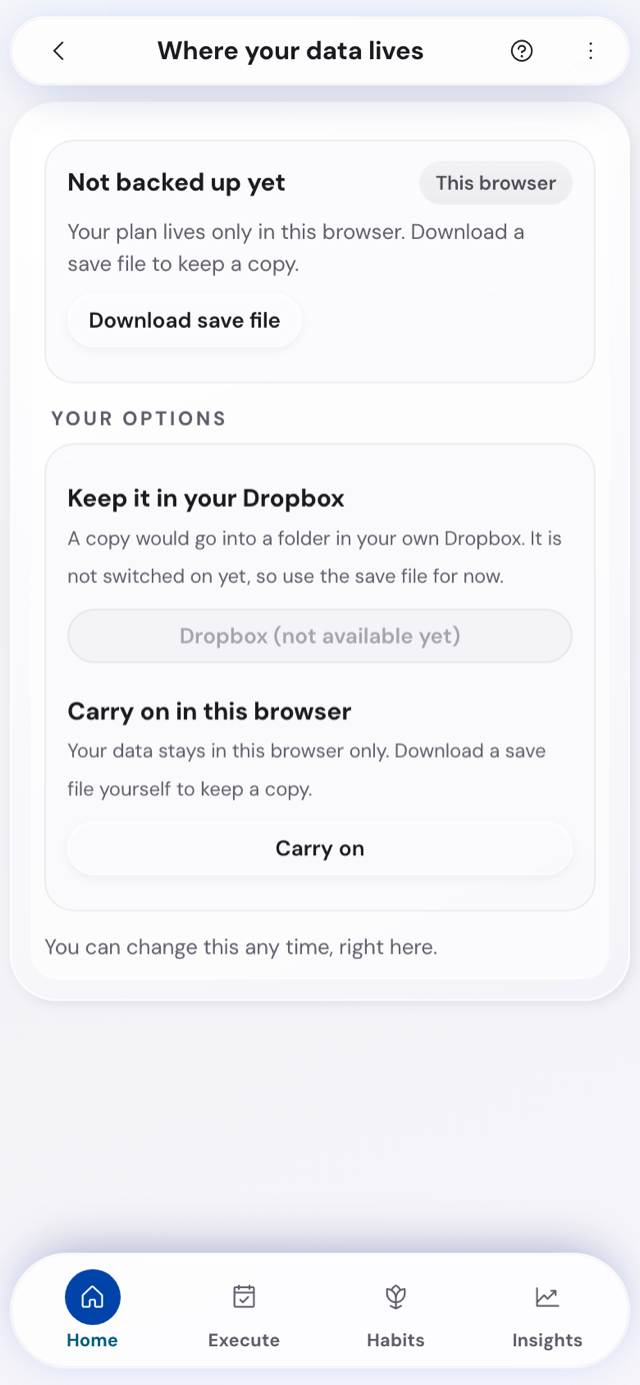
The installed app keeps your plan more safely than a browser tab. A save file on your computer is safer still. Do both.