Get started with the Life Goals App in ten minutes
You see a finished plan first, then you save your own backup. Go to the quick start.
Before you start. Pick the line that fits you.
- If you have no access yet, open the product page to join the beta.
- If you own the workbook, you get the app free during the beta.
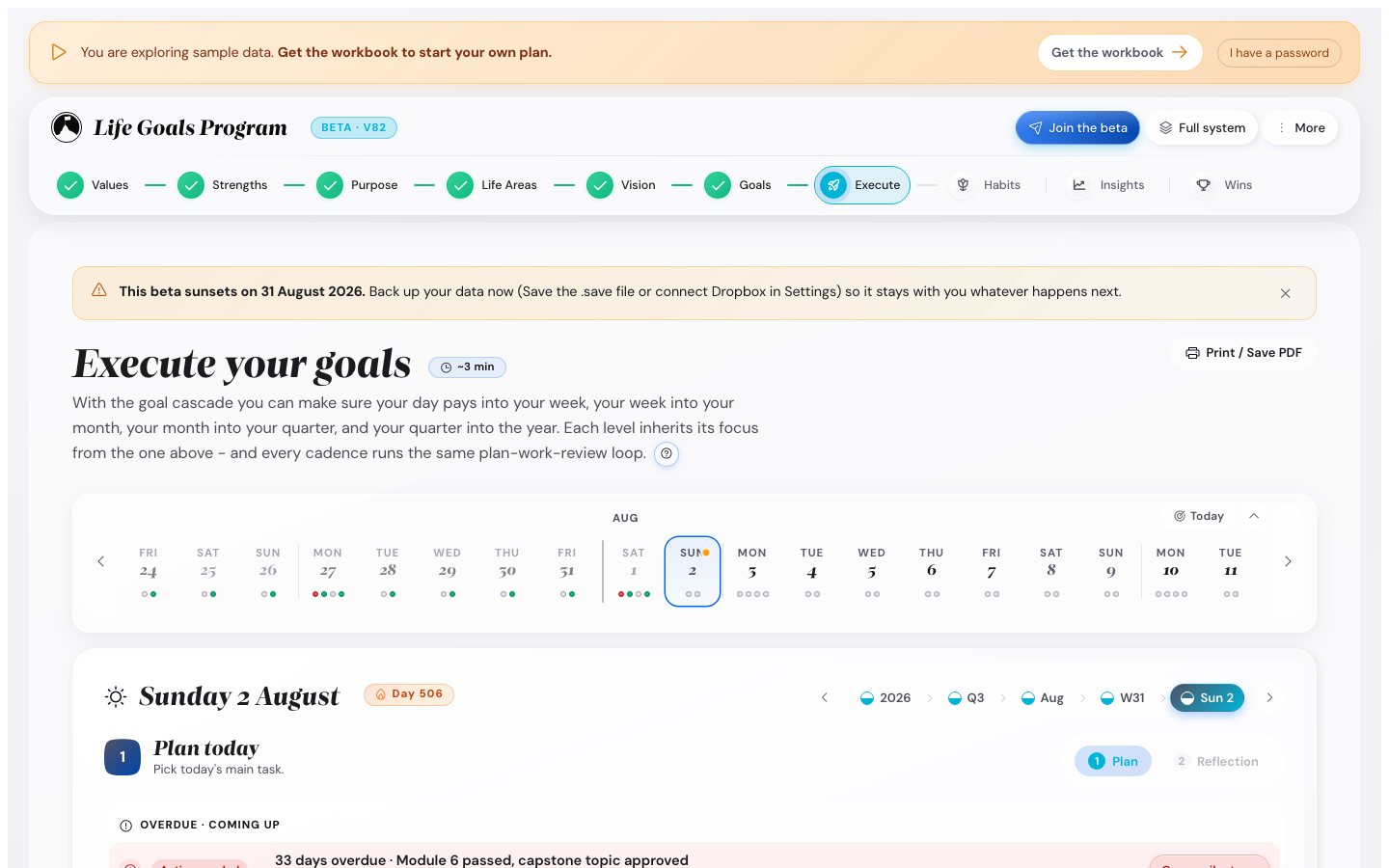
See what the app looks like
Swipe through the pictures to see each step of the plan.
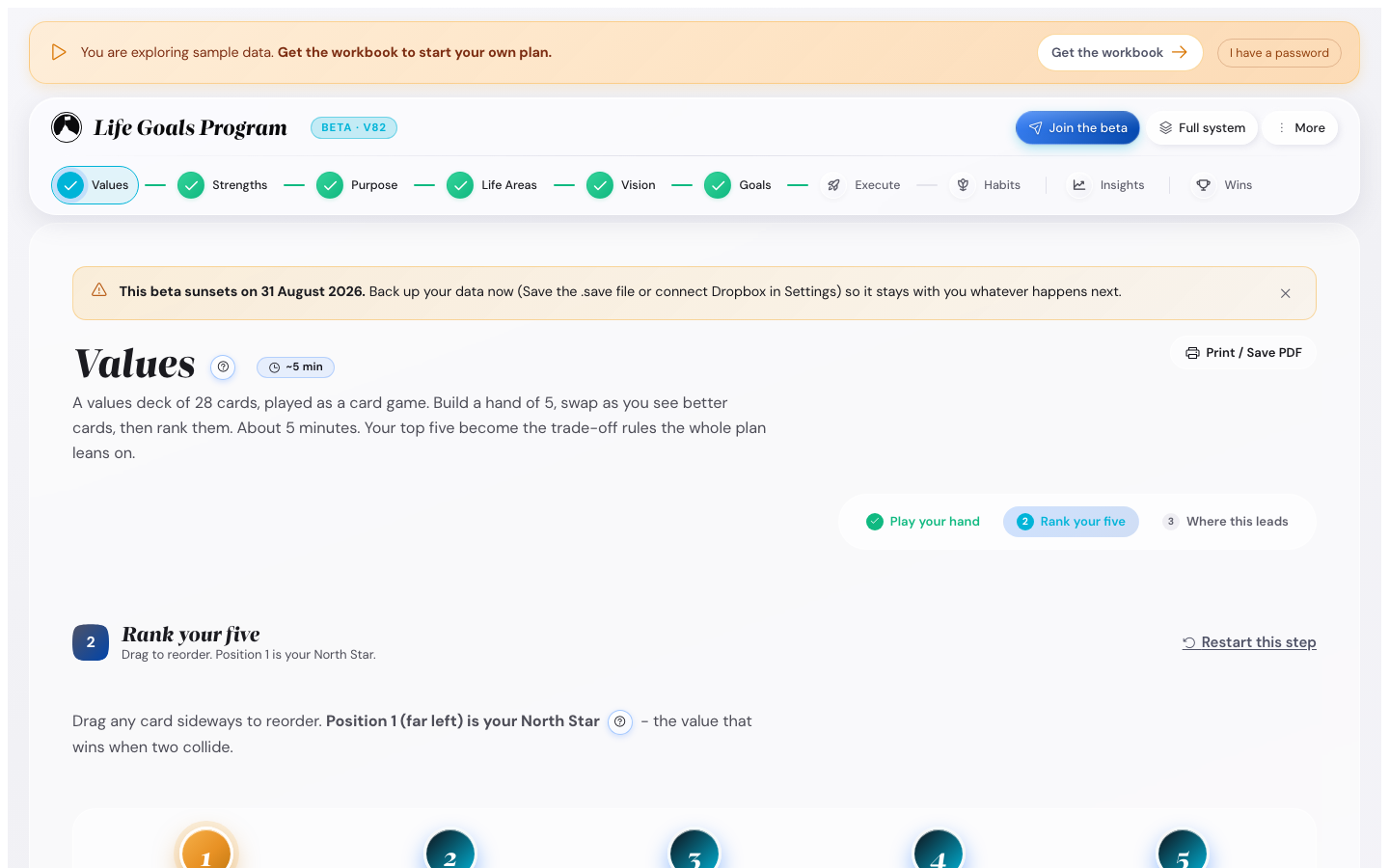
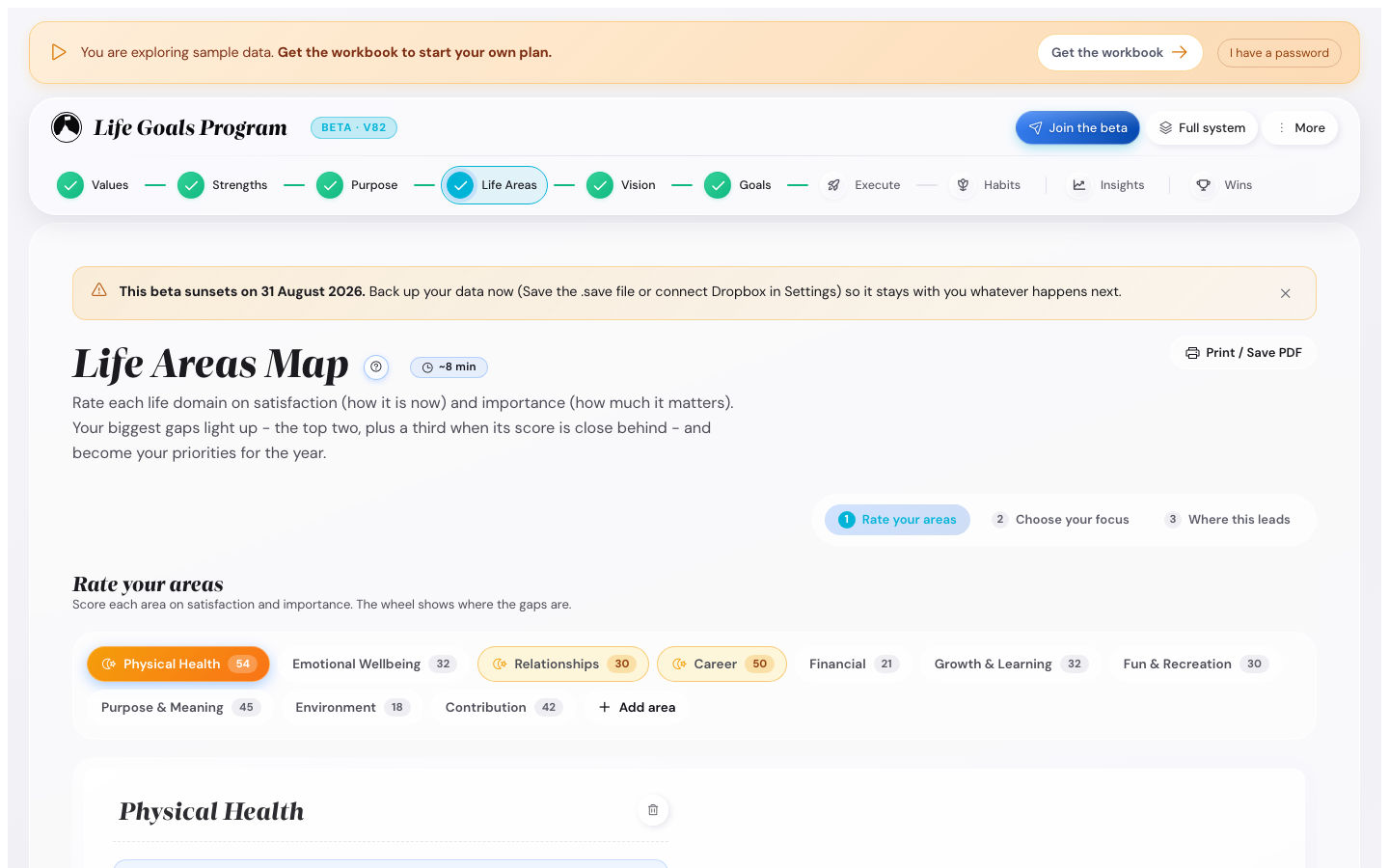
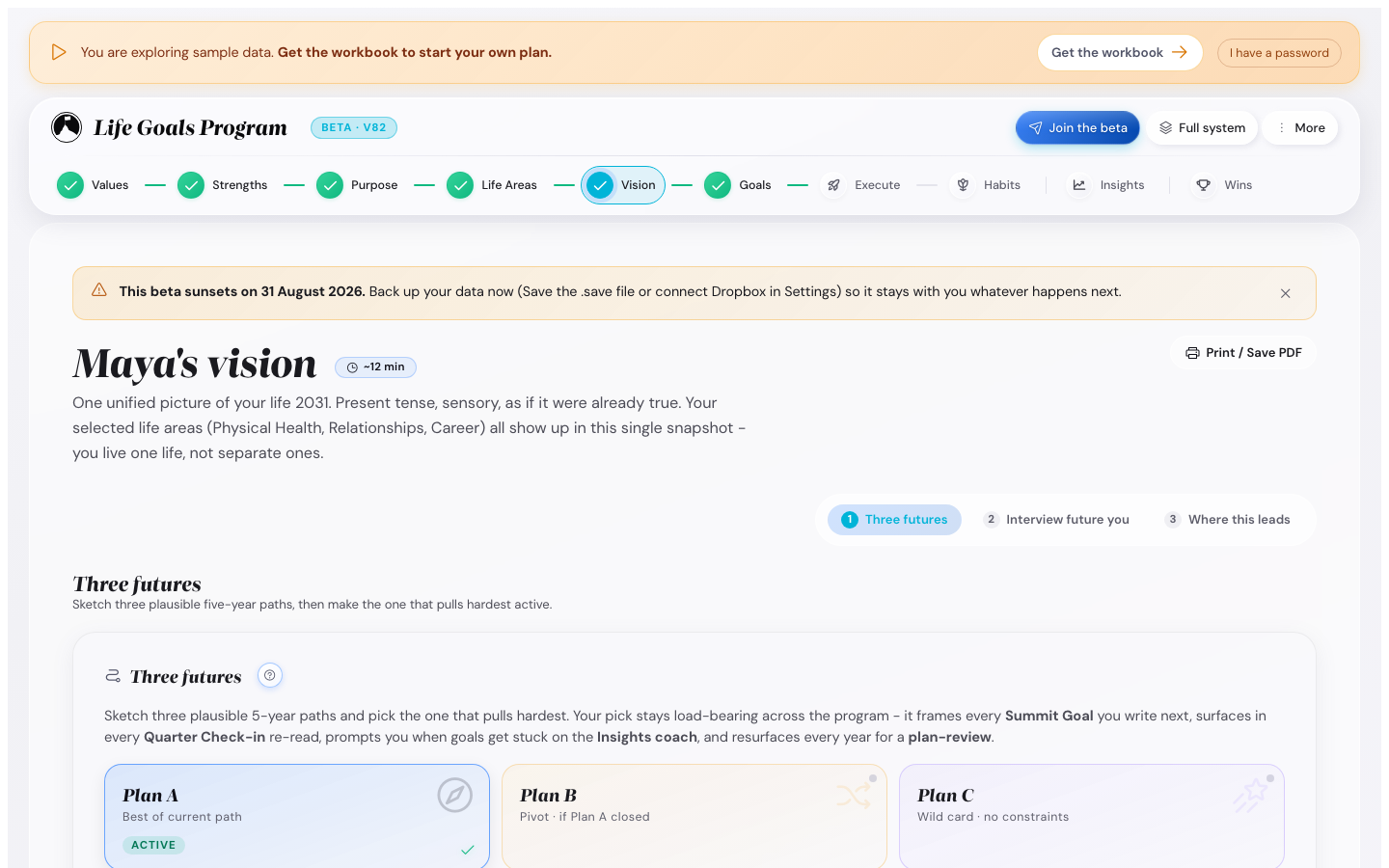
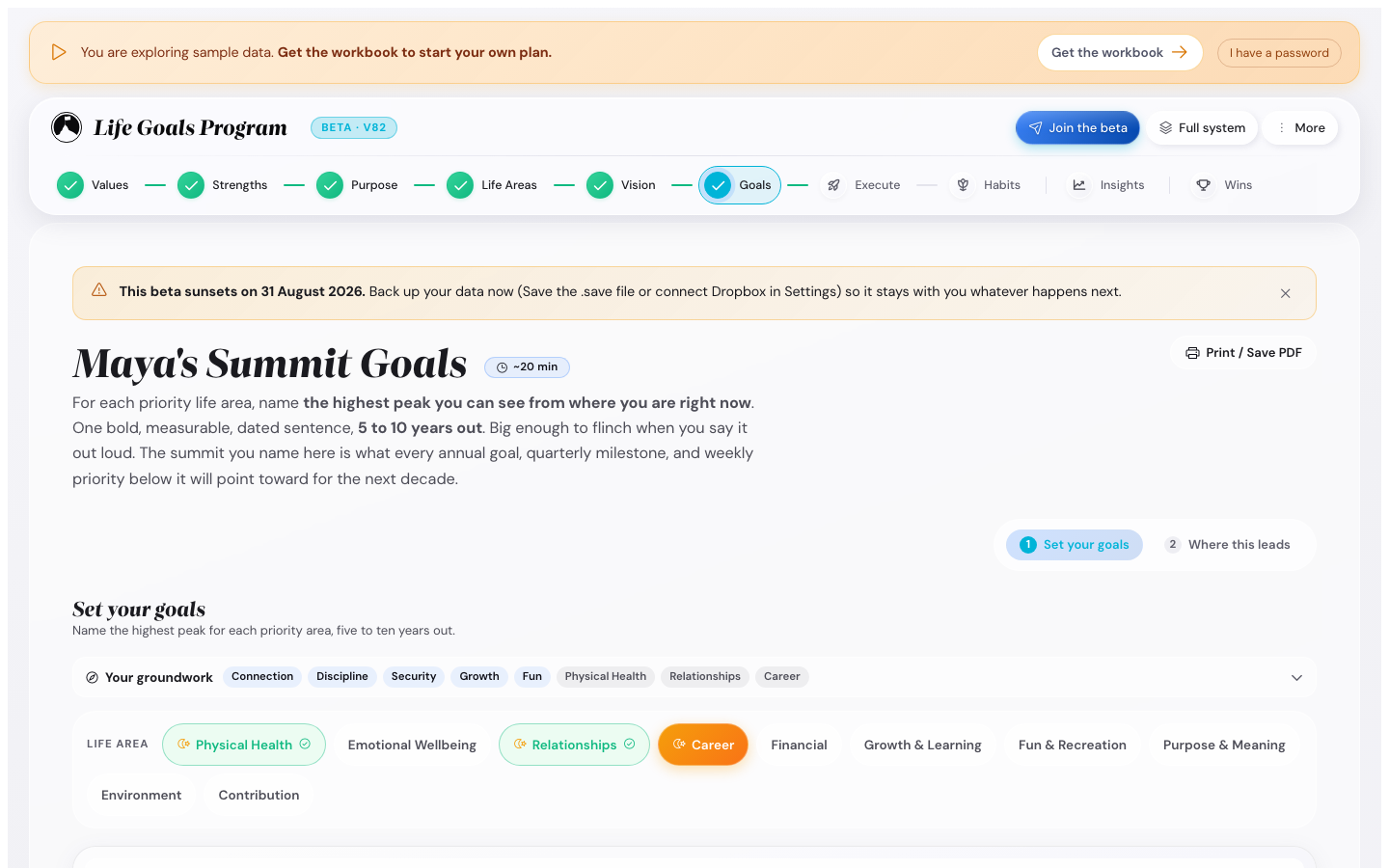
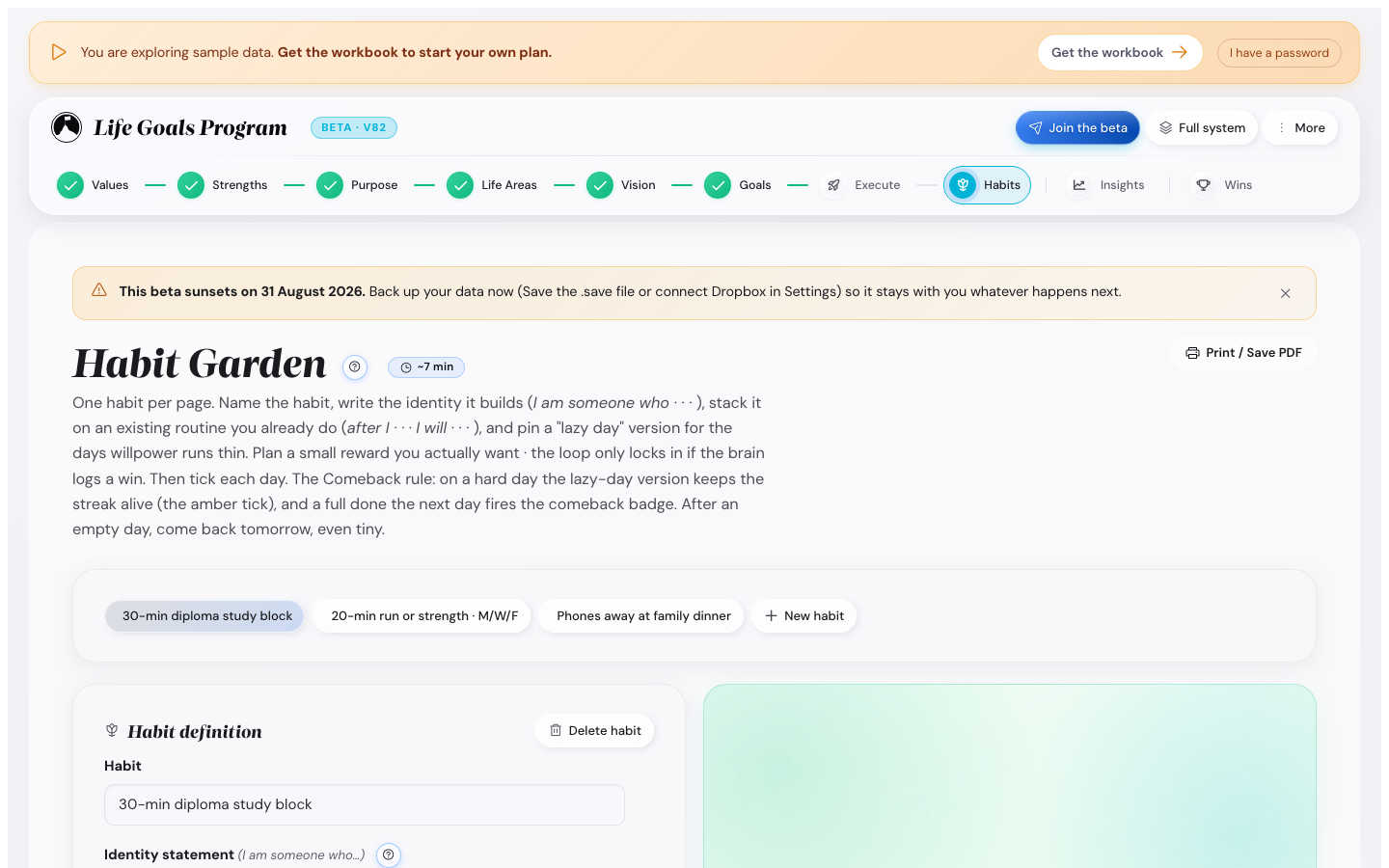
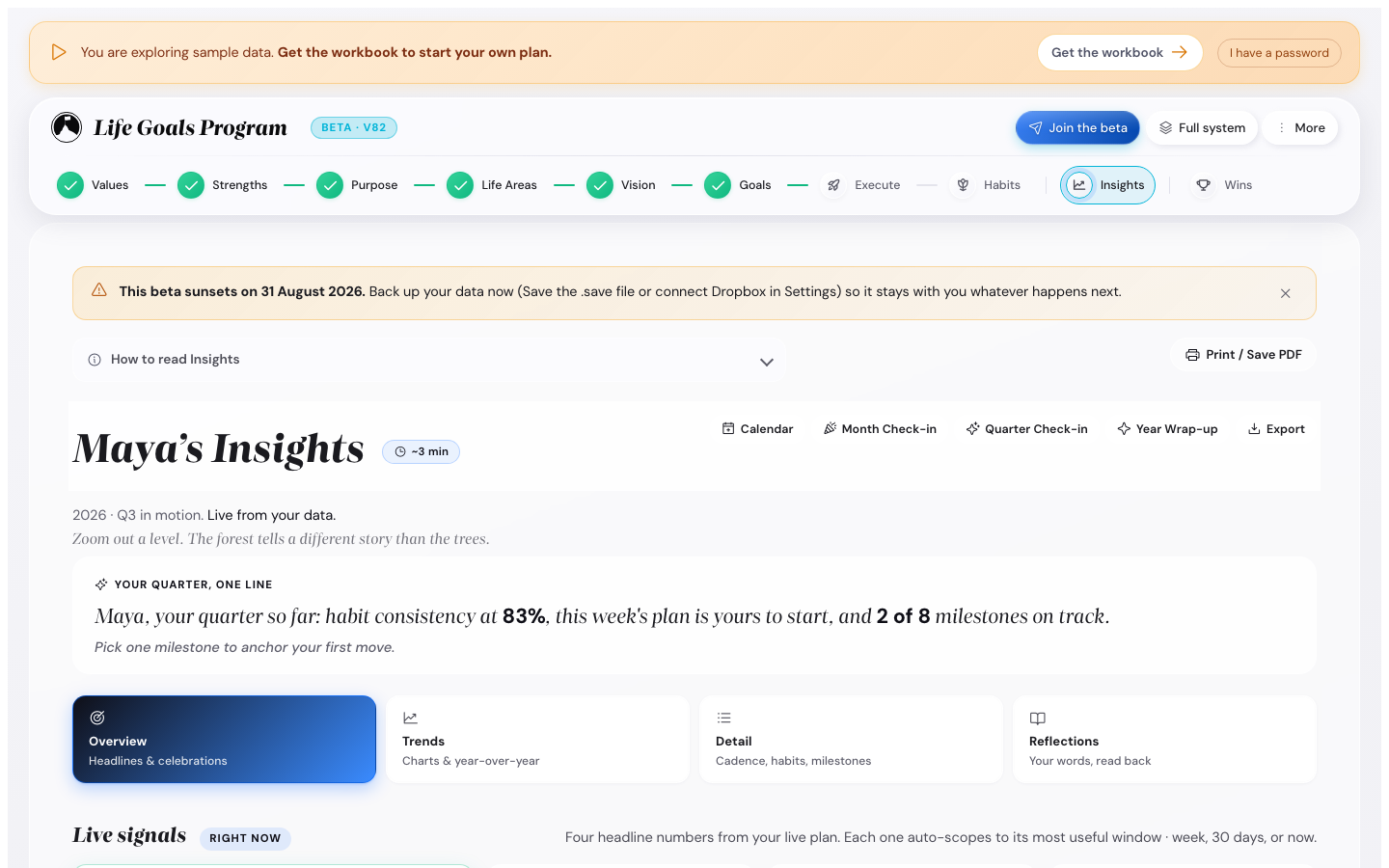
Open the page you need
You can open these in any order.
How do I… →
Short answers: where to start, how to catch up after missed days, how to track habits, how to retire a goal.
Set up your plan in one session →
Your first session, step by step, with a picture and a note at each step.
See six finished plans →
Career pivot, health rebuild, creative launch, sabbatical, finance focus, comeback year.
Read the ideas behind each step →
The eleven methods the app uses, in plain words, and where each one shows up.
Plan your day, week, month, quarter and year →
The five cycles, from daily to yearly: how long each takes and where you do it.
Find your way around the screen →
Every part of the screen: top bar, Next step card, Jump to any screen, More menu, dark mode.
Change your settings →
Colour themes, when you plan, calendar export, demo mode, save and load.
Try the app in ten minutes
Four steps. At the end you have seen a finished plan and saved a backup.
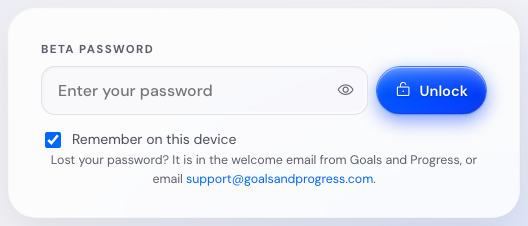
Open the app with your licence code
- Paste the code from your Gumroad receipt into Your licence code.
- Press Unlock.
Your beta password works in the same box until 5 November 2026.
The app keeps your code in this browser, so you enter it once.
Go through the welcome guide
The welcome guide runs the first time you use the app. Its first page has two buttons. Press I'm new here and step through its pages. The last page takes you to Values.
Used the app before? Press I have used the app before, then Restore from Dropbox or Load. When your plan is back, press Open my plan.
Try the demo
- On a computer, open Settings and its Your data tab. Press Try the demo.
- On a phone, tap More, then Try the demo.
In the window, press Start the demo. You are in a filled-in plan now, and your own plan stays untouched.

To come back, press Back to my data.
Download a save file of your plan
- On a computer, press Save in the top bar.
- On a phone, tap More. Then tap Save.
The file goes to your downloads. To bring it back later, use Load.
Tip. A save file is your backup on this device. In Settings, under Your data, you can also press Connect Dropbox and keep your plan in your own Dropbox too.
After the quick start
When you have 90 minutes, open your first session. After it you have:
- Your top five values, ranked.
- A purpose for the year, in one sentence.
- A Life Areas Map with two or three areas in focus.
- Your active vision, picked from Three Futures.
- A Summit Goal for each focus area, with a date and a measure.
- The milestones of your first quarter, and a plan for your first week.
- A habit or two in Habits.
A step that is still locked tells you which step to finish first. Habits is open from the start, so you can track habits first.
Follow the rhythm after that
Where to go next
- Open your first session when you have 90 minutes.
- Open the six finished plans for ideas.
- Read the ideas behind the steps.
- Open the settings page to change themes or reminders.
- Open the short help page for a one-page version.