Which way to start?
When the welcome guide opens, you pick one of three ways to start. This page shows what each way gives you, and how to change your way later.
On this page
Pick a way on the Set up page
You open the app for the first time and want the start that fits you.
- 1
The first page of the welcome guide.
Tap I'm new here.
The page Set up the app opens.
- 2
The page Set up the app, under How do you want to start?
Pick Guided start, Essentials or Full.
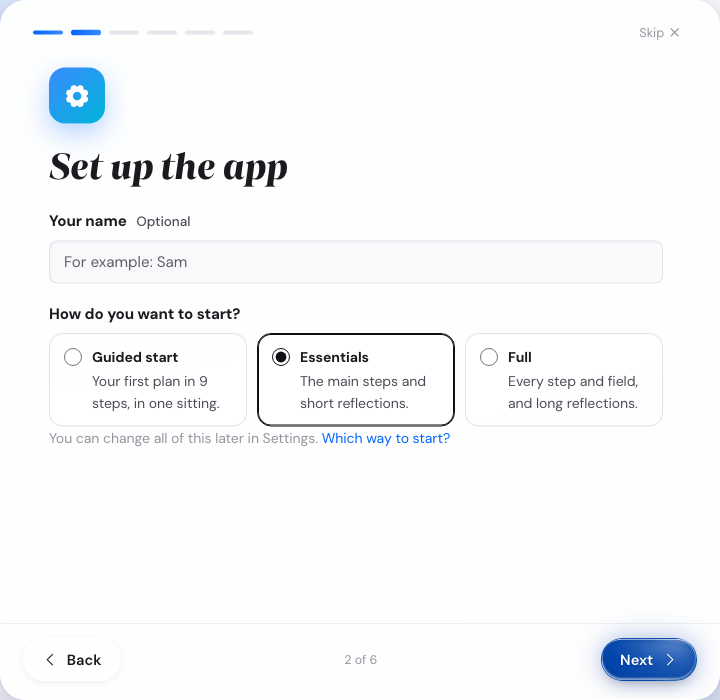
The three ways to start, on a computer. 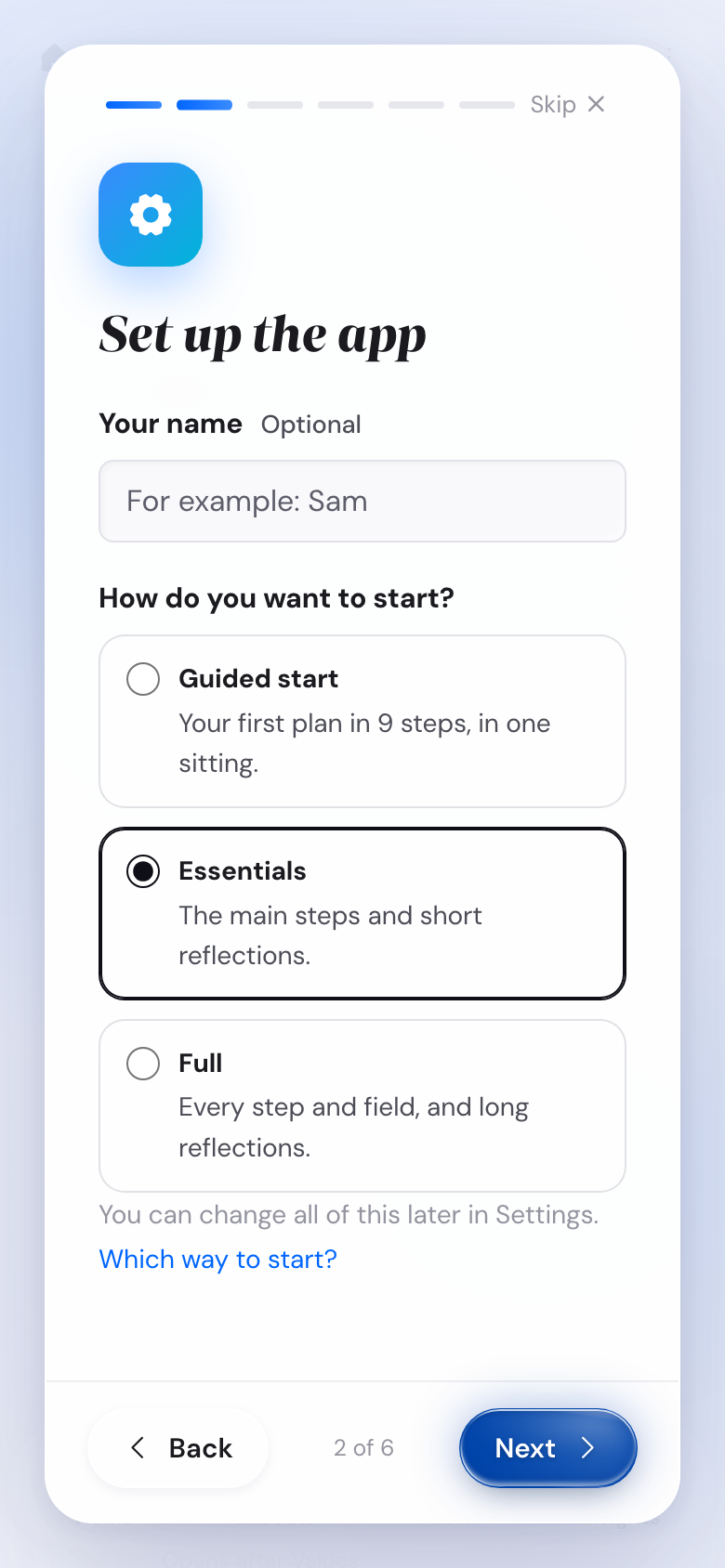
The same choice, on a phone. - 3
The last page of the welcome guide.
Tap Start with your values, or Start on a phone.
Values opens.
What follows
- Essentials is picked when the page opens.
- You see Guided start only while your plan has no Summit Goal.
- Your data is the same in every way. Only what you see on screen changes.
Guided start: your first plan in one sitting
You feel a bit lost with goal setting, or you want to finish in one go.
- 1
The page Set up the app.
Pick Guided start.
The app stays in Essentials Mode, and the guided start begins with Values.
- 2
The bar at the foot of each step, on a computer.
Look at the line above the step name.
You see, for example, Guided start · Step 5 of 9.
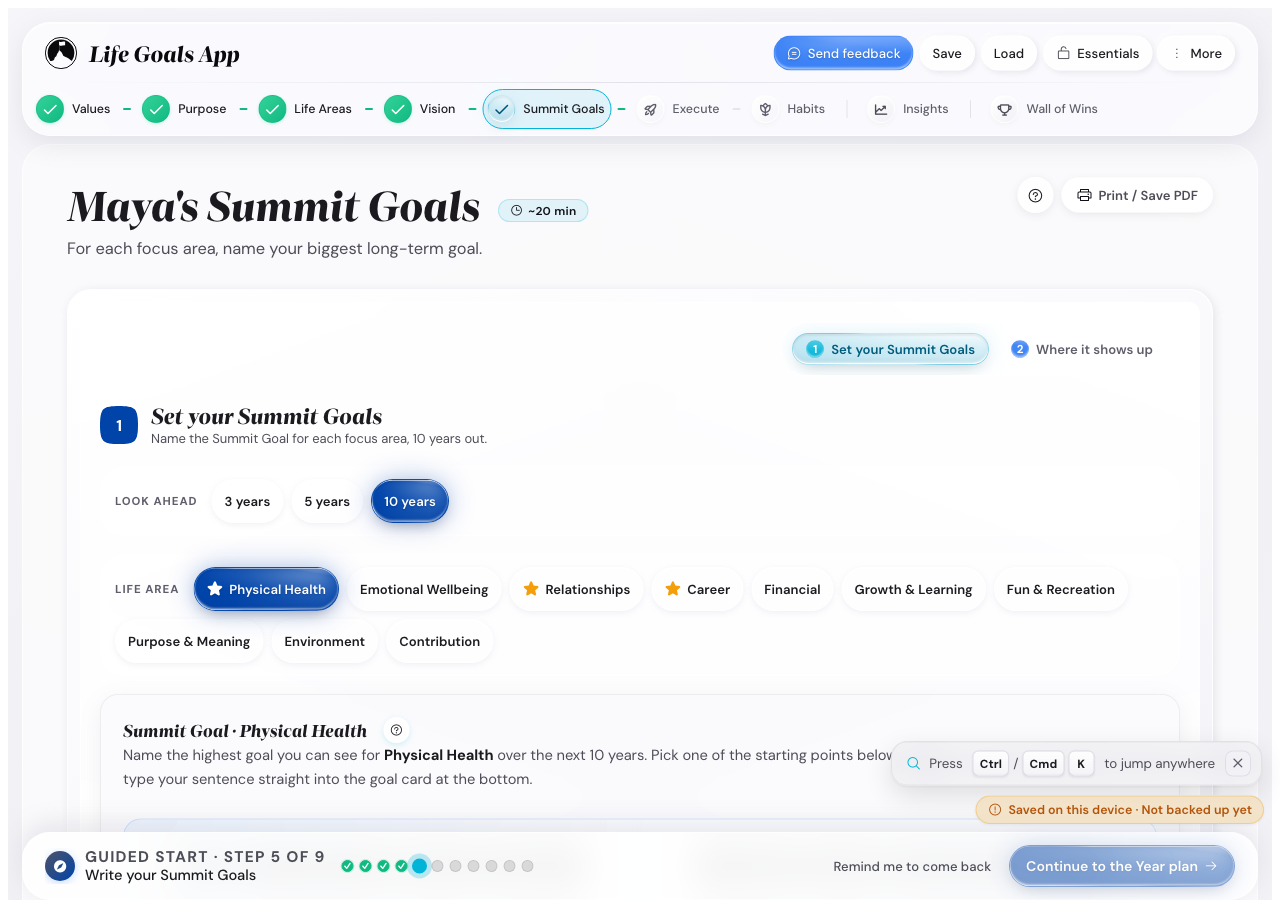
Where you are in the guided start, on a computer. - 3
The top bar of each step, on a phone.
Look at the title.
You see the same line.
- 4
The end of each step.
Tap Continue.
The next step of the guided start opens.
- 5
Execute, your plan for this week.
Set your week plan.
The guided start ends. The window Your first plan is ready shows your Summit Goal, year goal and this week's plan.
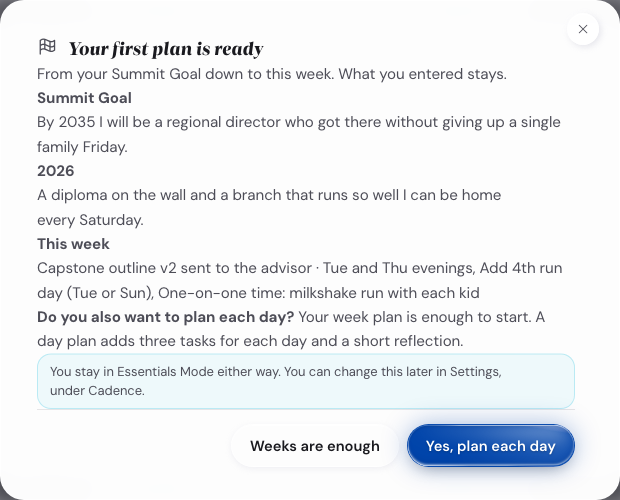
The end of the guided start, on a computer.
What follows
- The guided start has 9 steps: Values, Purpose, Life Areas, Vision, Summit Goals, your year, your quarter, your month and your week.
- Each step shows its usual time next to its title, for example ~15 min. The time only shows how much work a step is. Nothing counts down.
- You can stop at any point. The app saves as you go. When you come back, the Next step card shows the step where you go on.
- The examples always show in the guided start.
- After the guided start you are in plain Essentials Mode.
Essentials: fewer options, at your own pace
You want few choices on screen and short visits.
- 1
The page Set up the app.
Keep Essentials.
- 2
The Next step card, on Execute on a computer or on Home on a phone.
Tap its button.
That step opens.
What follows
- Essentials Mode asks for less. It hides the optional Strengths Profile step. One Summit Goal and one annual goal are enough to go on.
- Reflections are short, and three optional fields stay hidden: the hours estimate, Effort and the Stress and Mood scales.
- The examples always show in Essentials Mode.
- A new plan in Essentials Mode plans weeks first. After your first week plan, you get one question: Do you also want to plan each day?
Full: every option, and the choice to hide the examples
You know goal setting and want every option and detail.
- 1
The page Set up the app.
Pick Full.
Show examples appears under the three ways.
- 2
Show examples.
Turn it off if you want to find your own words.
Each place that had examples shows a Show examples button instead.
What follows
- Full Mode shows all options: more goals, all writing tools, the detail fields and long reflections.
- Full Mode plans each day too.
- Show examples lives in Full Mode only. In Settings it is on the Profile tab.
Plan each day, or weeks only
You start in Essentials Mode and wonder about the day plan.
- 1
Execute, after your first week plan.
Read the question Do you also want to plan each day?
- 2
The question.
Tap Yes, plan each day, or Weeks are enough.
Yes, plan each day: the day plan and the day reflection come up as your Next step. Weeks are enough: Execute opens your week, and the day is never your Next step. You stay in Essentials Mode either way.
What follows
- After Weeks are enough, the question comes once more three weeks later.
- The day plan stays available either way. Open a day on Execute when you want one.
- A day plan adds three tasks for each day and a short reflection.
- You can change it any time in Settings, on the Cadence tab, under Daily planning.
Change your way later
Your needs change, and you want another way.
- 1
Settings, on the Profile tab.
Switch between Essentials Mode and Full Mode.
Everything you entered stays.
- 2
The guided start.
Switch to Full Mode.
The guided start ends. A short message says so, and everything you entered stays.
- 3
The More menu.
Tap Replay the welcome guide.
You can pick Guided start again on the Set up page while your plan has no Summit Goal.
What follows
- Back in Essentials Mode, the examples show again. A choice to hide them waits for your next time in Full Mode.
- After a full week in Essentials Mode with a week reflection, a short message shows: Full Mode is ready when you are.