Goals & Progress


Read what your own entries add up to
Insights counts what you ticked, closed and wrote. The Goals & Progress Life Goals App builds every chart from your own plan, so you can see what to change this week. Every win you earn also becomes a card on your Wall of Wins.
Where you are in the journey
You have a working plan again after a break. That was the guide before this one, Pick up your plan after a gap. After this one you make a copy of everything, in Keep your data safe.
What you will learn
- What each headline number counts.
- What the execution score measures, and which days it leaves out.
- What to change when one of the numbers drops.
- How to open a Wall of Wins card as a poster and save it as a picture.
Open Insights and find the headline numbers
On the computer, press Insights on the step strip. On the phone, tap Insights, the fourth tab at the bottom. The Summary tab opens first, with your headline numbers in the first block.

The computer gives four tiles. The phone always shows Week score and Closing streak. It adds Habit consistency or Milestones on track when the app makes one of them the big tile.
- The Closing streak tile counts the days in a row you locked, reflected on and closed your day plan.
- The Week score tile compares two counts and shows the higher. One is this week’s main focus and deliverables, the other is the tasks on the days you planned or closed.
- The Milestones on track tile counts the active milestones showing green. You set green yourself, or a number milestone sets it by running ahead of pace. Maya’s plan gives 1 of 8.
- The Habit consistency tile averages your habits over 30 days, with a done day full and a lazy day half. A lazy day is the smaller version you set for a hard day. Maya gets 84 percent.
What the execution score counts
Open the Trends tab for the Execution score chart, one bar per day over 90 days. A bar is the share of each day’s main focus tasks you marked done, and a line across the chart marks 85 percent.
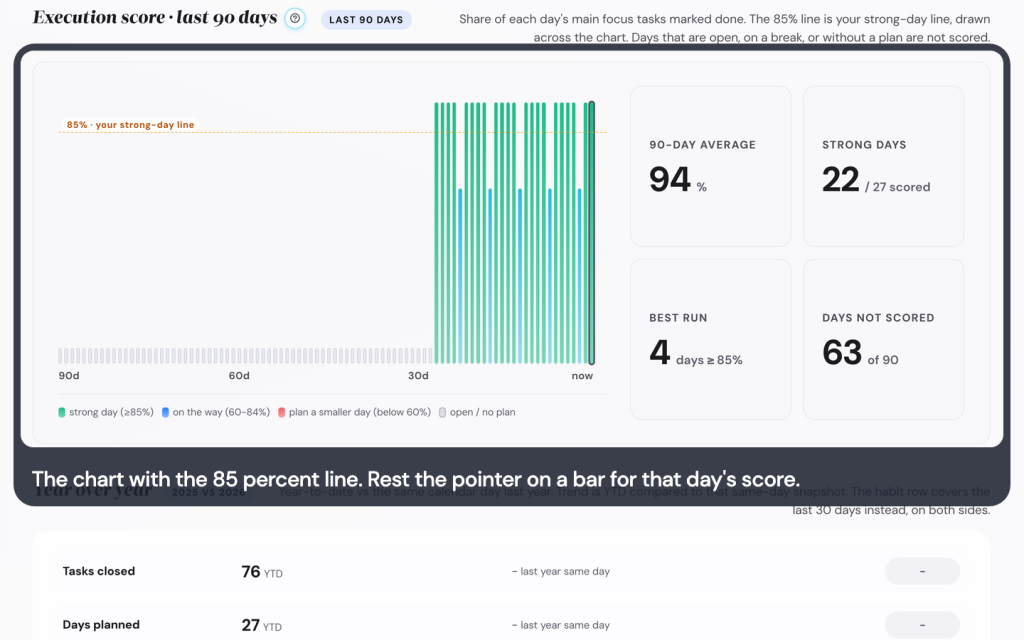
The note by the bar gives that day’s score, or the words Break day, Open day or No plan set. The phone gives no note, and a day that is open, on a break or never locked gets no score.
The four numbers beside the chart are 90-day average, Strong days, Best run and Days not scored. Maya gets 94 percent, with 63 of her 90 days unscored. A high average with many unscored days means you did well on the days you planned. The app’s own recipe, read your execution score, shows the same steps.
Find the detail behind a number
The Detail tab holds four sections. Plan-close rate by cadence counts how many locked plans you also closed, and Maya closed 26 of 29 days. The Habits section gives one bar per habit, and Maya’s three get 87, 75 and 88 percent. Milestones in progress sorts them into on track, at risk, off track and not rated. Energy & recent learnings puts your energy next to your review notes.
A milestone with a number rates itself from your pace. Ahead of the time elapsed is green, half the expected pace is amber, and slower is red. One with only a date stays not rated until you pick a colour, and your colour counts first.
What to change when a number drops
Go back to the Summary tab. Under the tiles you find up to five cards, in Suggested next steps. Most give a number and the change to make, with a button to that screen.
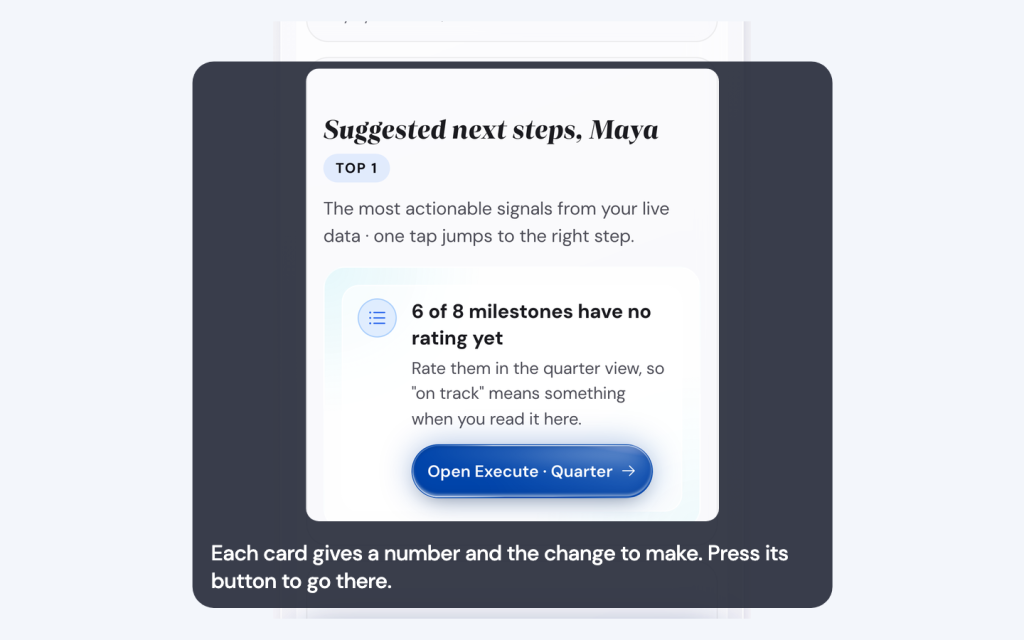
A few cards are good news only, with no number and no button. The same numbers always give the same advice:
- The streak is at zero: close today’s plan. Lock it, write the reflection, close the day.
- The week score is under 50 percent with more than three main focus rows: cut the week to three and finish all three.
- Habit consistency is under 40 percent: drop to the lazy day version this week. One missed day is data, and the two-day rule covers the second one.
- More than half your milestones have no rating: rate them on Quarter.
- A milestone is past its date: mark what happened, or move the date.
The last two cards show only when nothing else does. No card covers the execution score, so when your 90-day average drops, plan fewer main focus tasks a day. How to track progress for personal goals walks through the same loop: read the number, compare it with last month, then correct one thing.
Search what you wrote, on Reflections
The Reflections tab holds every line you have written. The search box finds a word across all of them, and the filter narrows to Days, Weeks, Months, Quarters or Years. The journal prompts page sets out the rhythm: a short question each day, a longer one each week.
Open your Wall of Wins
Wall of Wins appears as soon as you earn your first card. A finished milestone counts, and so does a closed month, a habit badge or one weekly win line. It is a step on the computer strip, and a card on the phone’s Home. Six filters sort the cards: All, Milestones, Months, Quarters, Years and Other.

Maya’s wall holds 35 cards, and 19 of them are milestones. The Other filter takes everything else. The badges go there, with your focus areas card and every weekly win line. A habit streak badge comes at 7, 30, 100 and 365 days. Months closed in a row earn one at 3, 6 and 12. Wrapped quarters earn one at 4, 8 and 12.
A closed month earns a card only with a plan, a learning sentence of at least 20 characters and two things done. That is why twelve closed months give Maya one Months card.
Open a card as a poster and save it
- Open Wall of Wins and pick a filter.
- Press a card to open its poster.
- Move between the poster’s cards with the arrows or dots.
- Press Save current card as image to download the card on screen.
- Press Share card where your browser can share a file.
Both buttons are at the foot of the poster.

The poster shows your name and what you wrote at that check-in. Save or share a poster shows the same steps in the app’s own help.
Save or share an Insights screen
On the phone, tap Save or share in the bar over Insights. A sheet with six rows opens.

The first three rows, Month check-in card, Quarter check-in card and Year Wrap-up card, each open that period’s poster.
Save as image downloads the Insights screen as you see it. Reminder calendar makes a calendar file of your milestones and deliverables. Print or save as PDF opens the print dialog.
The computer shows the same choices as buttons in the bar. Print / Save PDF in the head of any step prints that step, your whole wall included.
Try these tips and tricks
- Read your numbers on a Sunday, with the weekly close. Ten minutes covers it.
- A high Days not scored number is not a bad score. Those days were open, on a break, or never locked.
- Write the one win line in your weekly reflection. Each line becomes its own card on your wall.
Key takeaways
- Each headline tile covers its own period, from today to 30 days back.
- The execution score is the share of your main focus tasks done, and 85 percent marks a strong day.
- Milestones on track counts the green ones, from your own colour or from a number ahead of pace.
- Any card on your Wall of Wins opens as a poster you can save.
Open Insights today and read one tile, your Closing streak. Then open the Trends tab and find your 90-day average. Two numbers are enough for one sitting.