Goals & Progress



The Goals & Progress Life Goals App launched in early October 2026. Since then, I’ve focused on making it easier to start a plan and keep working with it as everyday life changes.
October’s updates bring earlier guidance when part of your plan needs attention, planning days that leave room for rest, and a guided introduction for your first plan. I’ve also improved Insights, calendar reminders, and the tools for managing your plan files.
Here is what changed, the problems these features address, and why I chose to build them this way.
All changes in this post are available to everyone who uses the app. If you do not see them yet, reload the app page while you are online. If you already use the Reminder Calendar, download the calendar file again to get the new links. Guided Start is available for plans that do not yet have a Summit Goal, and the worked hours in Insights show in Full Mode.
The main changes this month
Improvements for execution
- Plan Status Light: See when a goal, habit, value, or life area needs attention, with a suggested next action.
- Planning Days: Choose which weekdays you work on your goals. The remaining days become breaks and do not count against you.
- Habit Days and Habit Linking: Schedule habits for selected weekdays and connect them to the life areas they support.
Improvements for Insights
- Life Goal Journey: See how many days you have been on your journey with the app, and how steadily you plan.
- Updated charts: Compare planned and worked hours, follow milestone confidence and stress, and see how your plan supports your values.
Other improvements
- Guided Start: Build your first plan in six short steps, with tips at each field.
- Reminder Calendar: Open the relevant app screen directly from a calendar reminder.
- Fresh Start, File Repair, and clearer save messages: Make room in your plan or start over on its foundations, and get more useful information when something goes wrong.
Plan Status Light: bring important guidance into your daily planning
Information about what needed attention originally sat in Insights, in the “What to do next” section. I wanted that guidance where you spend more of your time and can act on it immediately: on the Execute screen.
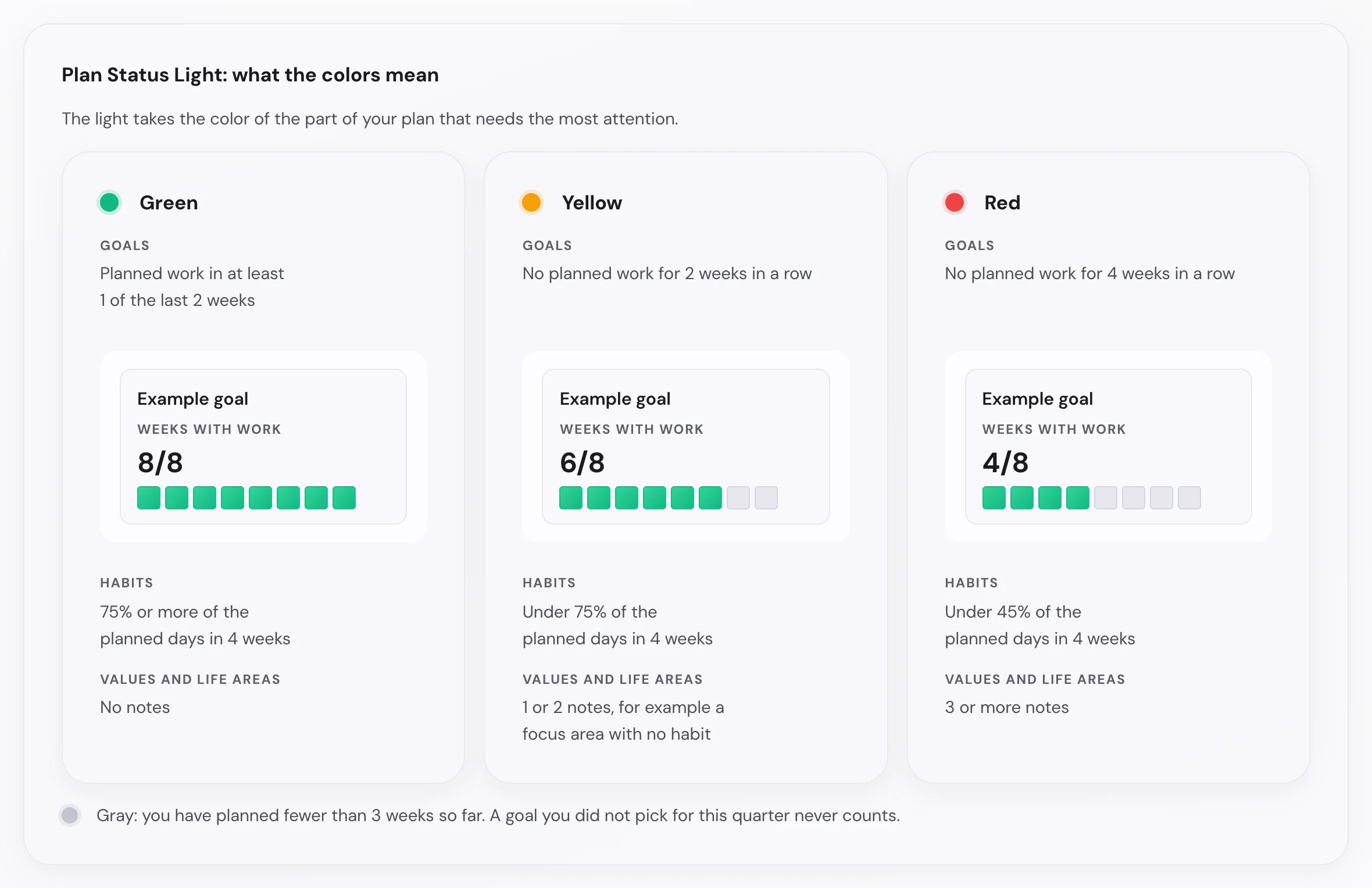
The new Plan Status Light is a colored dot that brings together four parts of your plan: goals, habits, values, and life areas. It takes the color of the part that needs the most attention.
The light appears as soon as you have an annual goal. It stays gray until you have planned three weeks, and its window explains when your trend will become available.
For goals, the check looks at planned attention. A goal turns yellow after two consecutive weeks with no planned work and red after four. A main focus or a task linked to the goal counts; you do not need to complete it for this particular check.
Goals you have not selected for the current quarter are excluded, so an intentional pause does not turn the light red.
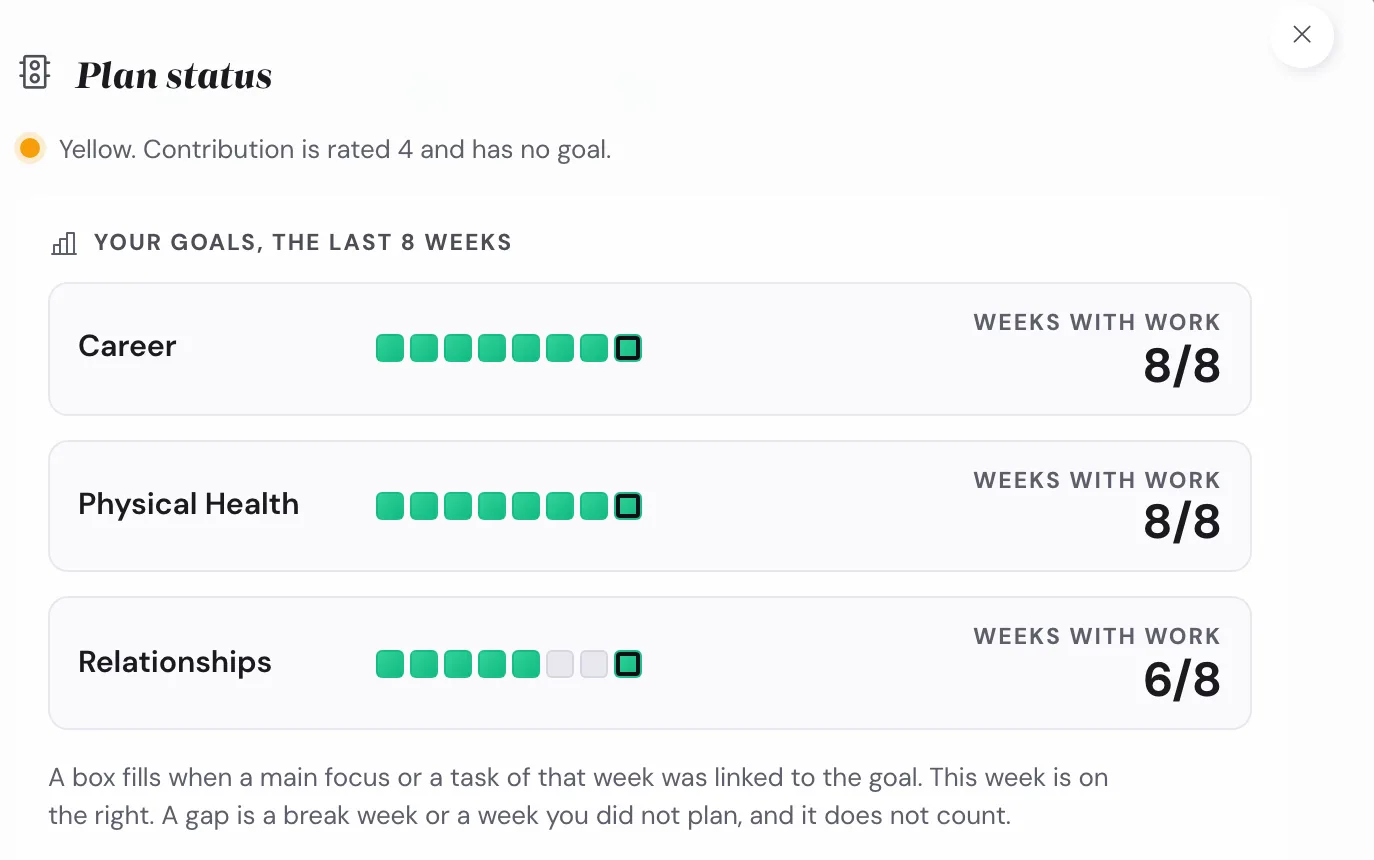
Press the light to open the Plan Status window. You can see your goals grouped by life area, and each yellow or red item has a suggested next action, such as Add a habit. A Plan Status card also appears under What to do next while the light is yellow or red.
This gives you an opportunity to adjust your weekly plan before your quarterly check-in. If a goal continues to receive no attention, the check-in helps you decide whether to rescue it, move it, or retire it. The guide to the month, quarter, and year check-ins explains those decisions.
The colors and thresholds are design choices. The research cited below has not tested those specific rules.
You can turn the light off under Settings → Planning experience.
Planning Days and Habit Days: plan your week according to your schedule
A planning app should let you decide when you intend to work on your goals. If you want your weekends free, that should be part of the plan.
With Planning Days, you can now select your working weekdays, for example Monday to Friday. The remaining days automatically become break days and do not count against you.
You can also use Mark as a break to mark a day, week, or month as a break. These choices are reversible: if you feel motivated to work on a goal on Sunday, you can still plan some work on that day, and it counts as a normal day.
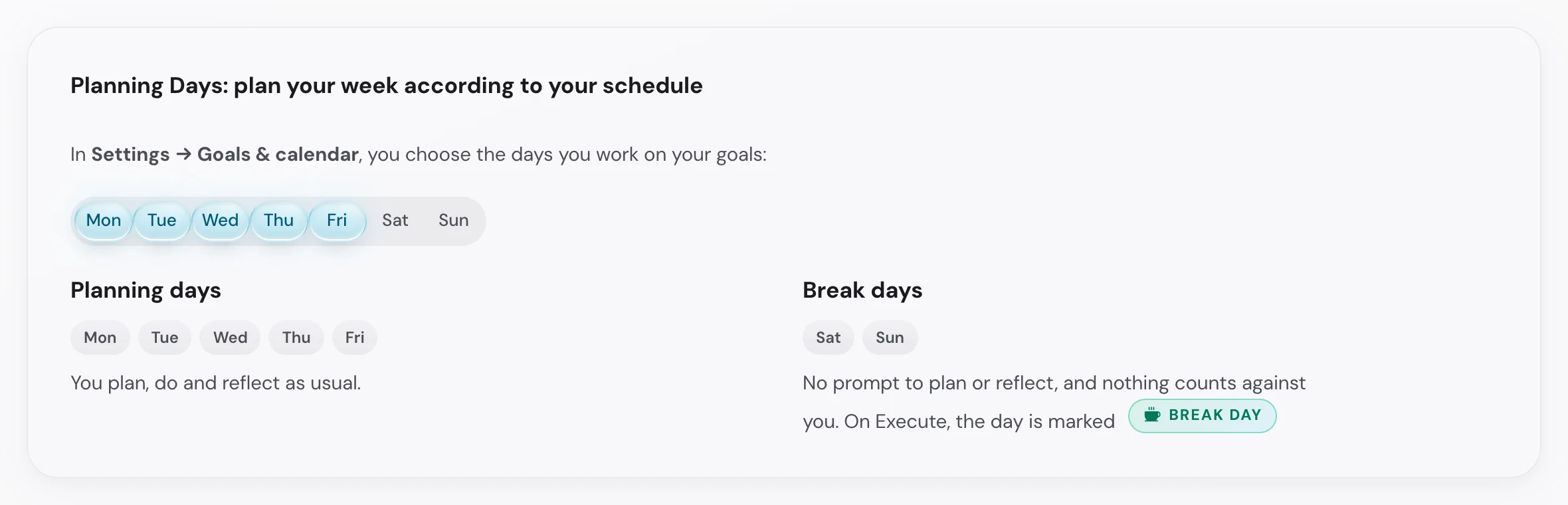
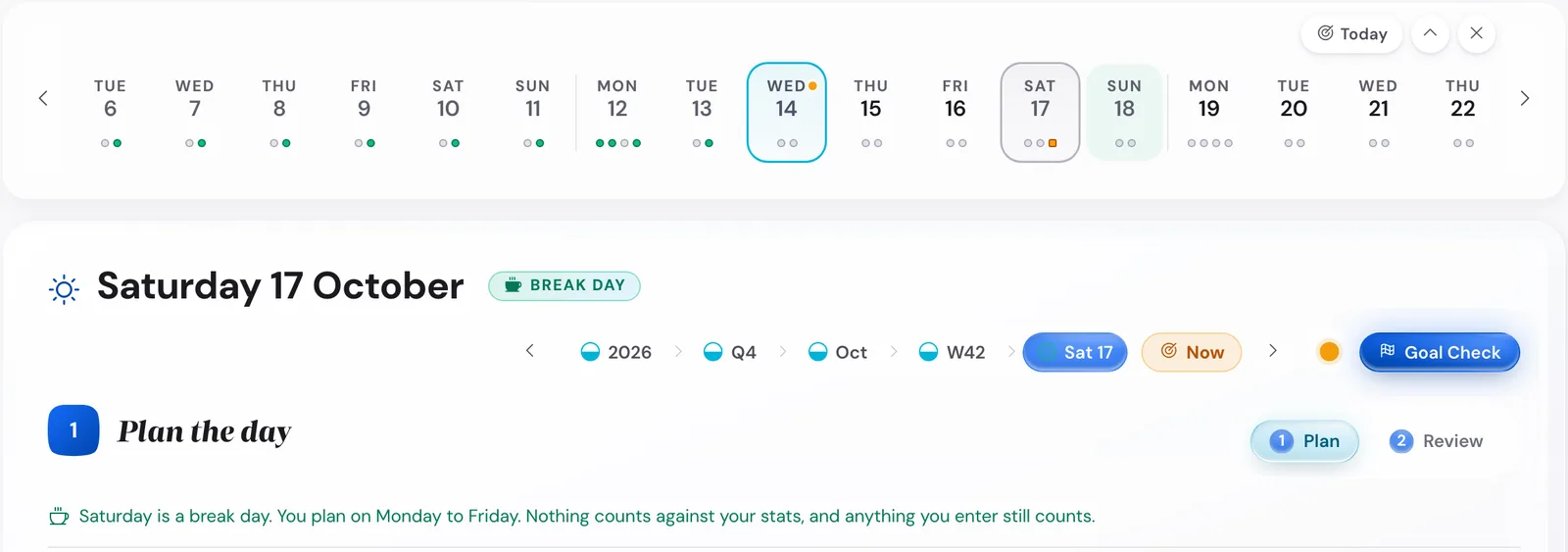
Missed days fade away in the app on purpose. For me, that is part of making the app useful without making it annoying or judgmental. A planned break should also look like a break, with no red planning dot, open review, or moved task on that day.
Habit Days applies the same attention to your schedule. You can choose Monday, Wednesday, and Friday for a run, for example. Your streak and habit statistics count only those selected days.
There is room to adjust within the week, too. If you miss one of your selected days, completing the habit on another day in the same week counts instead.
Habit Linking connects these regular actions to your broader priorities. You can now link a habit to up to two of your top five values and to up to two life areas. Your focus areas appear first in the selection.
If a focus area has no habit, the Plan Status window shows a note with an Add a habit button. This helps you notice when an important area of life does not yet have a small, regular action behind it.
You can set your planning days in the welcome guide or under Settings → Goals & calendar.
Guided Start: learn the app while building your first plan
The app can do a lot, and simplification has been a main focus since launch. For Guided Start, I wanted an introduction that helps you make progress without having to understand every option at once.
When you create a new plan, you can choose Guided Start, Essentials, or Full. Guided Start takes you through six short steps, with tips above the fields you fill in.
The first five steps cover your values, purpose, life areas, vision, and one Summit Goal. In the sixth step, you plan from the year down to the current week.
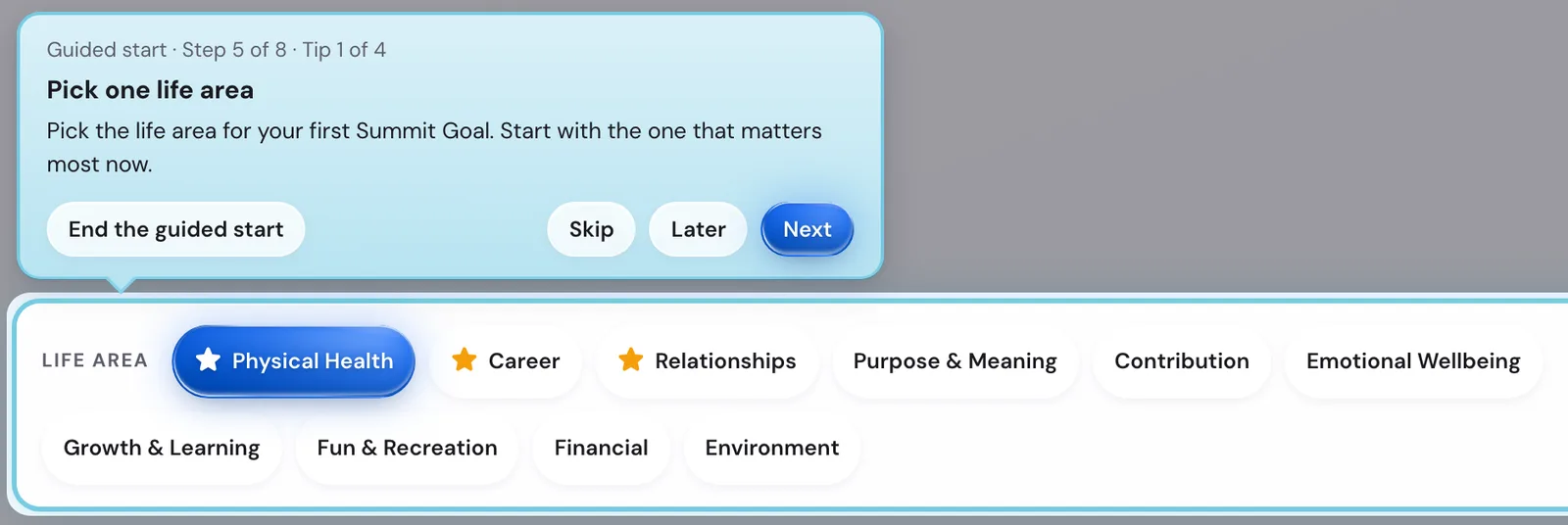
You can take one step a day. From step two onward, a Back button lets you revisit the previous step.
The guidance continues after setup. Step 7 helps you add your first habit, and Step 8 helps you complete your first weekly review. You can add your habit at any time and do the review once your first planned week has ended, in either order. After that, you continue in Essentials Mode.
The intention is to introduce the app through the things you are ready to do: first create a plan, then add a habit and review a week.
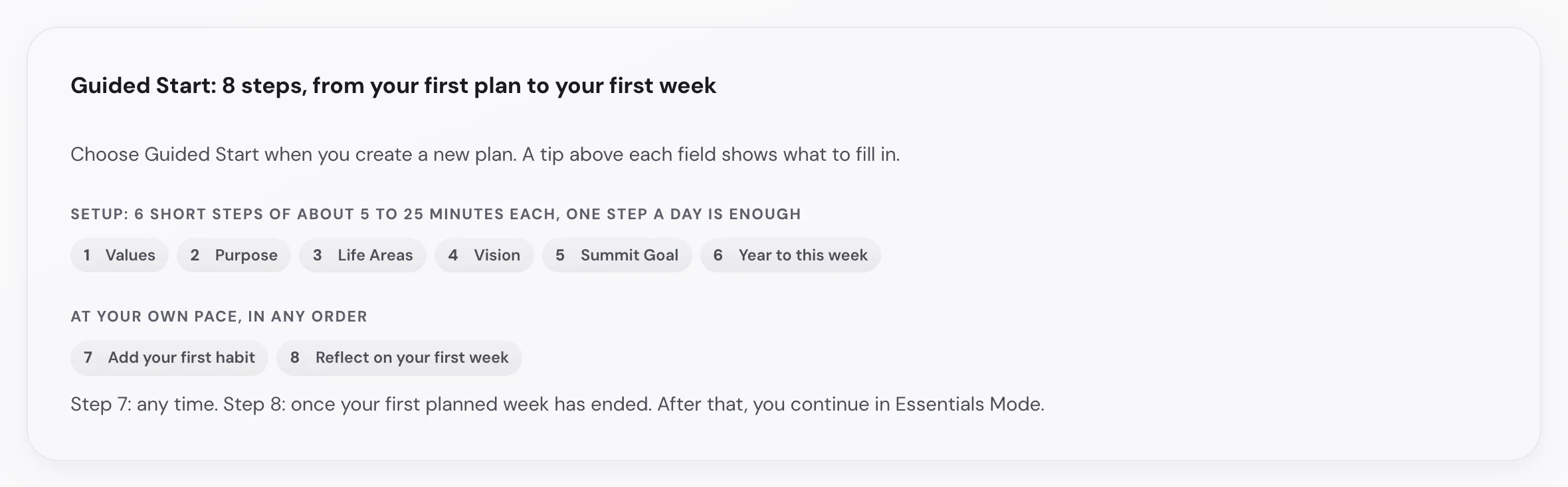
To begin, open the welcome guide and choose I’m new here → Set up the app → Guided Start. This option is available for plans that do not yet have a Summit Goal.
The getting-started guide walks through the setup in more detail.
Insights: see how your plan develops over time
The updated charts in Insights → Trends show your last twelve weeks. You can follow your milestone confidence and stress, with a point for each day, and compare planned and worked hours for each week.
That comparison helps you see whether the amount of work you plan matches the time you actually use. It gives you something concrete to consider when planning the following week. The worked hours show in Full Mode, once you enter your hours in your week reflections.

The Milestones that ended chart shows which milestones you achieved, partly reached, or dropped.
Under Insights → Detail, Your top 5 values shows how your plan supported each value over the last eight weeks. It helps you see which priorities received attention and which ones may need a clearer place in your plan.
The new Life Goal Journey section, under Insights → Summary, shows how many days you have been on your journey with the app. It also shows a dot for each of the last twelve weeks. A week counts as steady when you planned all its planning days, or all but one, and at 4, 12, and 26 steady weeks in a row you earn the Steady planner badge on the Wall of Wins.
The guide to Insights explains how to read each chart.
Reminder Calendar: go from a reminder to the place where you can act
A reminder is more useful when you can act on it immediately. Each Reminder Calendar event now opens the relevant screen in the Life Goals App.
Weekly plan + reflection opens your weekly review. A quarterly check-in reminder opens the quarterly check-in, and a milestone reminder opens your annual goals with the milestones in view.
To set it up, open Settings → Guidance & reminders → Reminder calendar. On the final step, press Download calendar file and open the downloaded file.
If you already use the Reminder Calendar, download the file again to get the new links.
The weekly review and planning guide explains what to do once your review opens.
Fresh Start and File Repair: keep your plan’s foundations and manage its history
Fresh Start gives you a way to clear history while keeping the information that gives your plan its direction.
Fresh Start offers two options: Make Room and Start Over. You can select these options in Settings → Data & backups. Make Room keeps your plan and the last 12 months, and moves older days and reviews out of the app. Start Over keeps your settings, your habits, and the steps from Values to Summit Goals, and clears your annual goals, milestones, plans, reflections, and habit check marks. Before either option runs, you download your whole plan as a save file.
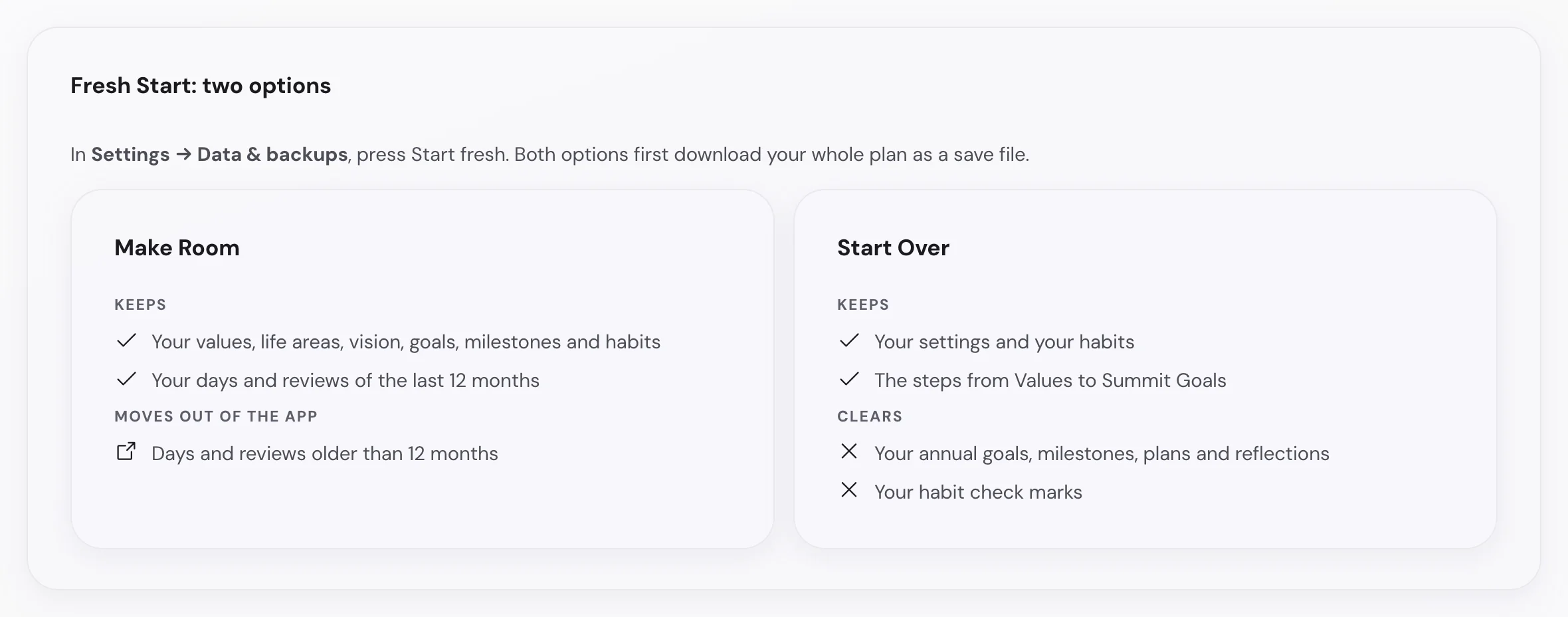
This lets you begin again with your existing plan without having to rebuild those foundations.
File Repair addresses a damaged plan file. It can attempt to repair the file and recover as much information as possible. When parts of a save file cannot be loaded, the app shows which parts were left out and what you can do next.
Saving and Dropbox messages are clearer, too:
- A failed save shows Save failed.
- After a lost Dropbox connection, A newer plan is in your Dropbox lets you choose which version to keep.
- At 90% and 95% of the available storage space, a warning suggests Start fresh to make room.
Your plan remains stored in your browser and, if you connect it, in your own Dropbox. The guide to keeping your data safe explains saving, loading, and backups.
Smaller improvements across the app
Several smaller changes make planning and navigation smoother:
- Clearer Settings: Options are organized into six groups. On a computer, the groups appear on the left and the selected group opens on the right.
- More room for your plan: The Next step card fits into one slim line, and longer window content scrolls within a fixed height.
- Easier navigation: In Jump to any screen, matching search text appears in bold. Open it with Cmd K or Ctrl K on a computer.
- More appearance choices: There are 64 themes, grouped by color, under Settings → Appearance.
- Clearer planning behavior: Turning off Daily planning now shows an explanation. Simply opening a day or week no longer marks it as planned or triggers a request to reflect on it.
- Reminder and license fixes: Turning a habit off and on no longer moves its reminder to midnight. The Gumroad button also saves your license code when the app is already open in your browser.
More than 50 additional bugs have been fixed following testing by an outside team and a test covering a full year of use.
The changelog contains the complete list of changes.
Tell me how the latest changes work for you
Open the Life Goals App and try the change that fits your current situation: choose your planning days, explore Guided Start with a new plan, or open the Plan Status Light on Execute.
I’m particularly interested in whether the Plan Status Light points to something useful and whether the planning-day rules fit your week. If something feels unclear or gets in your way, tell me what you were trying to do and what happened. If a feature is missing that would make the app better for you, please write me about that, too. You can send feedback here.
Research which inspired this month
Show the studies and their limits
Research helps inform the approach, but it does not establish that these particular app features or rules will improve someone’s results.
A review of 138 experiments involving 19,951 people found that prompting people to monitor progress helped them reach their goals [1]. That supports the general practice of checking progress; it does not validate the app’s colors or thresholds.
Research on habits and streaks also supports taking interruptions seriously. A single missed opportunity had little effect on habit formation in Lally and colleagues’ study [2]. Other studies found that broken streaks could discourage continuation, that repairing a streak reduced that effect [3], and that limited emergency reserves carrying a cost could help people persist [4].
Studies of goals aligned with personal values found more lasting effort [5]. Research using self-reports also found associations between important values and corresponding everyday behavior [10]. These findings do not demonstrate that adding a value or life-area link in an app causes better outcomes.
The evidence for structured goal-setting programs is mixed: one study found improved academic performance [6], while a larger trial found no evidence of improvement in grades, course credits, or continuation into the second year [7]. Research on debriefs found benefits across 46 samples, but did not test a personal weekly review [8].
Research on the planning fallacy describes how people underestimate task duration [9]. A four-week study of habit formation found that relying on reminders supported repetition but hindered the development of automatic behavior [11]. Both findings are useful context when interpreting your planning data and deciding how to use reminders.
References
[1] Harkin, B., Webb, T. L., Chang, B. P. I., Prestwich, A., Conner, M., Kellar, I., Benn, Y., and Sheeran, P. “Does monitoring goal progress promote goal attainment? A meta-analysis of the experimental evidence.” Psychological Bulletin, 142(2), 198-229, 2016.
[2] Lally, P., van Jaarsveld, C. H. M., Potts, H. W. W., and Wardle, J. “How are habits formed: Modelling habit formation in the real world.” European Journal of Social Psychology, 40(6), 998-1009, 2010.
[3] Silverman, J., and Barasch, A. “On or off track: How (broken) streaks affect consumer decisions.” Journal of Consumer Research, 49(6), 1095-1117, 2023.
[4] Sharif, M. A., and Shu, S. B. “The benefits of emergency reserves: Greater preference and persistence for goals that have slack with a cost.” Journal of Marketing Research, 54(3), 495-509, 2017.
[5] Sheldon, K. M., and Elliot, A. J. “Goal striving, need satisfaction, and longitudinal well-being: The self-concordance model.” Journal of Personality and Social Psychology, 76(3), 482-497, 1999.
[6] Morisano, D., Hirsh, J. B., Peterson, J. B., Pihl, R. O., and Shore, B. M. “Setting, elaborating, and reflecting on personal goals improves academic performance.” Journal of Applied Psychology, 95(2), 255-264, 2010.
[7] Dobronyi, C. R., Oreopoulos, P., and Petronijevic, U. “Goal setting, academic reminders, and college success: A large-scale field experiment.” Journal of Research on Educational Effectiveness, 12(1), 38-66, 2019.
[8] Tannenbaum, S. I., and Cerasoli, C. P. “Do team and individual debriefs enhance performance? A meta-analysis.” Human Factors, 55(1), 231-245, 2013.
[9] Buehler, R., Griffin, D., and Ross, M. “Exploring the ‘planning fallacy’: Why people underestimate their task completion times.” Journal of Personality and Social Psychology, 67(3), 366-381, 1994.
[10] Lee, J. A., Bardi, A., Gerrans, P., Sneddon, J., van Herk, H., Evers, U., and Schwartz, S. “Are value-behavior relations stronger than previously thought? It depends on value importance.” European Journal of Personality, 36(2), 133-148, 2022.
[11] Stawarz, K., Cox, A. L., and Blandford, A. “Beyond Self-Tracking and Reminders: Designing Smartphone Apps That Support Habit Formation.” Proceedings of the 33rd Annual ACM Conference on Human Factors in Computing Systems, 2653-2662, 2015.