Find your score, switch tabs and save a chart on Insights
You read your score, move between the tabs, and save what you see.
Read your execution score
You want to know what the score counts before you judge a low number.
- 1
Open the Trends tab on Insights
Read the Execution score chart

Phone: the score chart 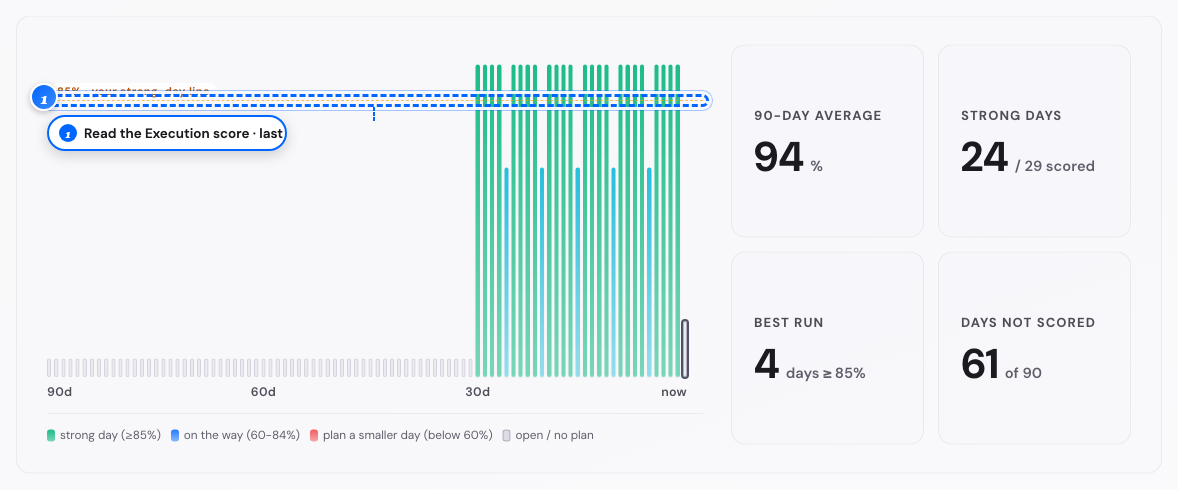
Desktop: the score chart - 2
Find a short bar
Hover or tap it
A note shows Break day, No plan set or the day's score.
What follows
- A line across the chart marks 85 percent, your strong day level.
- The next chart, Confidence, hours and stress, shows your last 12 weeks. Confidence and stress show one point per day.
- Under the charts, What your data shows lists up to 3 patterns, each with what to do next.
- Click or tap a week or a dot to see your data for that week.
Save or share an Insights chart
You want a picture of one chart, or of one Insights screen.
- 1
Find the chart on Insights
Tap the share button at its top right
A square card of that chart opens.
- 2
Look under the card
Tap Save as image
The square picture downloads.
- 3
Look under the card on a phone
Tap Share card
Your phone's share sheet opens with the picture.
- 4
Look at the icons in the Insights bar on a phone
Tap Save or share
The Save or share sheet opens.

Phone: the Save or share button - 5
Look in that sheet
Tap Save as image
The tab you are on downloads as a picture.
What follows
- Six charts have the share button. Life goal journey is on Summary. The confidence, hours and stress charts are on Trends. Your top 5 values and Habits are on Detail.
- The picture is square, 1024 by 1024 pixels.
- Each card has a title about you, for example How your days felt. A sentence under it sums up your numbers, for example 66 h worked on your goals.
- The Save or share sheet is on the phone only. It also opens a Month check-in card, a Quarter check-in card or a Year Wrap-up card.
- The last two rows of the sheet open the Reminder calendar or the print dialog.
Switch between Insights tabs
You want totals, trend lines, habit detail or your written reflections.
- 1
Open Insights
Read Summary for your key numbers

Phone: the Summary tab - 2
Open Insights on a computer
Read Summary there too
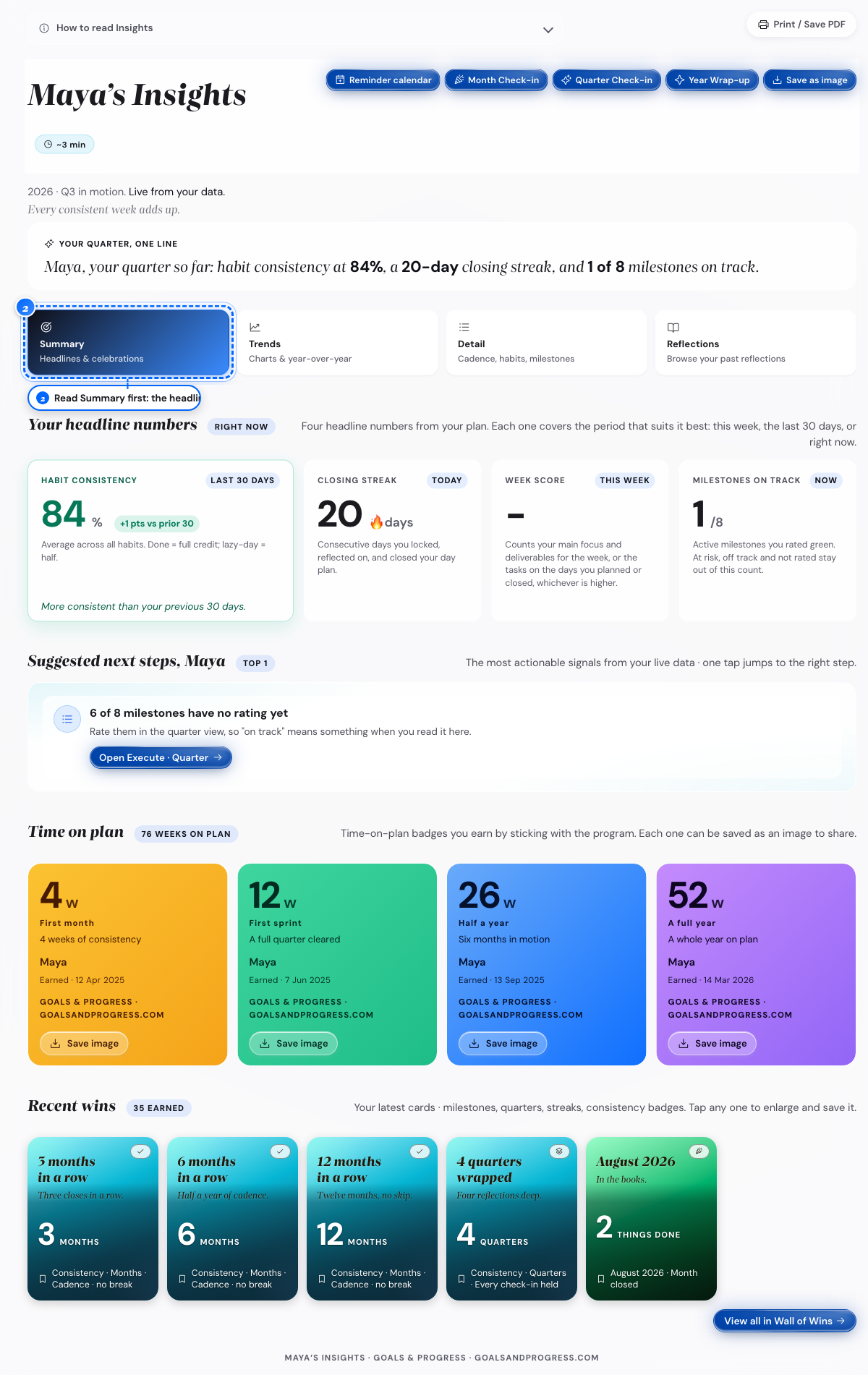
Desktop: the Summary tab - 3
Tap the tab row
Tap Trends for the score over time
- 4
Tap the tab row again
Tap Detail for habit consistency and plan close rate
- 5
Tap the tab row once more
Tap Reflections to search your past reflections
What follows
- The Reflections tab has a search box and a filter for days, weeks, months, quarters and years.