Close your day and your week
The eight recipes of the daily and weekly rhythm.
On this page
Choose what to do with next week
At the end of a week, you want to name where next week is going.
- 1
The Week screen, on a phone.
Find What do you do with next week.

The three options. - 2
The Week screen, on a computer.
Read the three options.
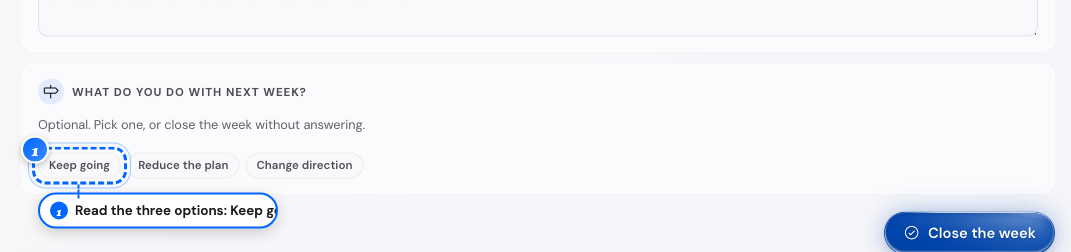
Keep going, Reduce the plan, Change direction. - 3
A row of three options.
Tap the one that fits.
Tap it again to clear it.
- 4
The Plan tab of next week.
Read the line, Last week you chose.
What follows
- You can close a week without answering; nothing counts it as a miss.
- Your pick shows on next week's plan and nowhere else.
Keep your streaks on a busy day
You have only thirty seconds and want to keep your streaks.
- 1
The Habits tab, on a phone.
Tap the habits you did.
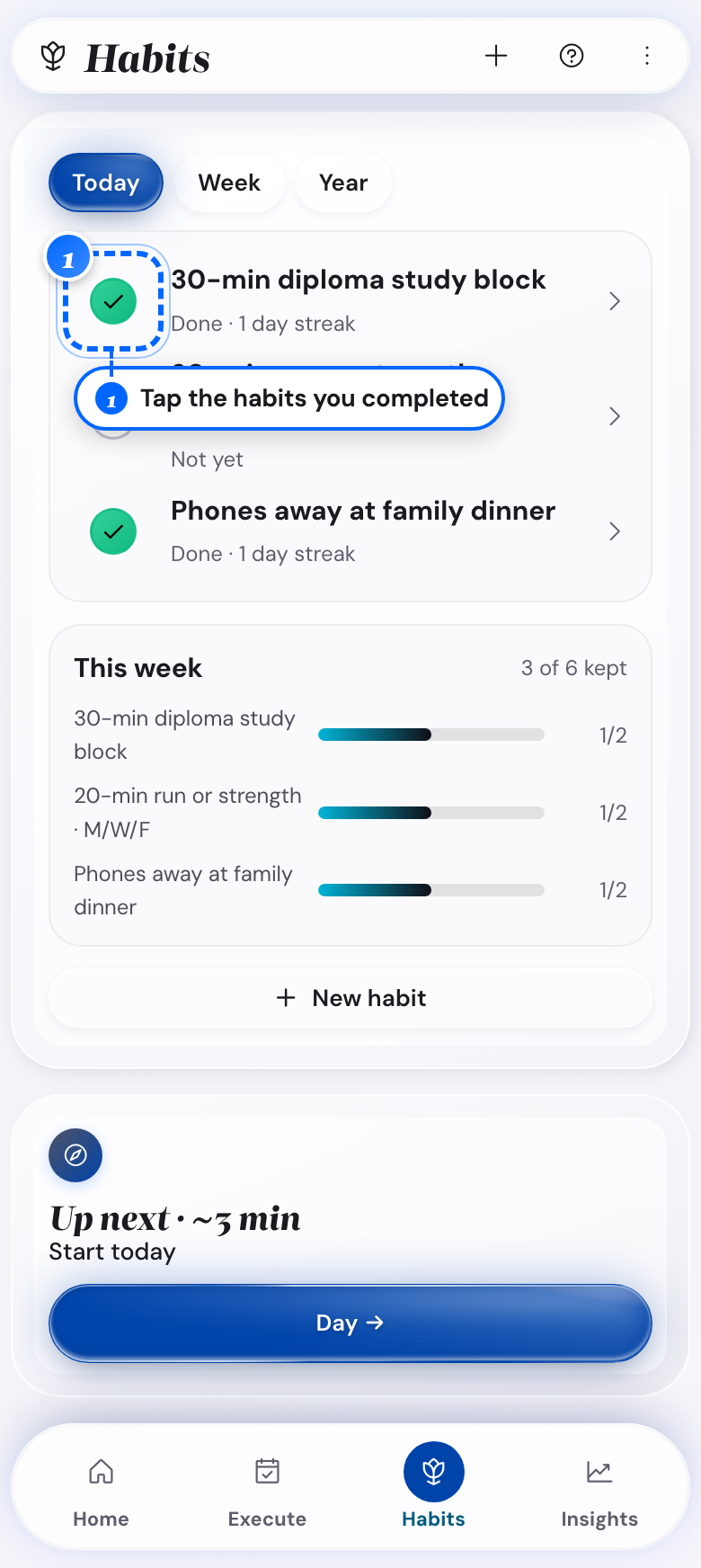
The habit rows for today. - 2
A habit you did not fully do.
Tap it twice to mark Lazy day.
Either mark keeps the streak going.
- 3
The rest of the day card.
Leave the reflection as it is.
What follows
- On a computer, do the same on today's Review tab.
- A habit you check off keeps its streak, in either form.
- A habit with no mark at all breaks its streak.
- A blank reflection and unset priorities count against nothing.
Close your day
You want to close today in about three minutes.
- 1
The Today screen, on a computer.
Tap Set today's plan.
The Review tab opens.
- 2
The Home tab, on a phone.
Under Reflect on today, tap Start.
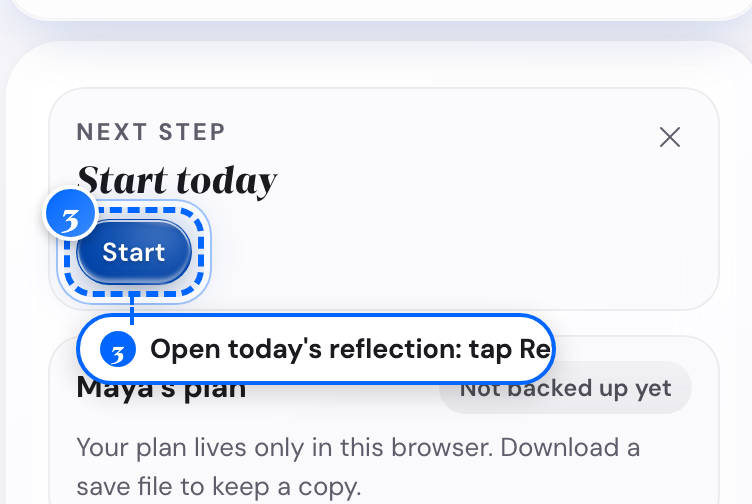
The Next step card on Home. Once today has a plan, it reads Reflect on today. - 3
The Reflect on your day card.
Check off the habits you did.
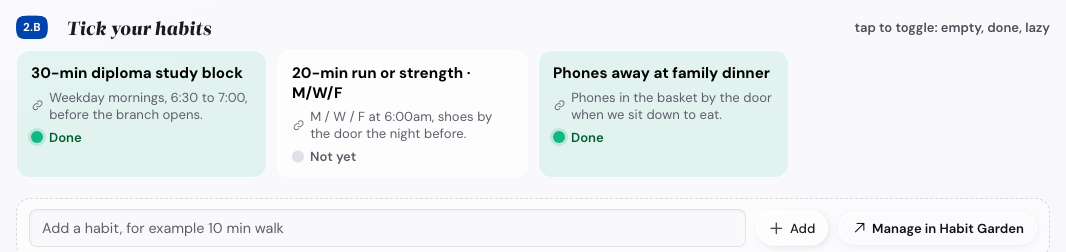
The habit list on a computer. - 4
The same card, on Energy.
Set the dial for how today went.
- 5
The Reflect on your day card, further down.
Write one line about today, good or bad.
- 6
The same card, further down.
Write one thing you learned today.
- 7
A button at the end of the card.
Close the day.
What follows
- On a short day, checking off the habits and closing is enough.
- You can leave the dials and the text fields blank.
- The app opens on Home, not on this screen.
- In Full Mode you also set Stress and Mood.
Close your week
You want ten minutes to close the week and set up the next one.
- 1
The Week screen, on a phone.
Tap the Review tab.
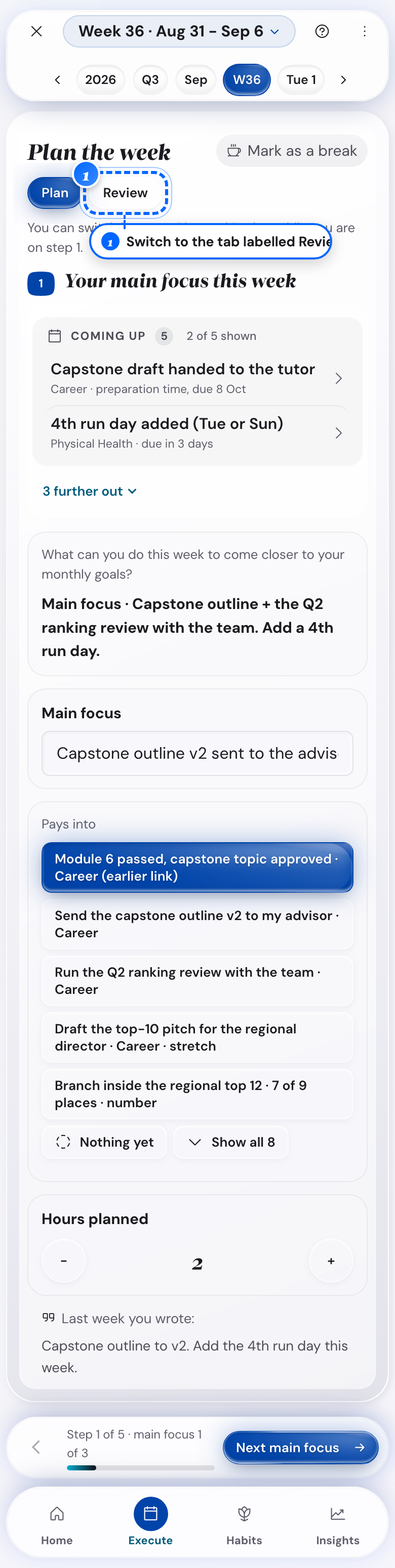
The Review tab on a phone. - 2
The Review tab, on a computer.
Check off what you finished this week.
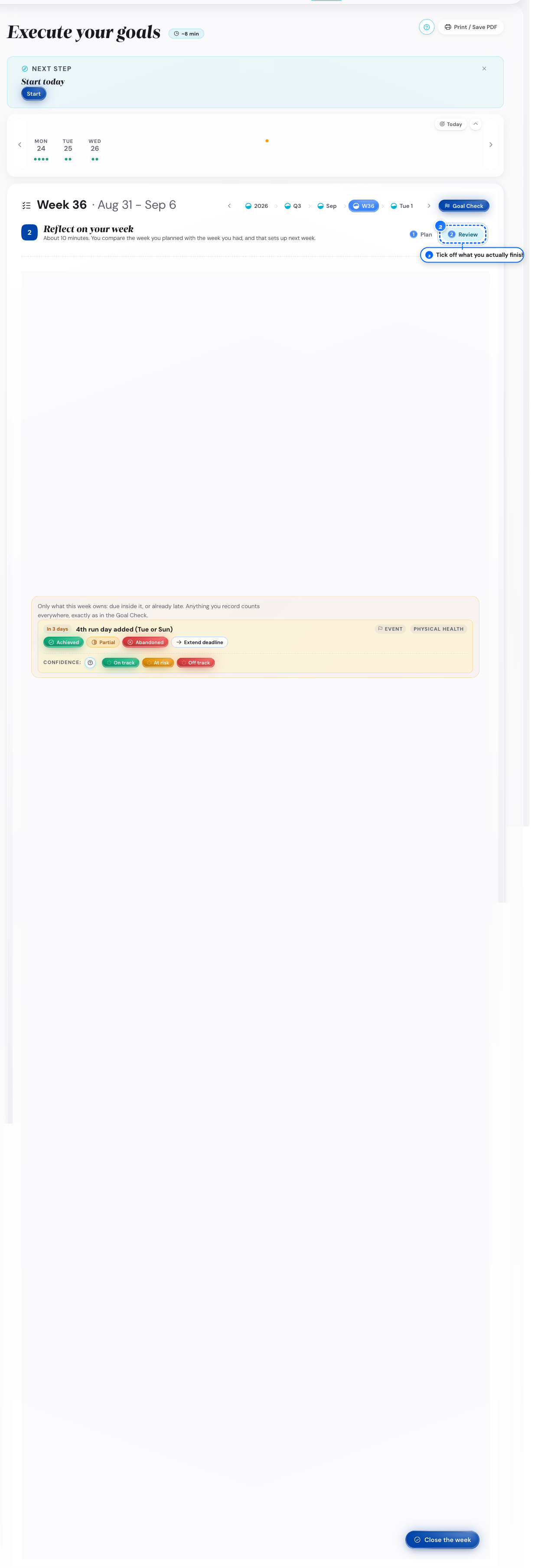
The week review on a computer. - 3
The Review tab, further down.
Set the status of any milestone that is due or late.
- 4
The Review tab, in Key learnings.
Write what the week taught you.
- 5
The Review tab, near its end.
Pick one of the three options for next week.
- 6
A button at the end of the tab.
Close the week.
What follows
- The Review tab opens after you set the week's plan, or after the week ends.
- The checklists are Main focus this week and Deliverables this week.
- In Settings, set Reflection depth to Short to see only the checkboxes and the ratings.
- In Full Mode you also answer What worked and Biggest challenges.
- In Full Mode, change Hours done for a main focus when it differs from the plan.
Mark how a milestone is going
You want to rate a milestone, or mark it finished, without leaving the screen.
- 1
A Review tab on Year, Quarter, or Month.
Find the milestone card.
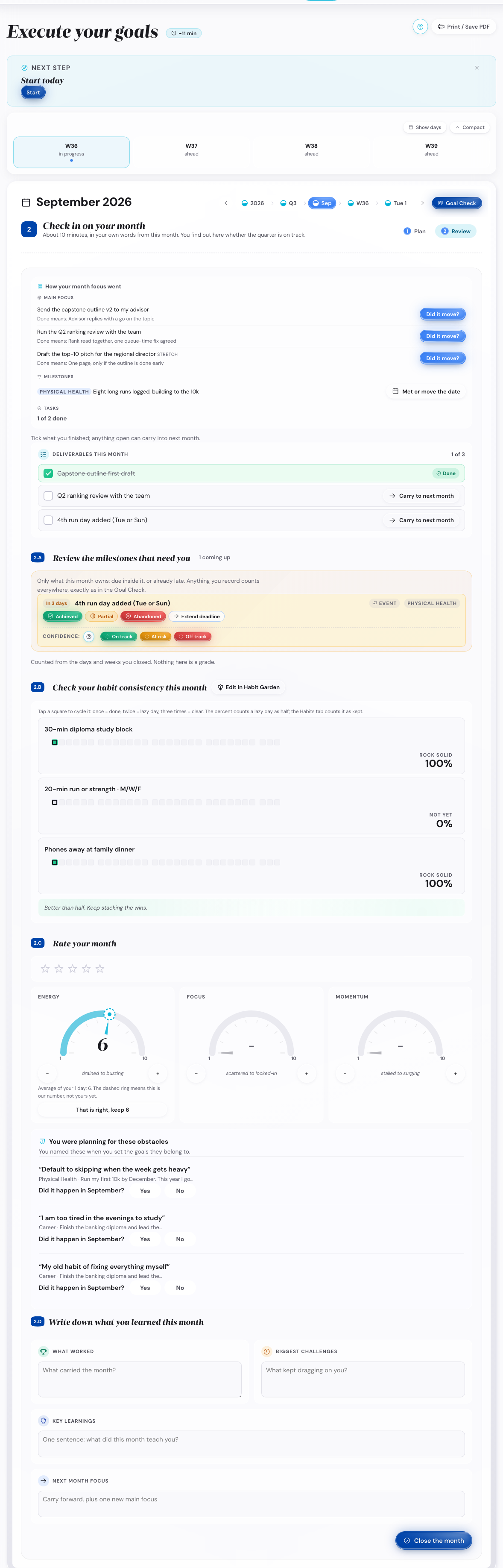
A milestone card on a computer. - 2
A timeline pill for a milestone.
Tap it to open the same card.
- 3
A card, under Confidence.
Tap On track, At risk or Off track.
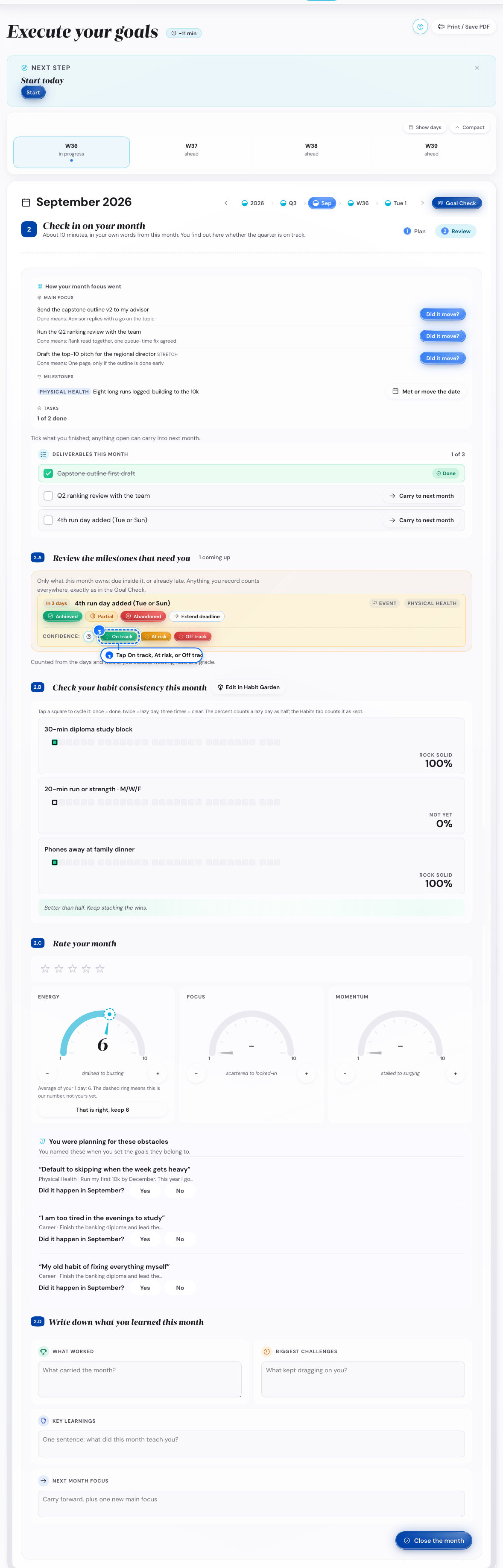
The three confidence marks. - 4
The same card, under the grading row.
Tap Achieved, Partial, or Abandoned.
Achieved plays confetti and opens a poster.
What follows
- The confidence mark and the status are two separate calls.
- You confirm a second time, and your milestone lists no longer show it.
- You can reopen an abandoned milestone in the milestone list on its goal card.
- The peek card adds a link to the month plan and to the goal card.
Mark a month as a break
You want to travel or rest, without the app counting a missed month.
- 1
The Execute screen, in the cascade pills.
Tap the Month pill for that month.
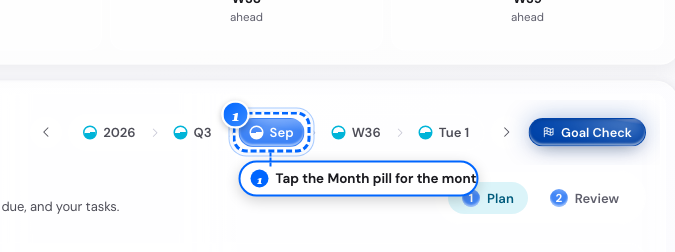
The month plan on a computer. - 2
The month plan, next to its headline.
Tap Mark as a break.
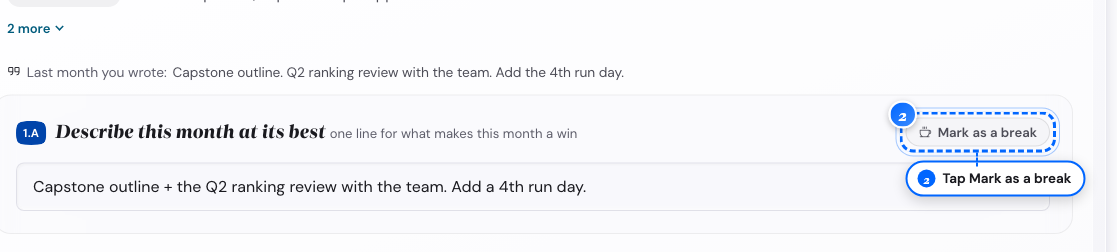
The break pill and its line. - 3
A week inside that month.
Look at its headline.
It has the break tint and no button to unmark it.
- 4
The month plan, when the pause is over.
Tap Remove break.
The pill and the tint go.
What follows
- The execution score in Insights skips break days.
- The catch-up clock skips break days, so a break never starts the recovery flow.
- A printed sheet adds a line about the break.
- A break month tints every week and day inside it.
- You remove a break only where you set it.
- The phone has Mark as a break for days, weeks and months.
Mark a week or a day as a break
One rough week or day needs the same pause, without pausing the whole month.
- 1
The Execute screen, in the cascade pills.
Tap the Week pill, or the Today pill.
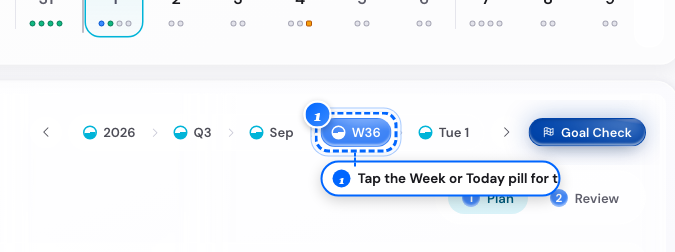
The cascade pills. - 2
The week plan, next to its headline.
Tap Mark as a break.
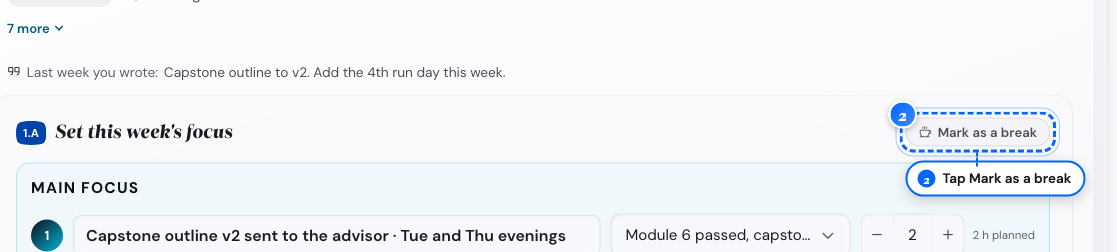
The break pill and its line. - 3
A day inside that break week.
Look at its headline.
It has the tint and no button to unmark it.
- 4
The week plan, when the pause is over.
Tap Remove break.
The pill and the tint go.
What follows
- A break week tints every day inside it.
- A break day never tints its week.
- The execution score in Insights skips break days.
- The phone has Mark as a break for days, weeks and months.
Switch between Plan and Review
You want the plan you set for a period, or its check-in.
- 1
The Week screen, on a phone.
Find the Plan and Review tabs.
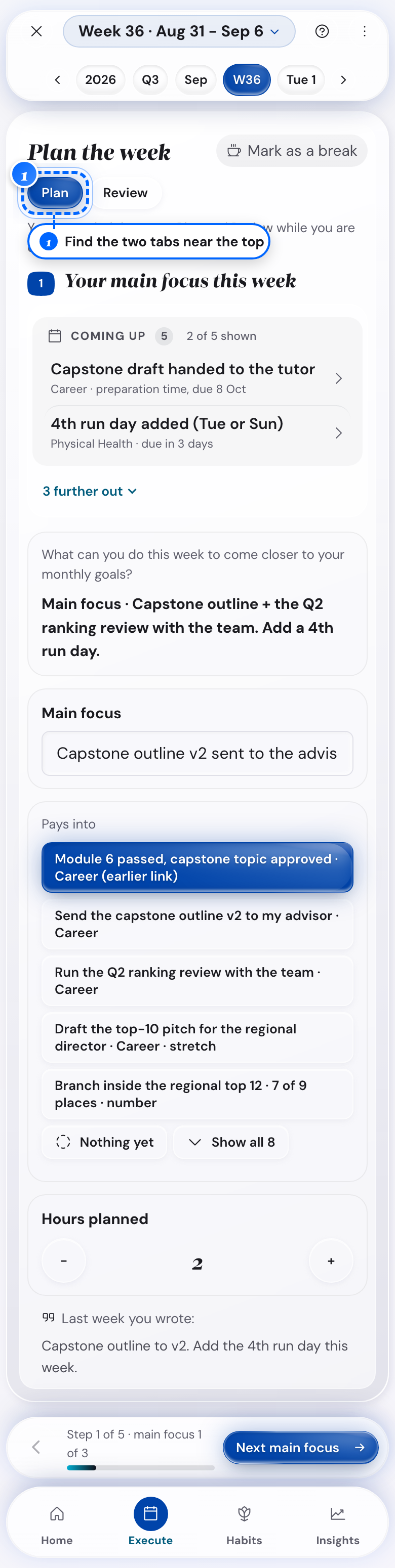
The two tabs on a phone. - 2
The Week screen, on a computer.
Find the same two tabs.
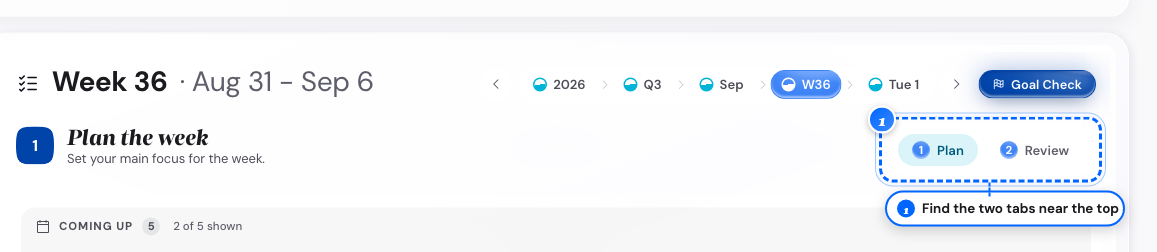
The two tabs on a computer. - 3
The tab bar.
Tap the other tab.
Review opens after you set the plan, or after the period ends.
What follows
- The two tabs are on Year, Quarter, Month, Week and Today.
- The Review tab stays gray until you set the plan.