Change a goal in the middle of the year
You change, add or clear a goal without waiting for the next check-in.
On this page
Add a focus area mid-year
Something outside your first focus areas now needs a Summit Goal.
- 1
Open Life Areas, then Rate your areas
Set the importance and satisfaction sliders for that area
- 2
Open Choose your focus
Check the box on that area's row
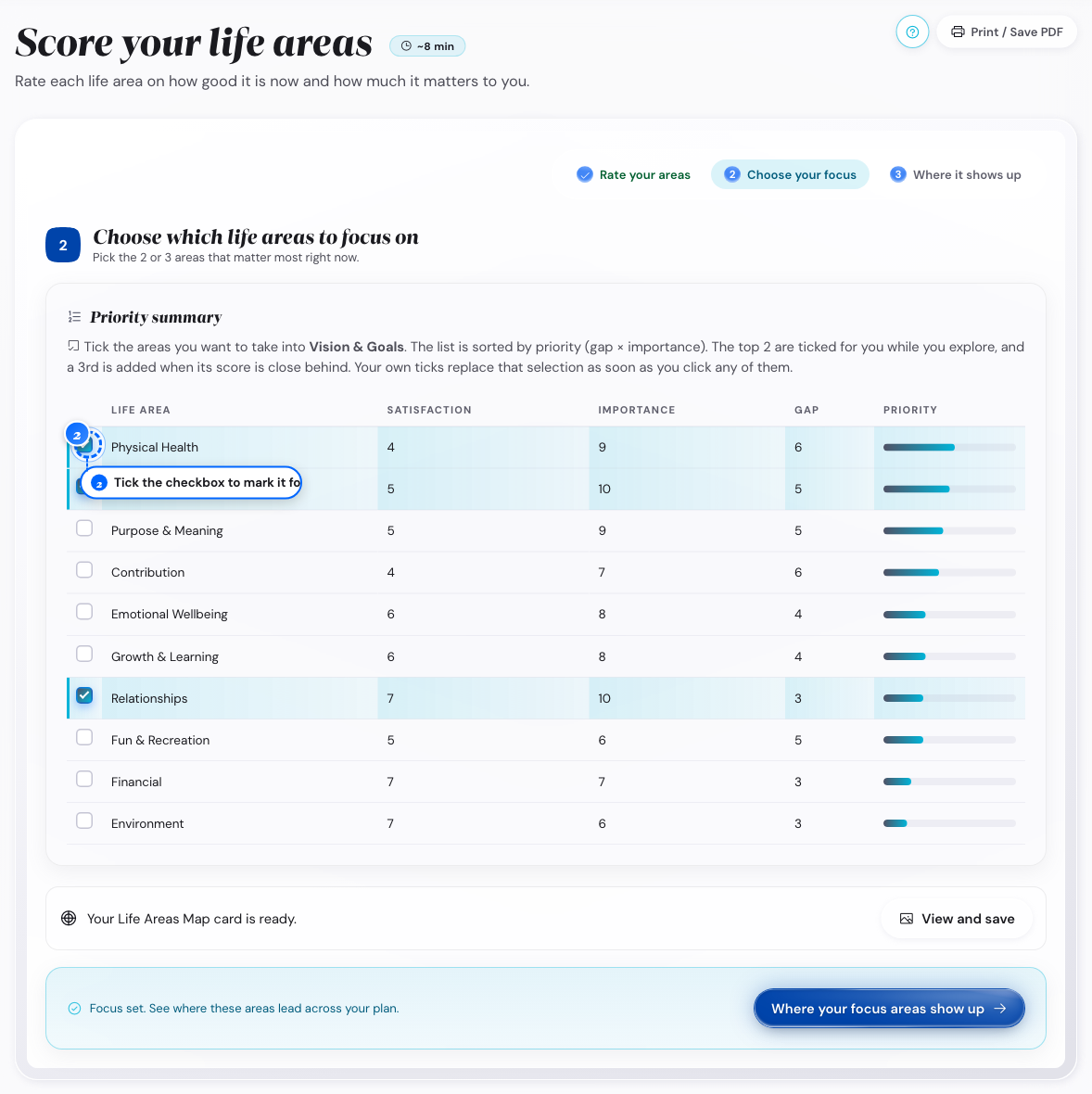
Desktop: the focus checkbox - 3
Open Summit Goals
Tap Add Summit Goal for the new area
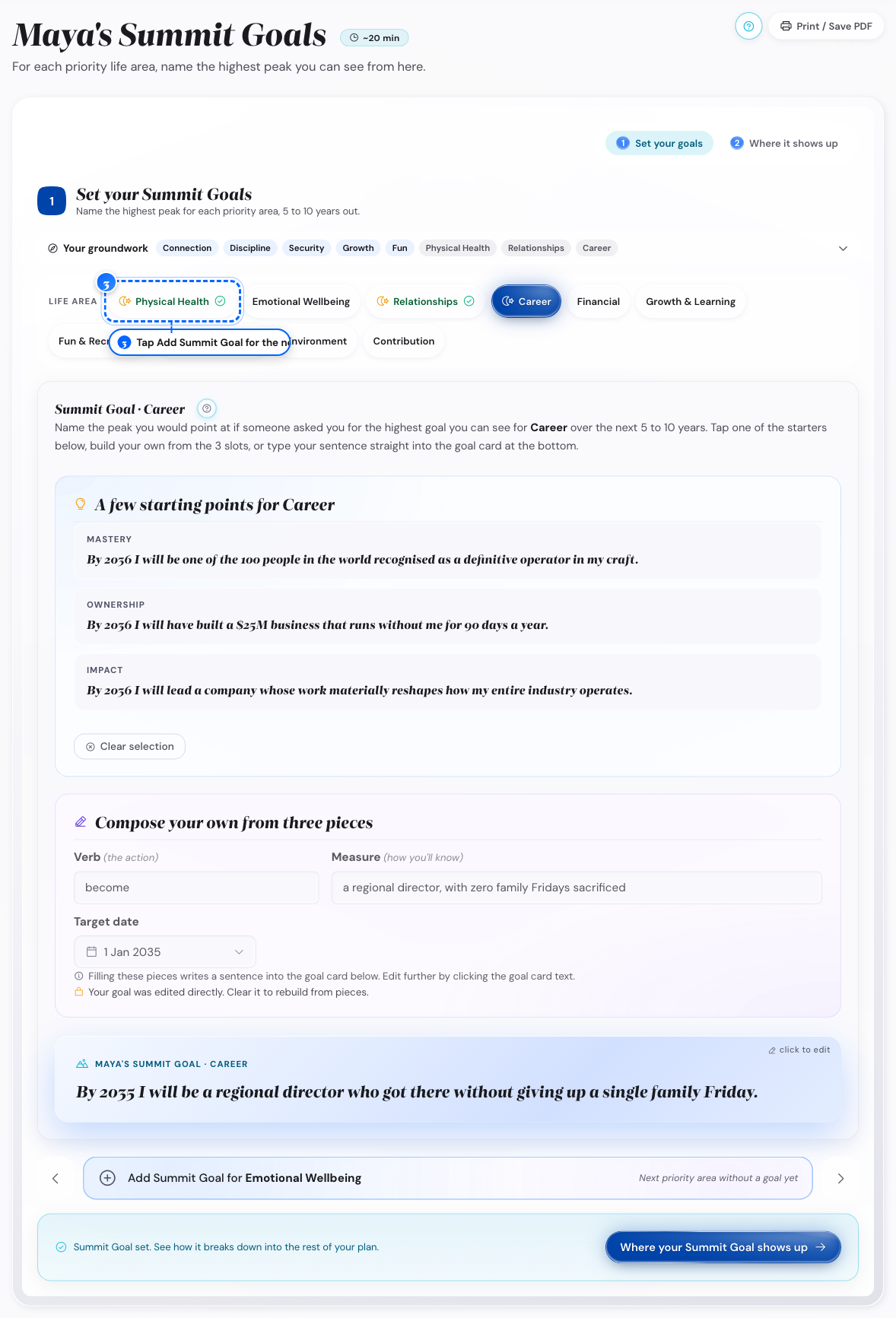
Desktop: the add button
What follows
- The new Summit Goal starts empty until you write one.
Change a Summit Goal mid-year
The wording or the date of a Summit Goal no longer fits.
- 1
Open Summit Goals on the area row
Open the area with the goal to change
- 2
Look at that area's goal card
Click into the sentence and edit it
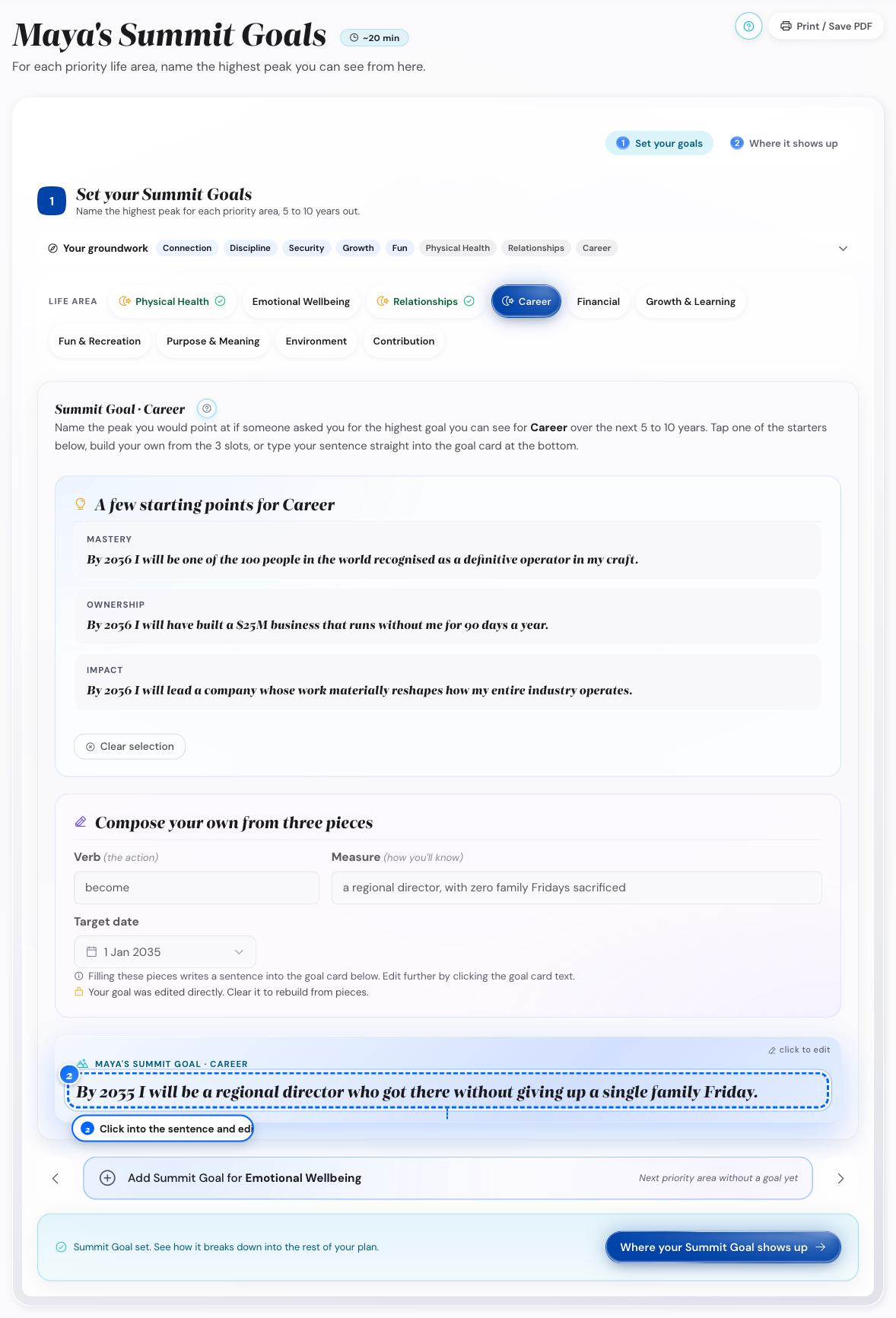
Desktop: the goal sentence - 3
Look at Build your own from three pieces
Pick a new Target date
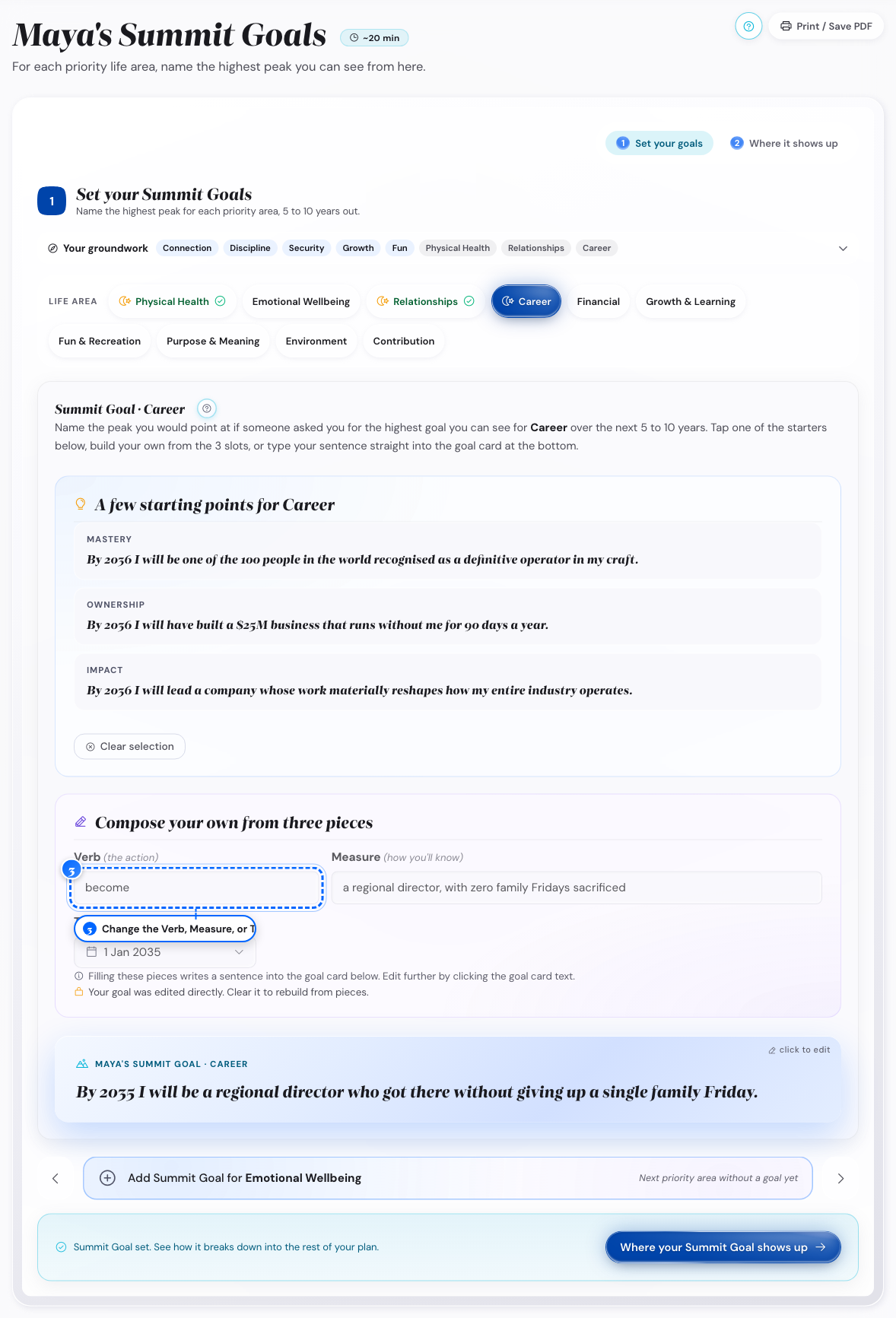
Desktop: the three pieces
What follows
- The sentence saves as you type. There is no separate Save button.
- After you edit the sentence, Action and How you'll know stay locked until you tap Clear goal.
- A new wording does not rewrite an annual goal already drafted from it.
Choose what to do with a red milestone
A milestone is off track, and the levels around it go wrong without a decision.
- 1
Open Execute on this month, then Review
Find the Confidence row
Off track is your own call.
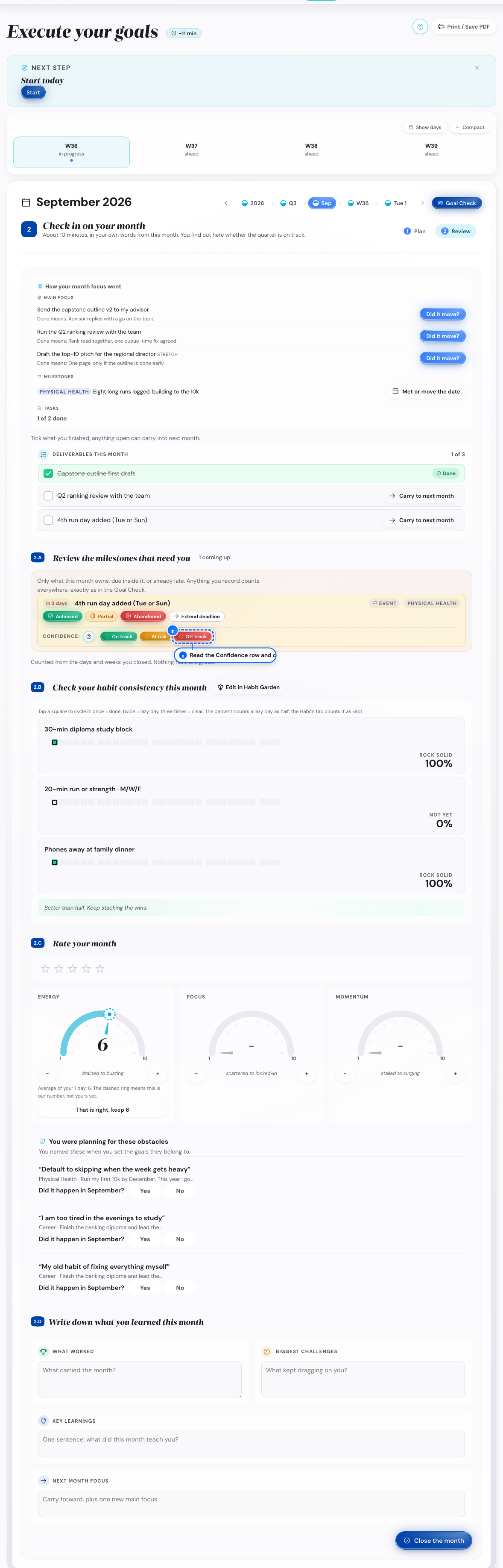
Desktop: the confidence row - 2
Look at the same card
Tap Extend deadline for a new date
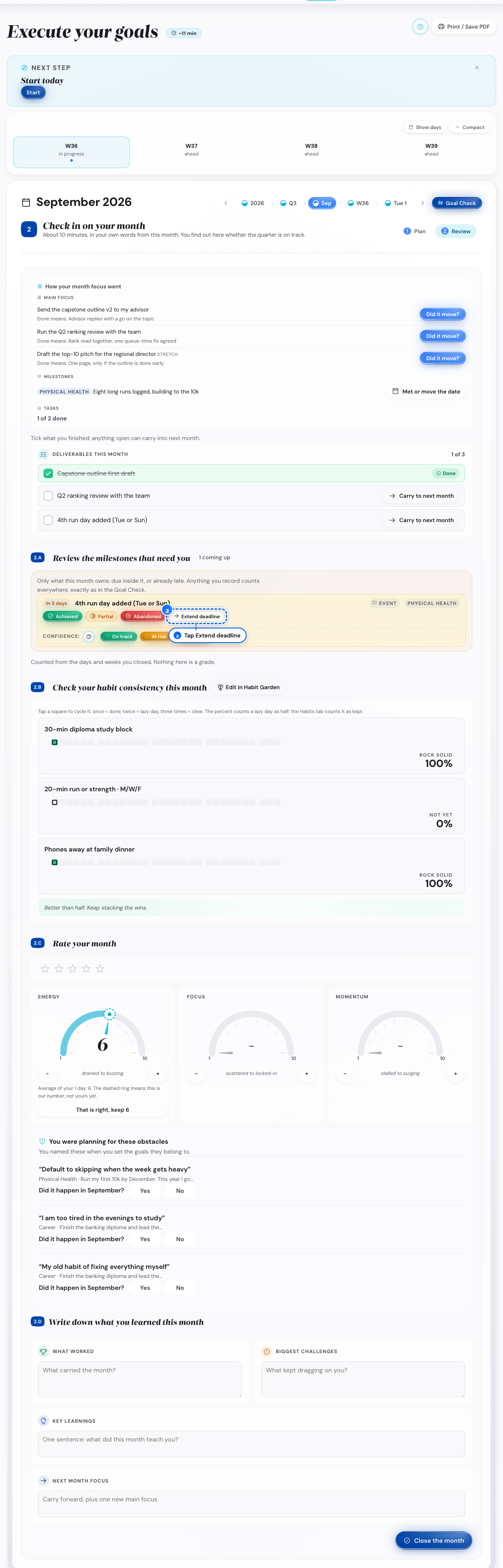
Desktop: the extend button - 3
Look at the same card again
Mark the milestone Abandoned on the same card
What follows
- For a milestone, you add a new one or edit the plan by hand.
- At the quarter check-in, you get Rescue, Move and Retire for a goal at risk or off track.
Look again at a Summit Goal that feels wrong
After weeks of work, a Summit Goal feels like the wrong target.
- 1
Open Goal Check from Home
Read the Summit Goal and its milestones

Phone: Goal Check on Home - 2
Open Vision on your active plan
Reread your Vision
- 3
Open Summit Goals on the goal in question
Rewrite the sentence around what you care about
- 4
Look at the same Summit Goal
Clear the sentence and write a new one
What follows
- Your obstacles are on the Friction Map tab, sorted by control and by how often they return.
- A cleared Summit Goal is gone outright, with no history kept.
Clear a goal that is not working
You want a goal off your plan, without pretending you never had it.
- 1
Open Summit Goals on the goal to clear
Open the area with the goal to empty
- 2
Look at that area's goal card
Tap Clear goal
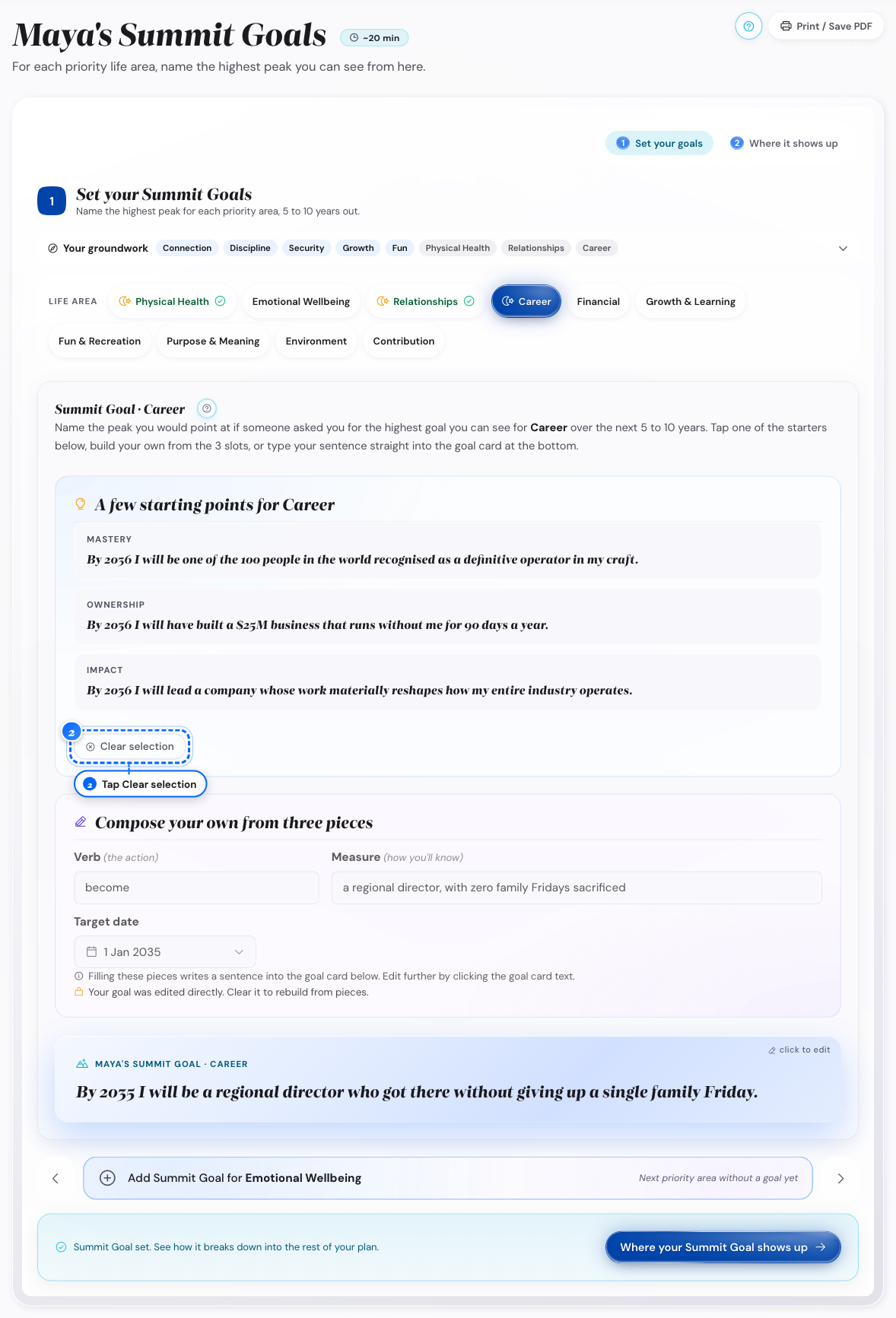
Desktop: the clear button
What follows
- The sentence and its three pieces empty out, with no step asking you to confirm.
- An annual goal drafted from it stays; remove that from the year plan.
- To end your annual goal for the year, mark it At risk or Off track at the quarter check-in. Then pick Retire, and the goal stays in your Year Wrap-up.