Change the look and the planning settings
You change the colors, how much text shows, and the rules your plan follows.
On this page
Change how much the header shows
You want less text, or more, on your planning screens.
- 1
Open Settings, then Planning experience
Find Header density

Phone: Header density - 2
Look at Header density
Pick Compact, Expanded, or Set by the mode
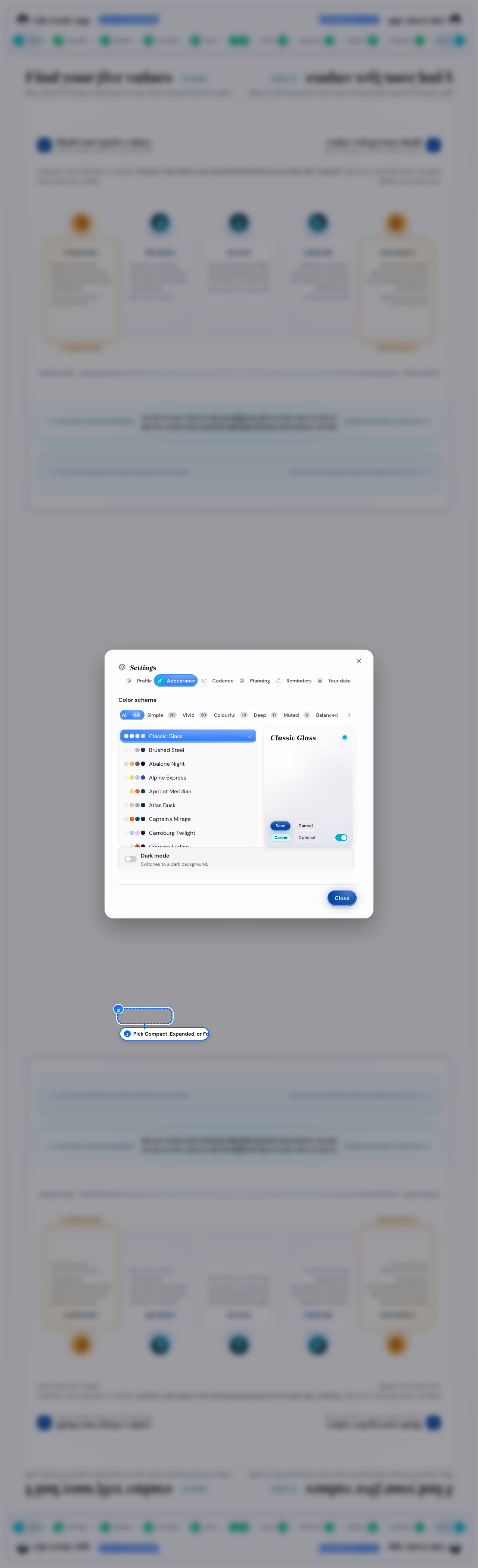
Desktop: the three choices
What follows
- The Compact setting keeps your goals behind a toggle; Expanded shows them straight away.
- The change shows straight away, with no reload.
Change the color theme and dark mode
You want the app in different colors, or easier to read at night.
- 1
Open Settings, then Appearance
Tap a swatch under Color scheme

Phone: the swatches - 2
Look at the same Color scheme list
Tap a tag such as Simple, Vivid or Muted
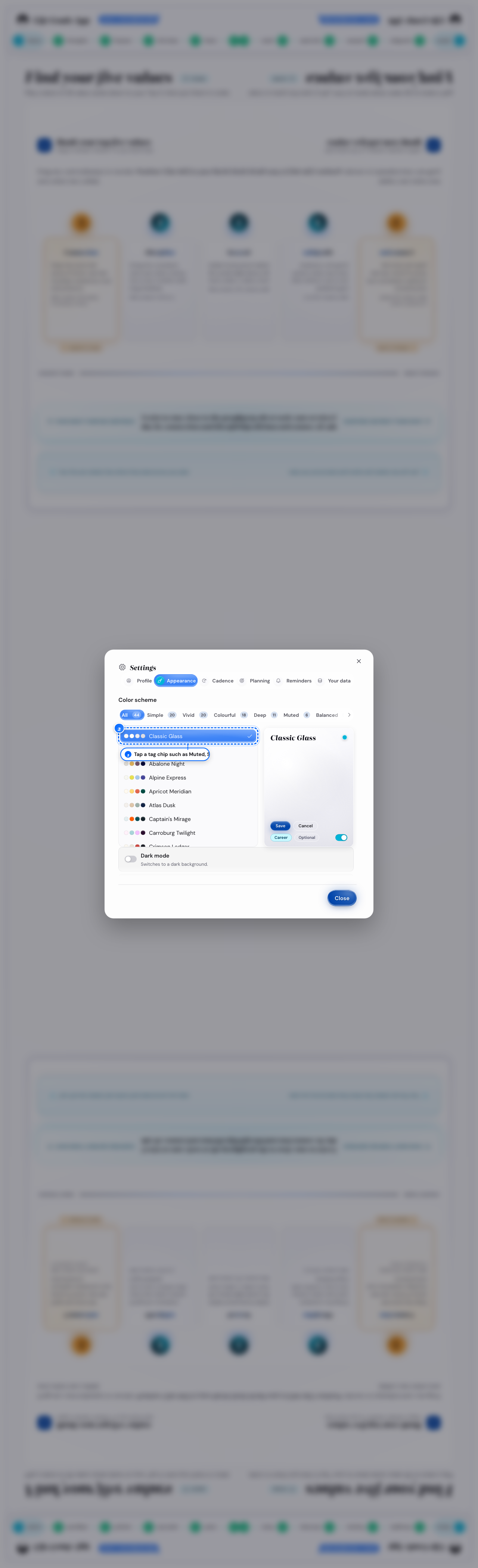
Desktop: the tag chips - 3
Look at the Dark mode row in Appearance
Turn on Dark mode

Phone: the dark mode switch - 4
Open the same group on a computer
Turn on Dark mode there too
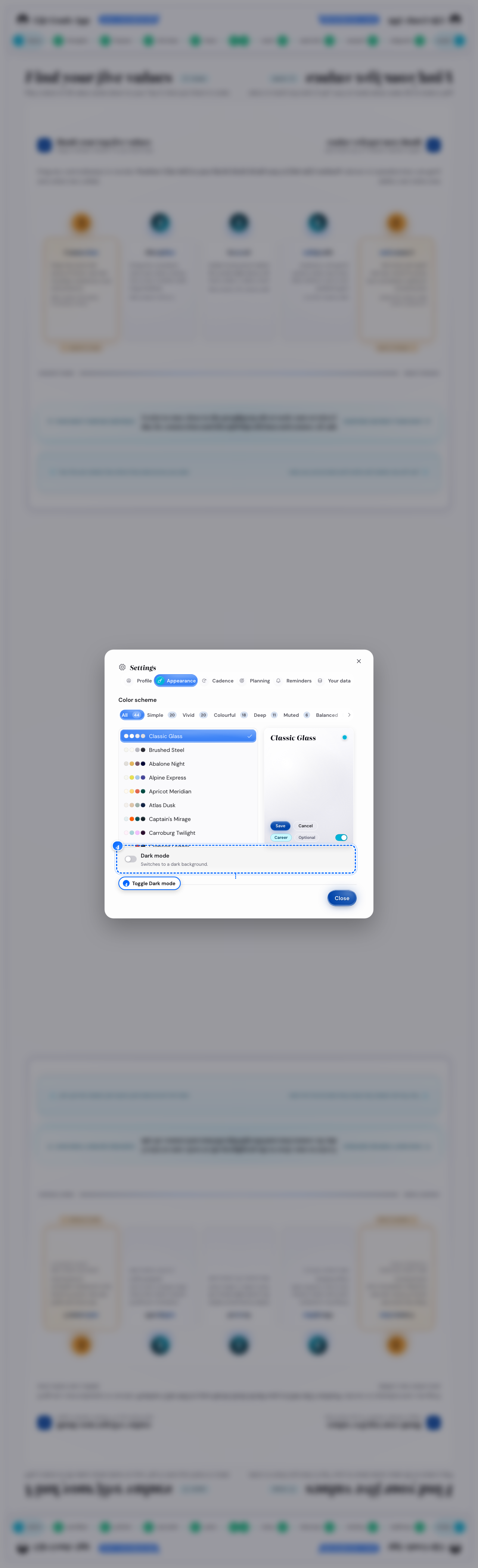
Desktop: the dark mode switch
What follows
- The tags are Simple, Vivid, Colorful, Deep, Muted, Balanced, and Monochromatic.
Hide a small line, and get it back
A greeting or a value line keeps repeating, and you want it gone.
- 1
Look at the end of the line
Tap the small cross
It stays gone after you reload.
- 2
Open Settings, then Guidance & reminders
Tap Show them again under Hidden hints
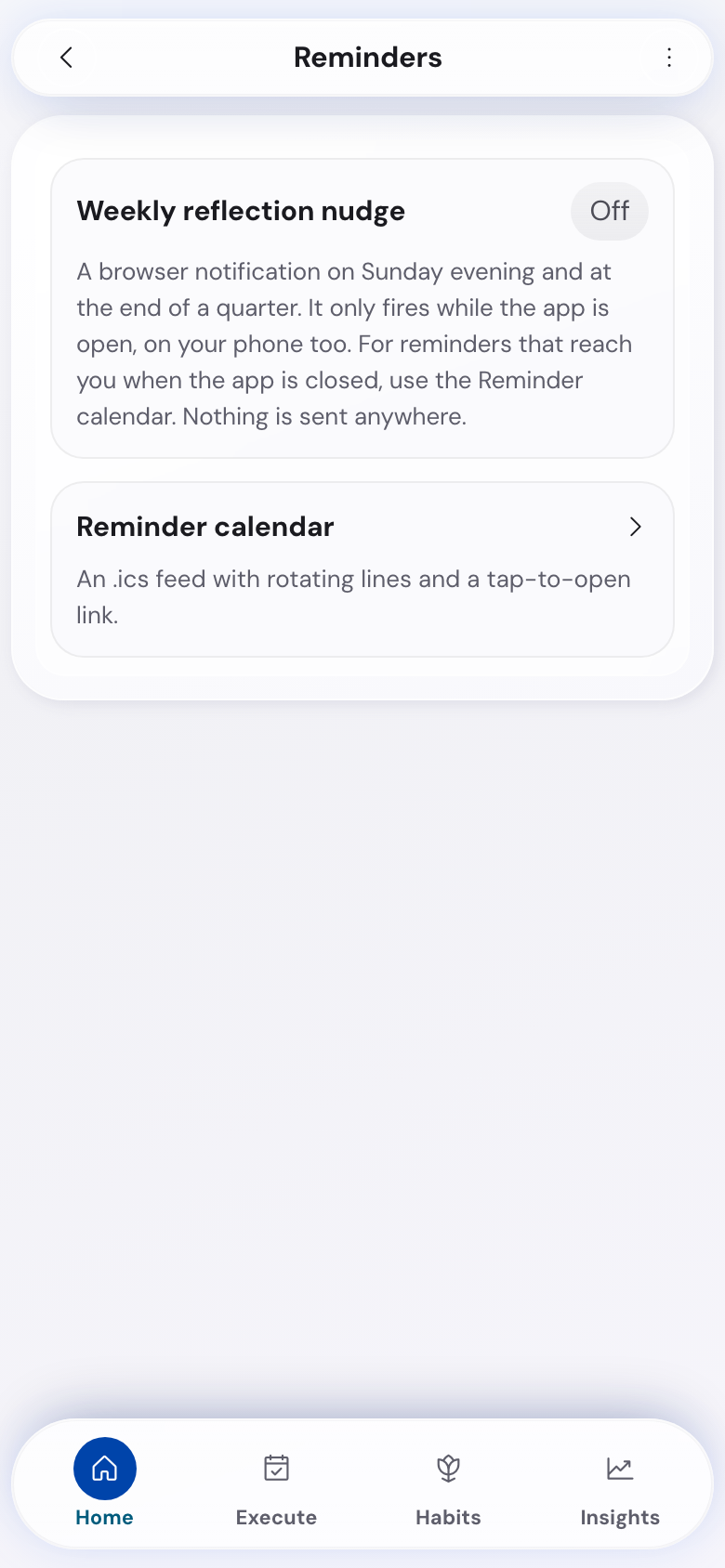
Phone: the list 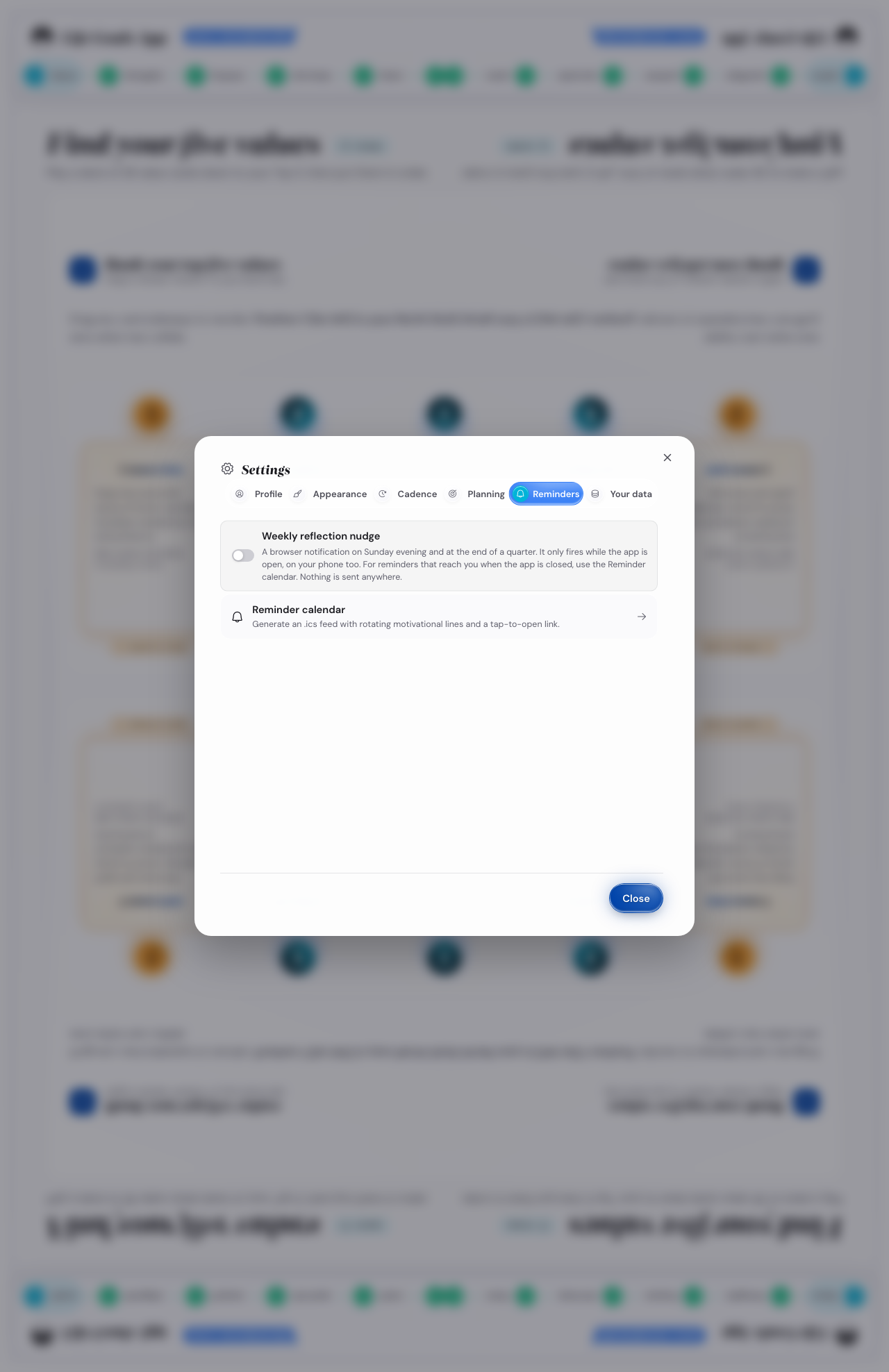
Desktop: the list
What follows
- The cross is faint on the phone, and shows when you point at the line on a computer.
- The overdue milestones and the break notices have no cross, because they show the state of your plan.
Check your planning settings
You want to see or change the rules for drafting annual goals and setting your year.
- 1
Open Settings, then Goals & calendar
Set Maximum annual goals
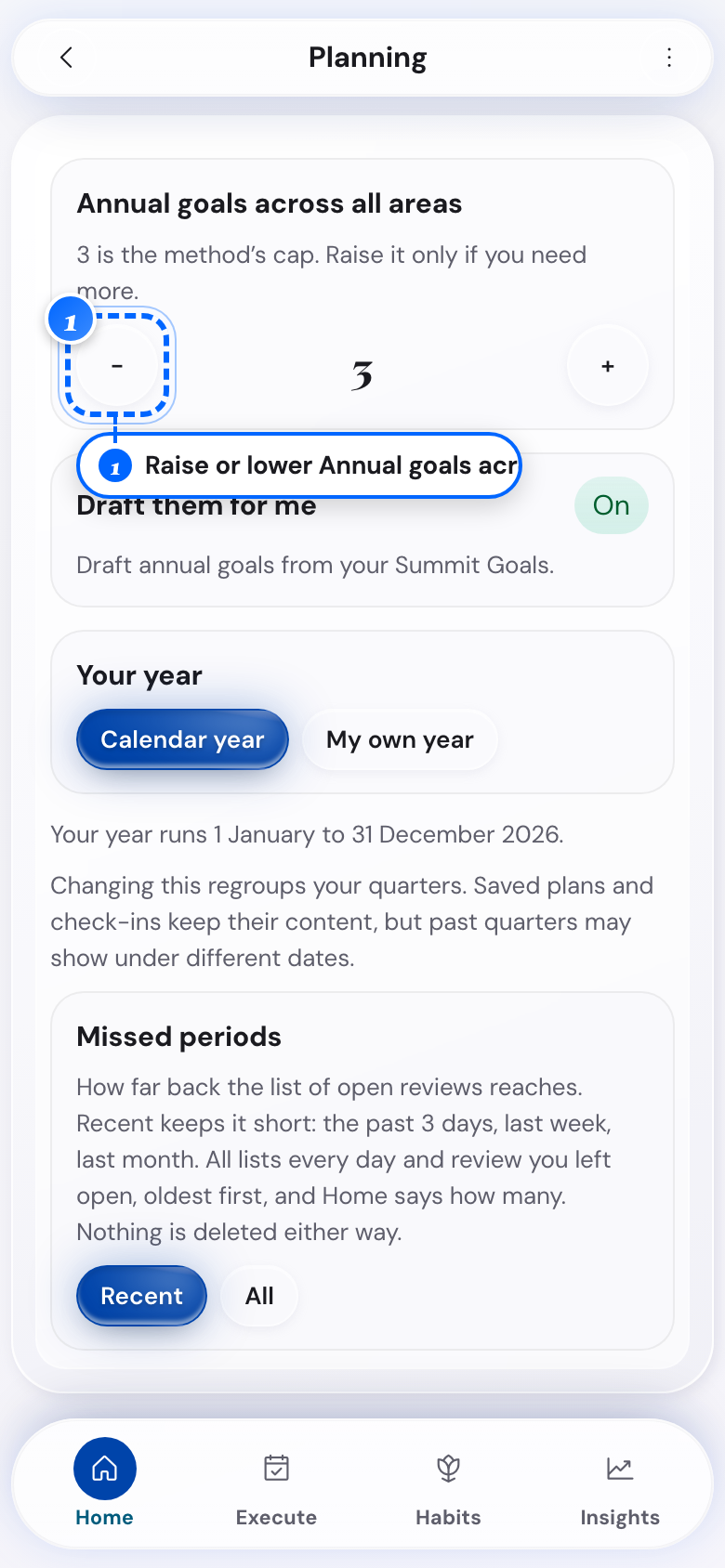
Phone: the goal counter - 2
Look at Draft them for me
Turn it off to start from a blank page
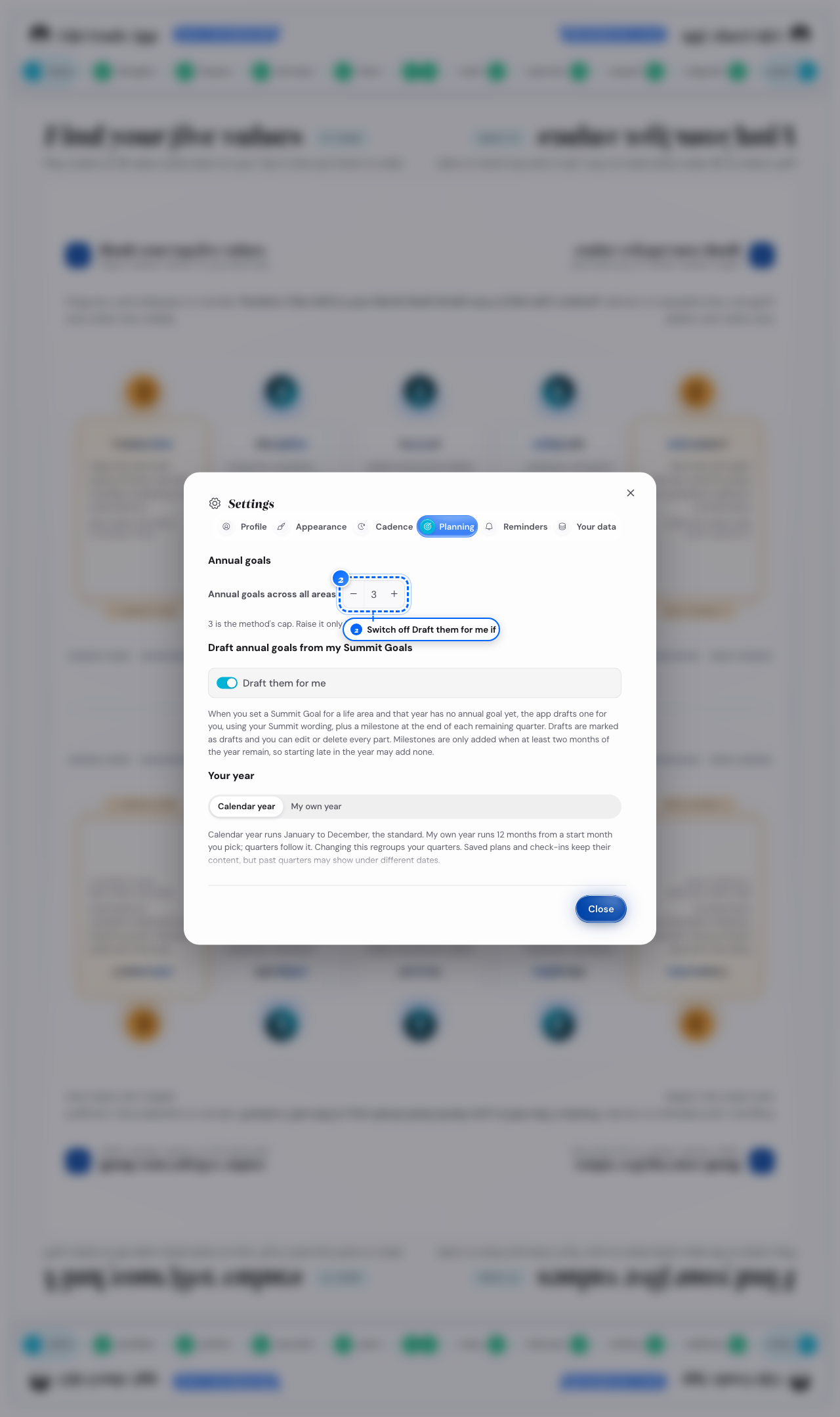
Desktop: the drafting switch
What follows
- The method caps this at 3, and the counter allows any number from 1 to 12.
- The app saves each choice the moment you change it.
- A goal already drafted stays where it is when you turn drafting off.
Set the month your year starts
Your planning year does not follow the calendar year, and you want the app to follow yours.
- 1
Open Settings, then Goals & calendar
Pick Calendar year or My own year under Your year
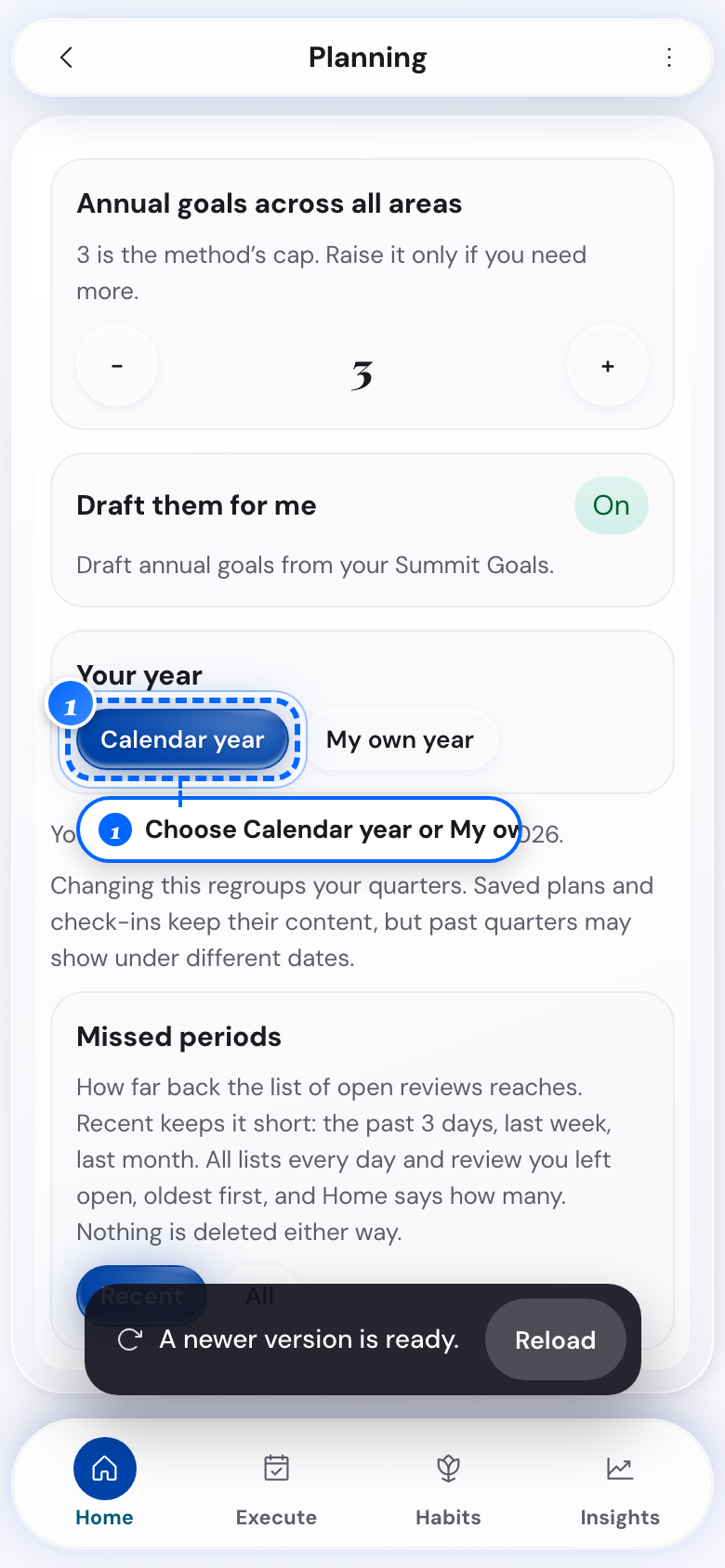
Phone: the year choice - 2
Open the same group on a computer
Pick Calendar year or My own year there too
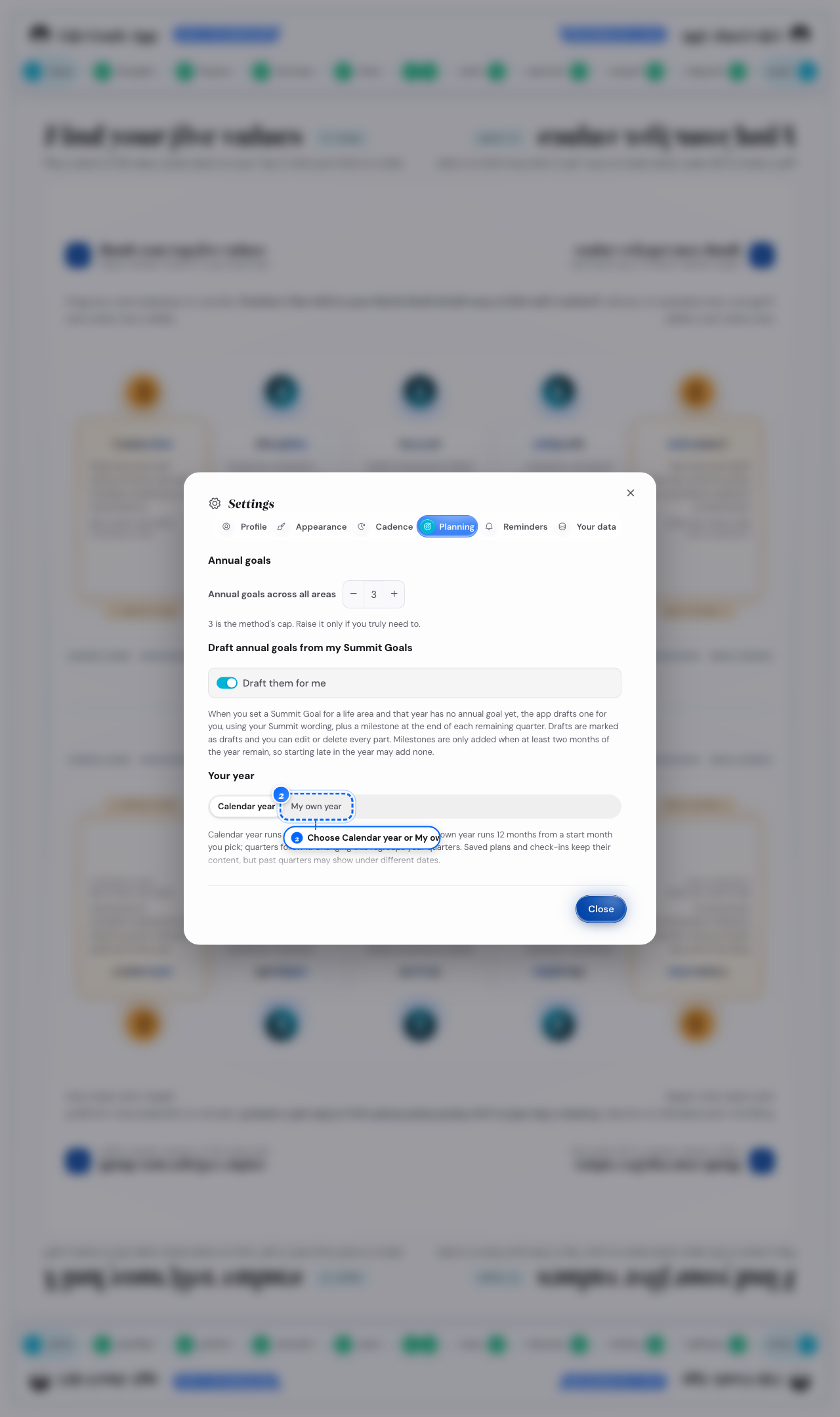
Desktop: the year choice - 3
Pick My own year first
Tap My year starts in and choose a month
- 4
Open the same group on a computer
Tap My year starts in there too
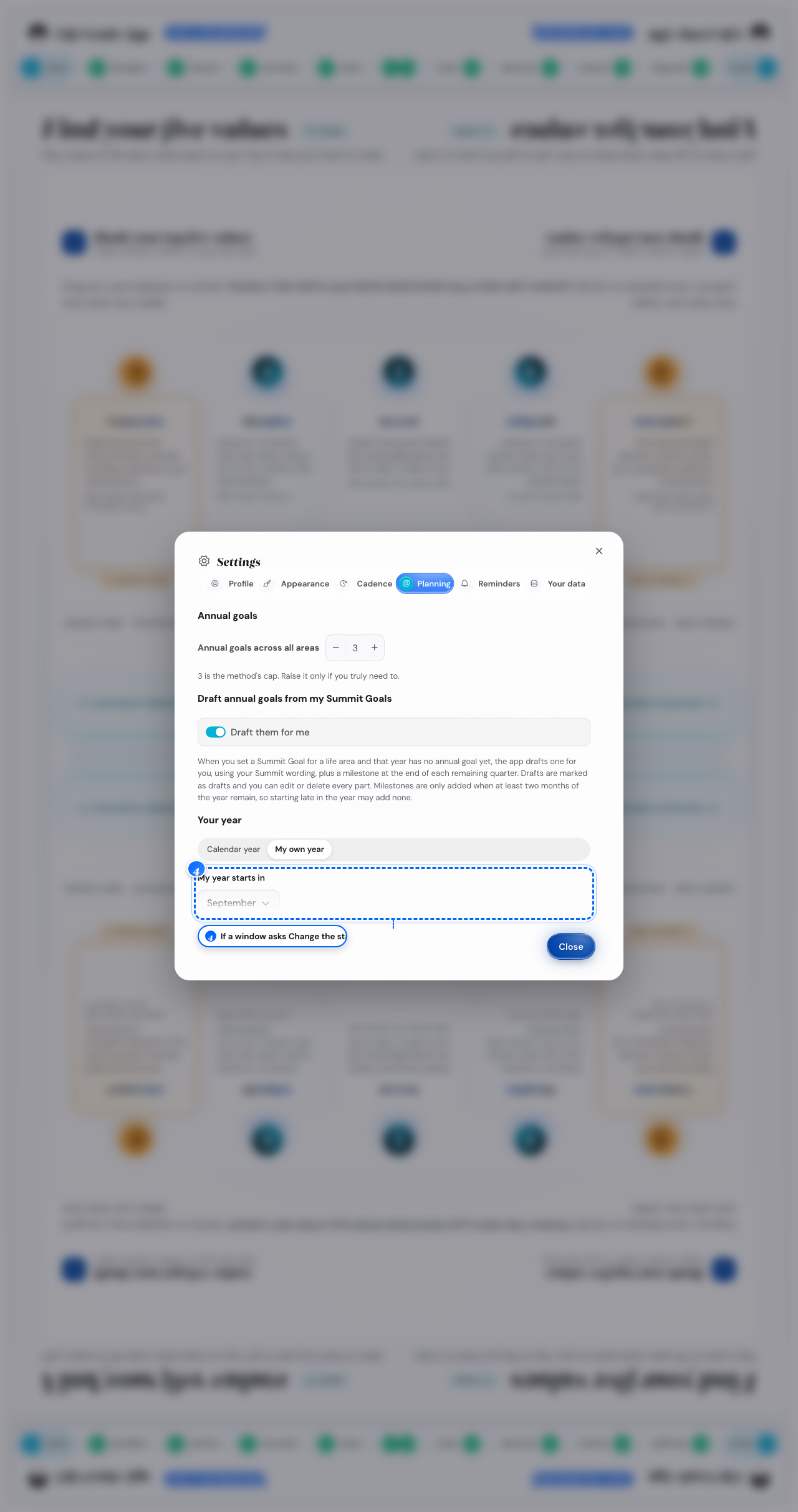
Desktop: the month choice
What follows
- The change regroups your quarters, so past quarters may show under different dates.