Settings and options
A short list of choices, deliberately short. Most planning apps drown the user in toggles; the design discipline here is that fewer options means fewer wrong configurations. The settings that exist are the ones that pay rent. The settings that do not exist are not bugs; they are answers. This page walks all of them, and for each one explains why Ramon built it that way (or did not).
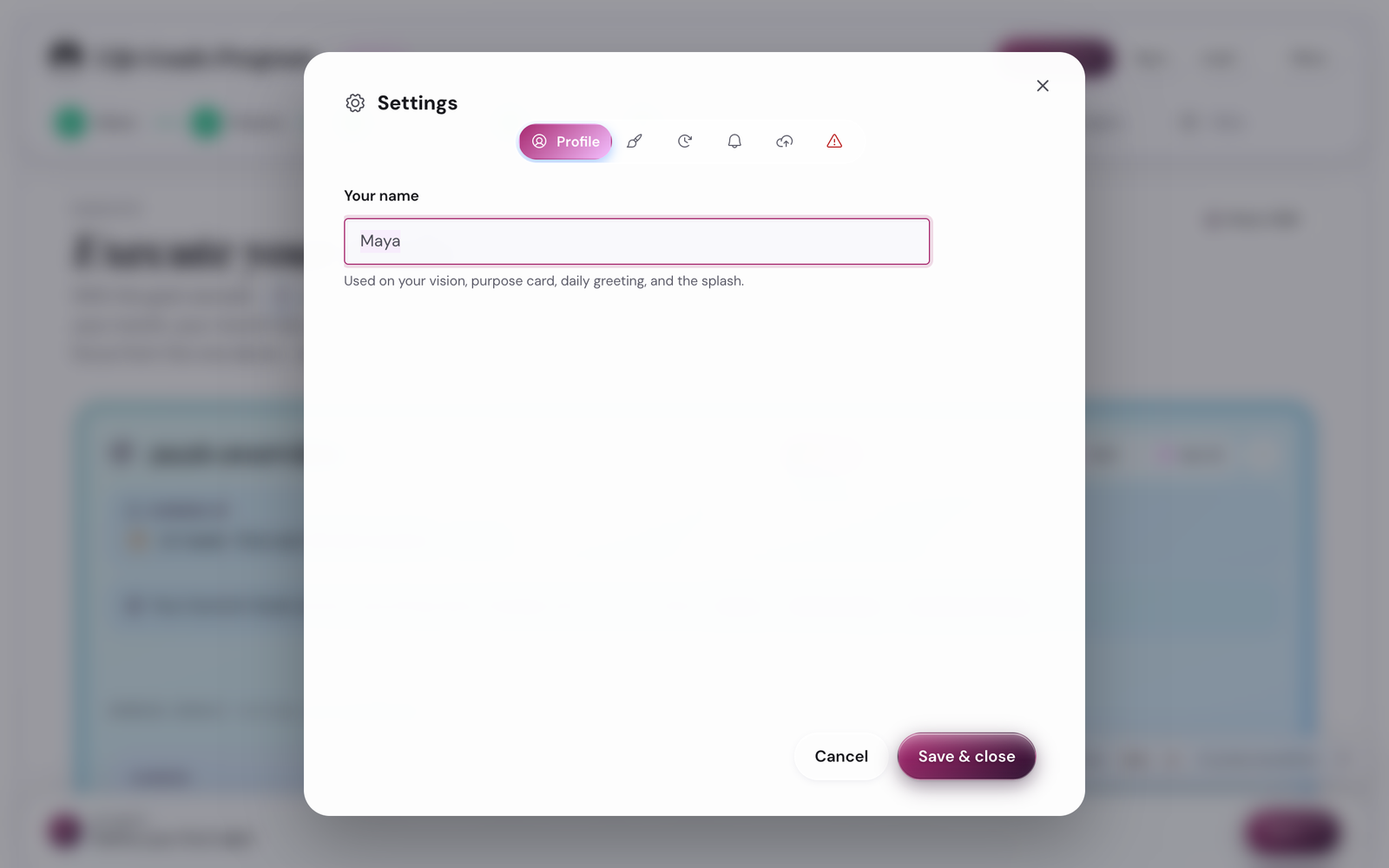
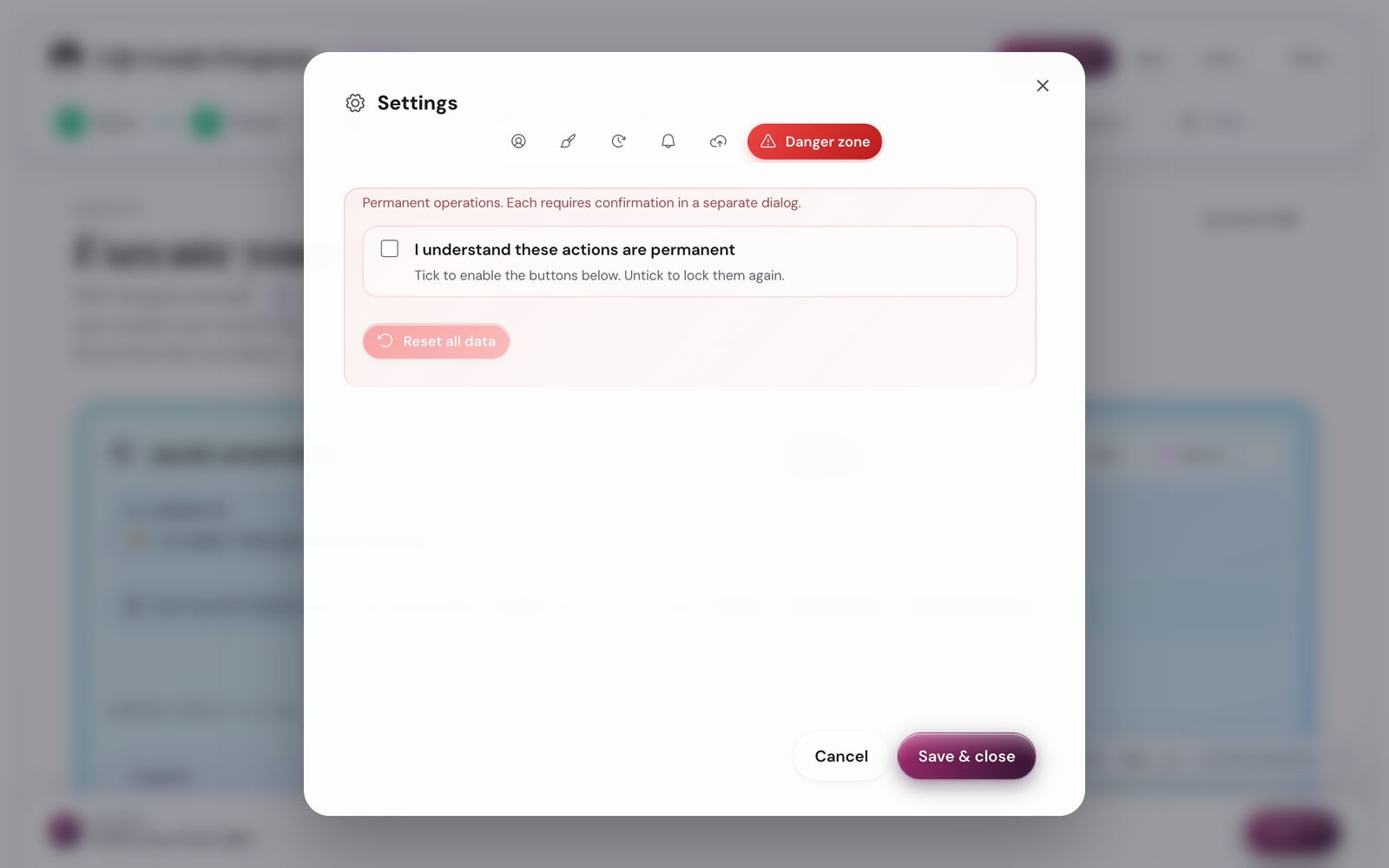
The Settings modal has six tabs along the top: Profile, Appearance, Cadence, Reminders, Sync, Danger zone. Each one is a different category of preference; this guide walks all of them.
Contents
1. Themes
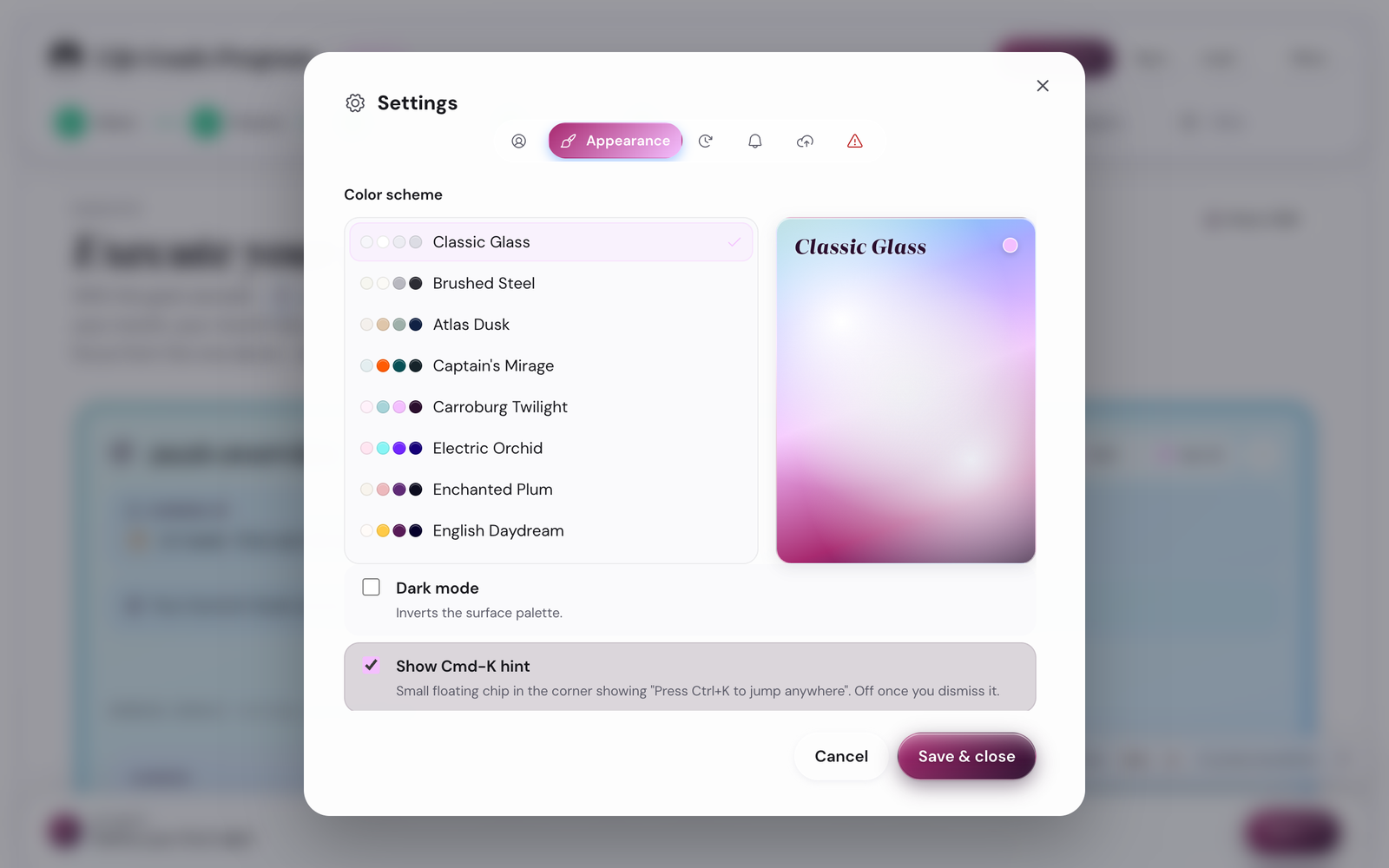
Why this exists. You will look at the app for five to ten minutes a day for a year. The visual texture of those minutes matters. Eight default palettes would have done the job; thirty-three exist because the right palette for a January morning is different from the right palette for a July evening, and the right palette for someone who hates pastels is different from the right palette for someone who hates dark mode.
The app ships with 33 palettes. Each one comes in both a light and dark variant, so you have 66 looks total. Open Settings → Appearance and tap a swatch to switch. The change is immediate and persists across sessions.
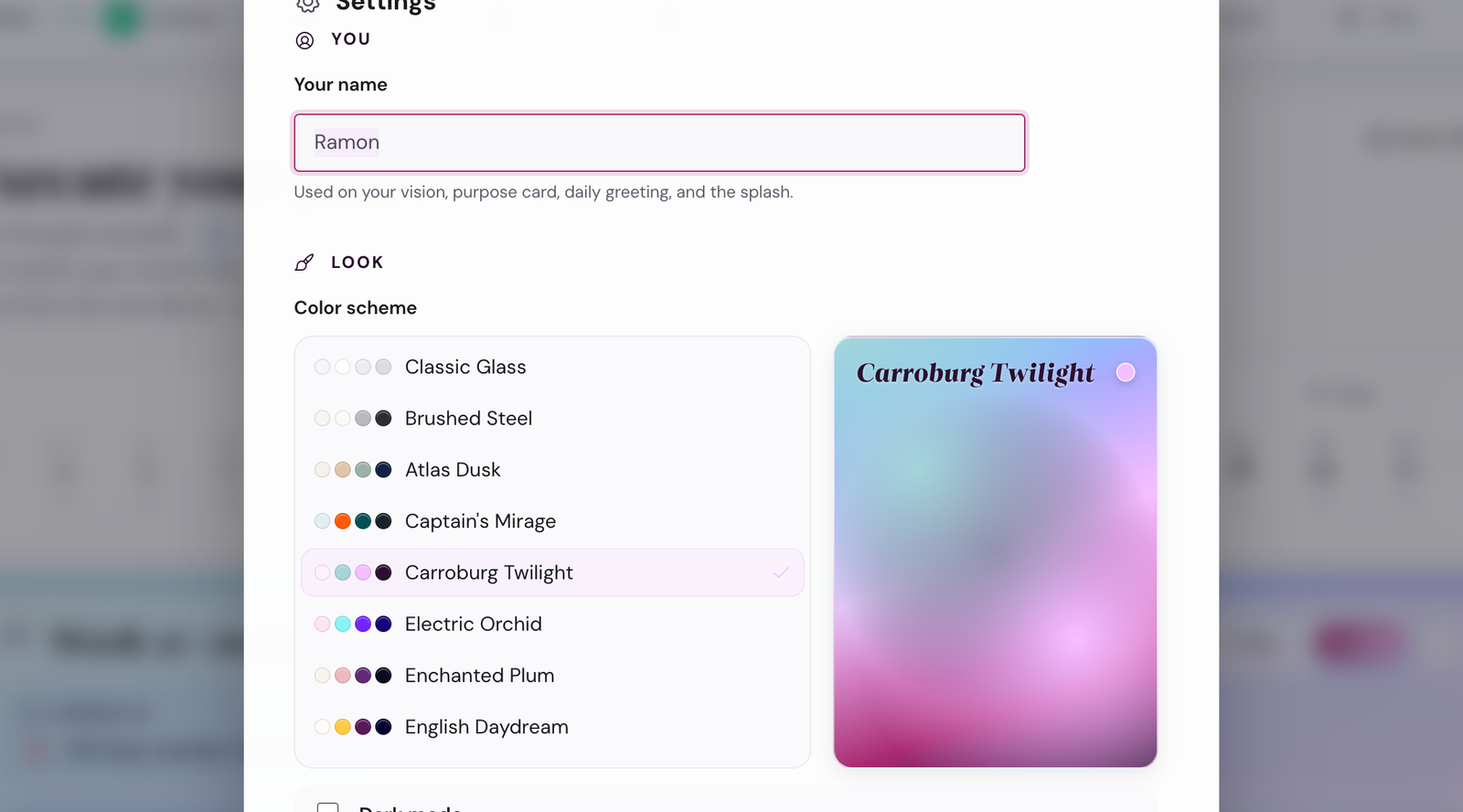
Two of the palettes are special:
- Classic Glass (default light). Neutral cream background, subtle glass cards, no mesh gradient. Closest to a serif-document feel.
- Brushed Steel (default dark). Cool grey, subtle hairline, no mesh gradient.
The other 24 palettes are inspired by light conditions across the day: dawn pastels, midday brights, dusk warms, midnight cools. Pick whatever feels good to look at for ten minutes a day.
The dark variant of each palette is honest dark mode (true near-black background, contrast-checked text), not just a tinted overlay.
Where the theme picker lives. Settings modal → Appearance tab. Also accessible from the topbar's Theme swatch quick-picker (tap the small circle next to the Save/Load buttons).
2. Cadence preferences
Why this exists. The reflection cadence is the engine. If the engine asks too much (Full mode on day three of beta) or too little (Light mode after month two), it stalls. Three small switches let you tune the engine without redesigning it.
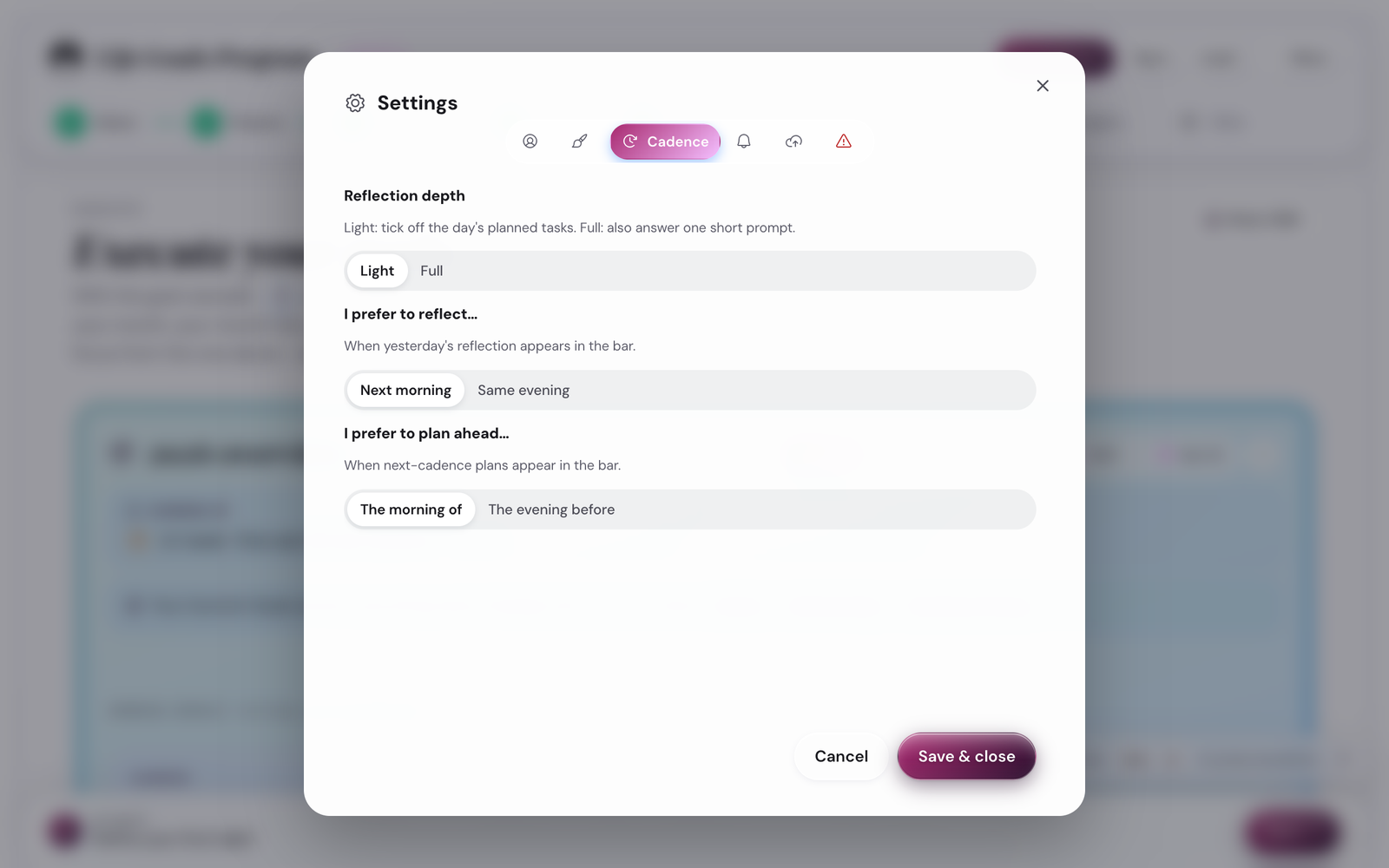
The app has three tunable cadence settings, all in Settings → Cadence:
- Reflection mode. Light or Full.
- Light (default) keeps the prompts short. Useful in your first 30 days when the bigger questions feel overwhelming. A small hint shows so you know the deeper prompts are still available.
- Full adds the deeper prompts at each reflection: wins, challenges, next focus, adjustments.
- The learnings prompts are present in both modes: the daily "One thing I learned today" line and the weekly Key learnings card are always there, always optional.
- Reflect timing. Evening (default) or morning. Determines when the daily reflection card asks for yesterday's wrap.
- Plan timing. Evening (default) or morning. Determines when the daily plan card asks for today's three priorities. Many people prefer to plan the night before so the morning is clear.
Changing these settings re-renders the Execute step immediately so the new layout takes effect without a reload.
3. Dropbox sync
Why this exists. Browser localStorage is fast and private but evaporates if you clear browsing data. Dropbox is the cheapest way to make the plan survive a wiped browser, a new laptop, or a phone-to-desktop swap. The app uses Dropbox's app-folder scope so it can only see its own folder, not your wedding photos.
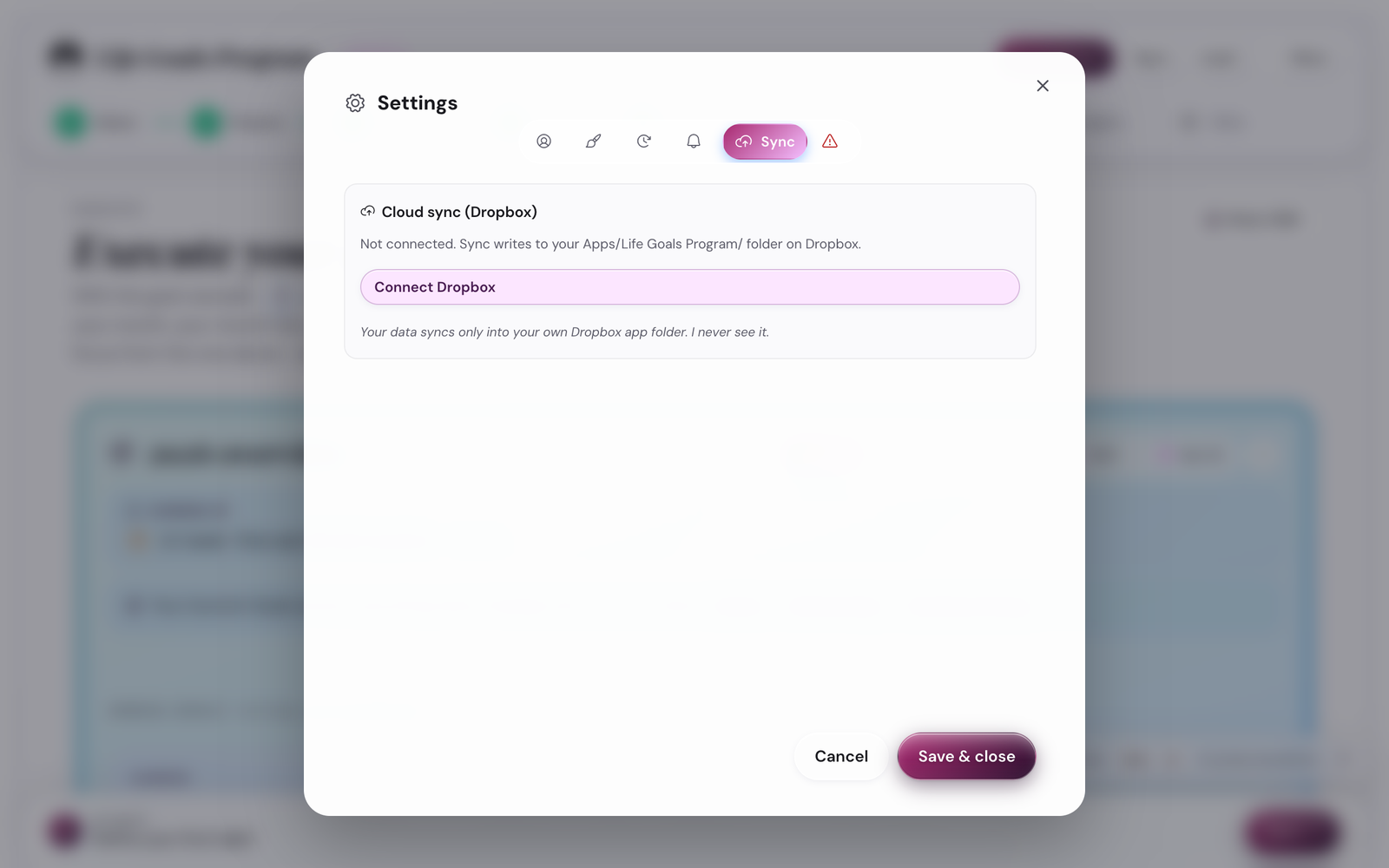
The app stores your plan in your browser's localStorage by default. If you clear browsing data, the plan goes with it. The manual .save file (see Save, load, and backups below) covers that risk, but Dropbox sync makes it automatic across devices.
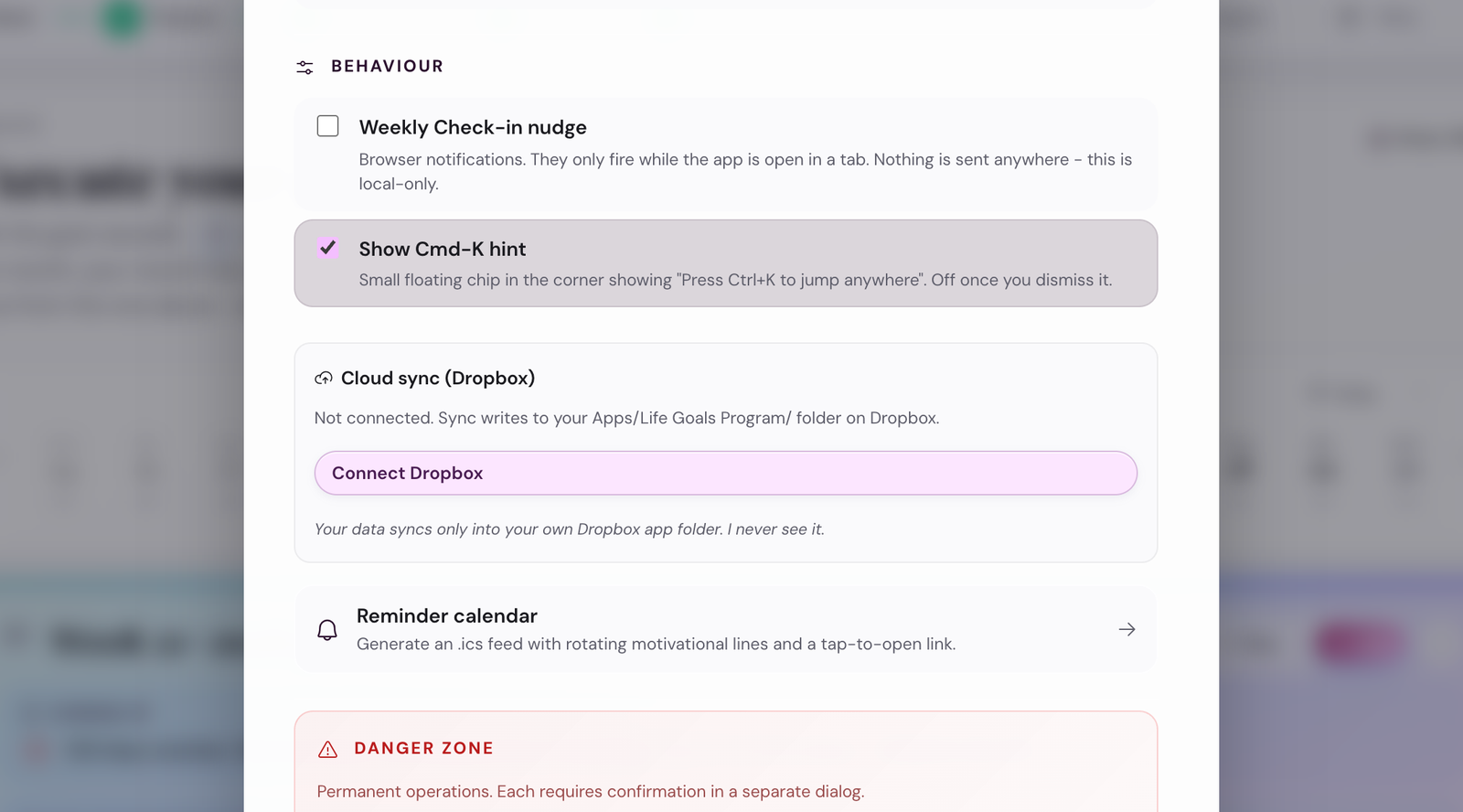
To turn it on, follow these three steps:
Connect
More menu → Connect Dropbox. A Dropbox OAuth window opens. Approve.
Folder created
The app creates Apps/Life Goals Program in your Dropbox.
Auto-sync
Saves go there automatically. Loads pull from there when you open the app on a new device.
To disconnect. Settings → Dropbox → Disconnect. The folder stays in your Dropbox; the app just stops syncing to it.
4. Calendar export (ICS)
Why this exists. Calendar reminders are the single highest-leverage retention feature in the app. The Sunday weekly reflection is the cadence that does the most work, and the one most people skip because nothing prompts them. Wire it into your calendar once and the rhythm runs itself.
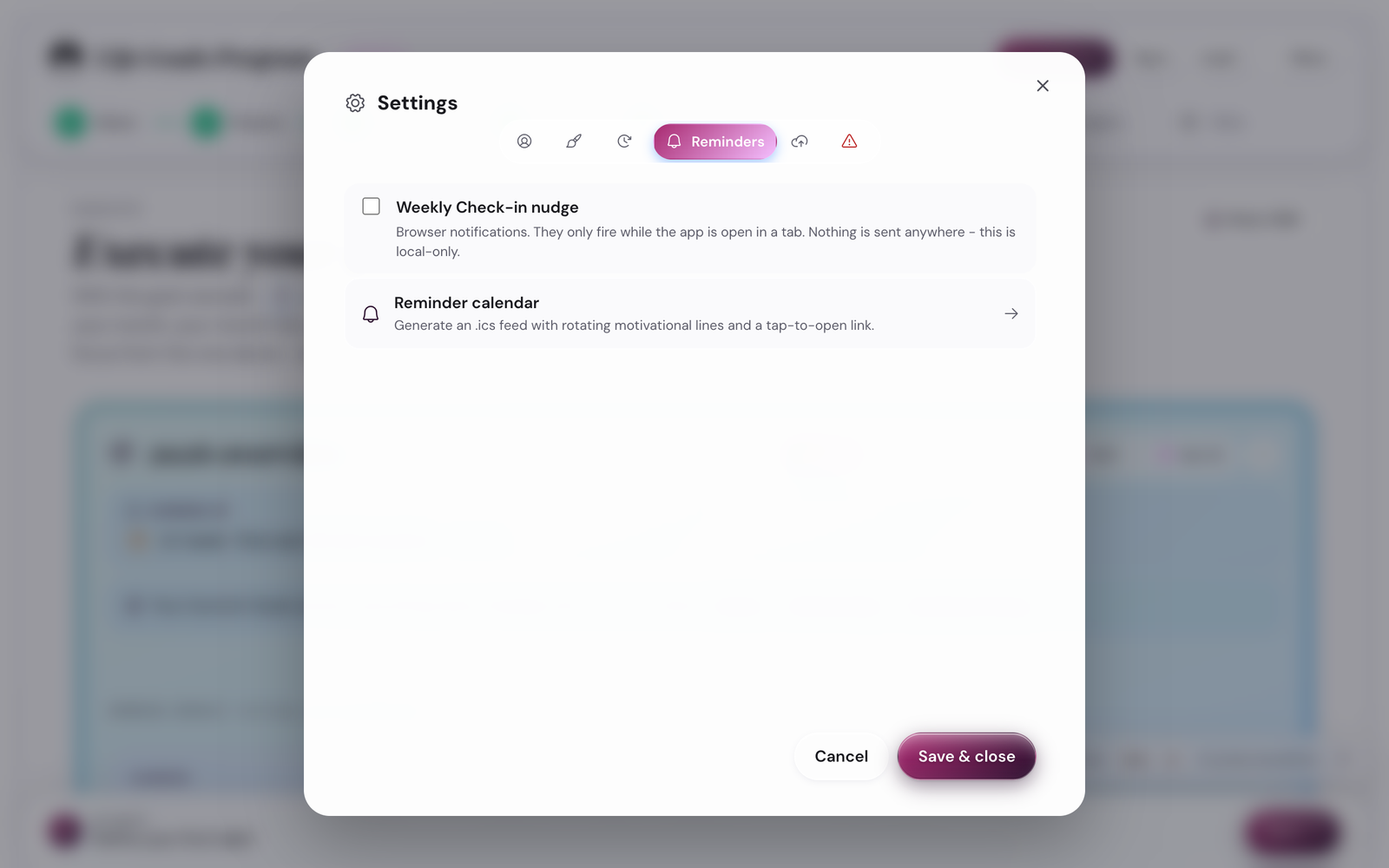
The app invites you once: right after you set your Summit Goals, a small toast asks "Want these plans in your calendar?" with a Set up button. The wizard never opens by itself; dismiss the toast and nothing nags. The permanent home is Settings → Reminders.
The ICS Wizard is a 4-step modal at Settings → Reminders → Launch wizard:
Why
Short explainer: "Your goals live in your calendar, not just this app." About 30 seconds reading.
Rhythm
Pick which of the five cadences you want events for. Default: all five. Heavy-cadence users can opt out of daily reminders if the Day card itself is enough.
Settings
For each cadence: time, day of week (for weekly), alarm (15 min before / at start / off), and per-event duration. Restore defaults button at the top of the step resets all five to the recommended values (Sunday 7-9pm weekly, etc.).
Download
Tap Download .ics. The file imports into Apple Calendar / Google Calendar / Outlook with one double-click. Events recur indefinitely.
Default schedule (if you accept all defaults at step 3):
- Daily plan + reflection. Two events per day, 8:00am and 9:00pm.
- Weekly reflection. Sunday 7-9pm.
- Monthly check-in. Last day of month, 7-8pm.
- Quarterly check-in. Last Sunday of the quarter, 4-6pm.
- Annual wrap-up. Two events: year-end wrap-up (late December) + new-year planning (early January).
If you change the schedule later, re-download and re-import; the new events replace the old (the ICS UID is preserved across exports so Apple/Google de-duplicate cleanly).
5. Notifications
Why this exists. Most planning apps punish you with red dots. This app sends notifications only for the five cadence moments you already agreed mattered, and never for anything else. No "you have not opened me in three days" nags, no marketing pings, no friend-graph noise. Five events a year on the heaviest cadence; zero by default.
The app can send browser notifications for the same cadence events (Sunday evening reflection nudge, end-of-month check-in nudge, end-of-quarter check-in nudge). It does not send any other notifications.
To enable: Settings → Notifications → Enable browser notifications. Your browser will ask for permission. Approve.
To disable: same toggle, or revoke permission in your browser's site settings.
The app respects your browser's Do-Not-Disturb / Focus Mode setting; if your OS is in DND, notifications go to the queue and surface when DND ends.
6. Demo mode
The demo lets you browse a fully-populated three-year plan without touching your real data. Useful for the welcome carousel, for screenshots, for showing a friend, or just for exploring what a finished plan looks like.
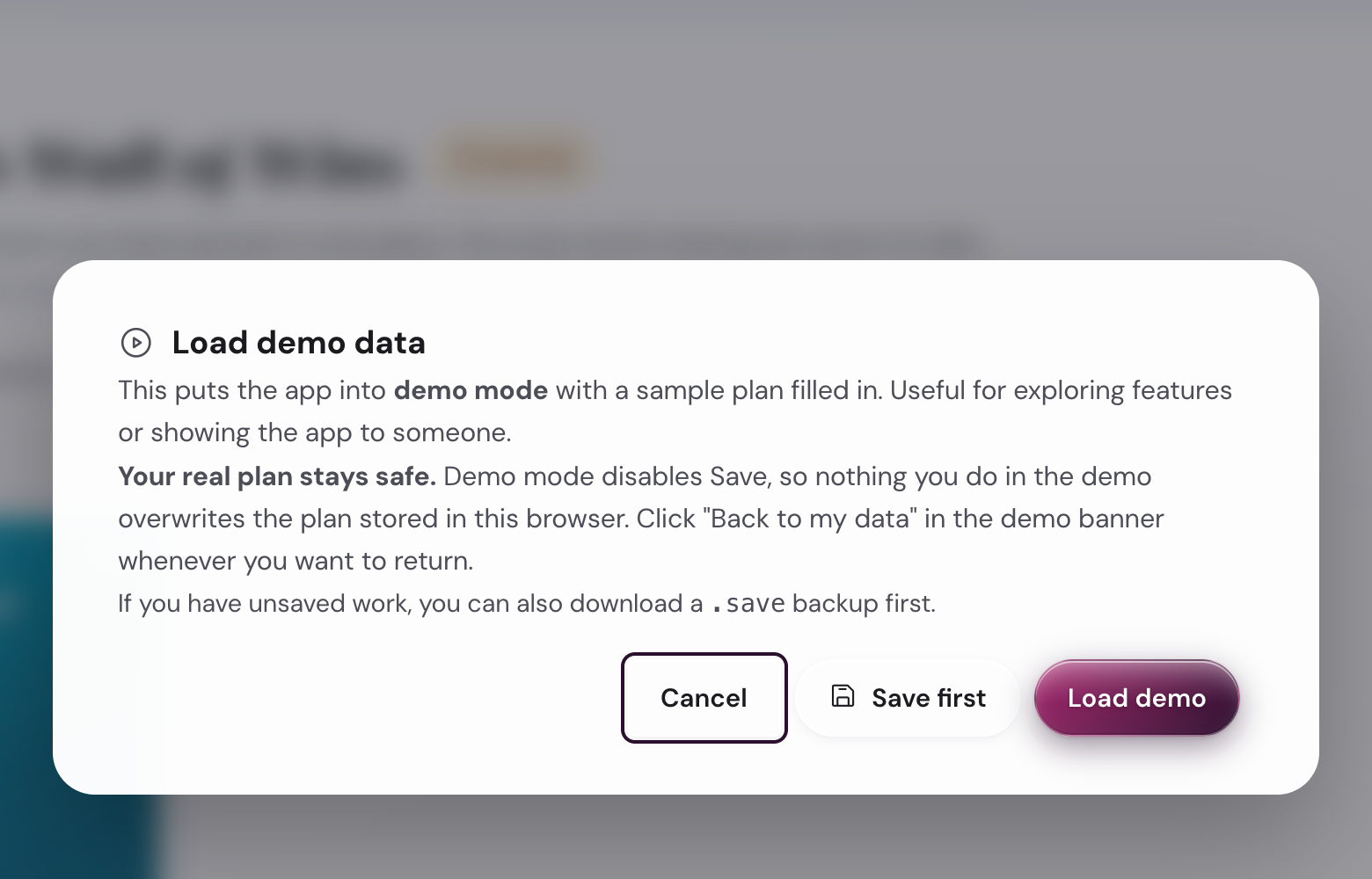
To load:
- More menu → Load demo data.
- A confirmation modal asks if you want to save your real plan first. If your plan has any content, tap Save first; the save runs, then the demo loads.
- The app reloads in demo mode. A banner at the top says Demo mode · Back to my data.

To exit: tap the Back to my data button in the banner. Your real plan returns instantly. Nothing in the demo is saved to your real plan.
Demo mode disables Save and Load. If you try to save while in demo, a toast says "save is disabled in demo mode." Exit demo first.
7. Save, load, and backups
The app saves to your browser's localStorage every time you change something. The Save button in the topbar downloads a .save file (JSON) as a portable backup.

- Manual save. Topbar Save button. Downloads
life-goals-2026-05-23.save(or similar). - Manual load. Topbar Load button. Pick a
.savefile from disk; the app replaces the current plan with it. A confirmation modal warns first. - Auto-backup reminder. If you have not saved in 7+ days and your plan has data, a soft banner suggests a backup.
- File format. JSON. Open it in a text editor to inspect; do not edit by hand unless you know what you are doing.
Save before any risky thing: switching browsers, clearing cache, OS updates, testing the demo, or just regularly as a discipline.
8. Install as a PWA
The app is a Progressive Web App. You can install it to your phone's home screen or your computer's app launcher, and it runs in its own window without browser chrome. Installed PWAs cache the app shell offline.
Chrome / Edge desktop
Address bar → install icon (a small monitor with a download arrow). Click.
Chrome Android
Three-dot menu → Install app or Add to Home screen.
Safari iOS
Share button → Add to Home Screen.
Safari macOS
File menu → Add to Dock (Safari 17+).
Firefox
Currently no install. Use any of the other browsers above.
After install
Open once online so the shell caches. After that, the app works on a plane.
9. Keyboard shortcuts
The app responds to a small set of keyboard shortcuts. Open the keyboard cheat sheet with ? from anywhere.
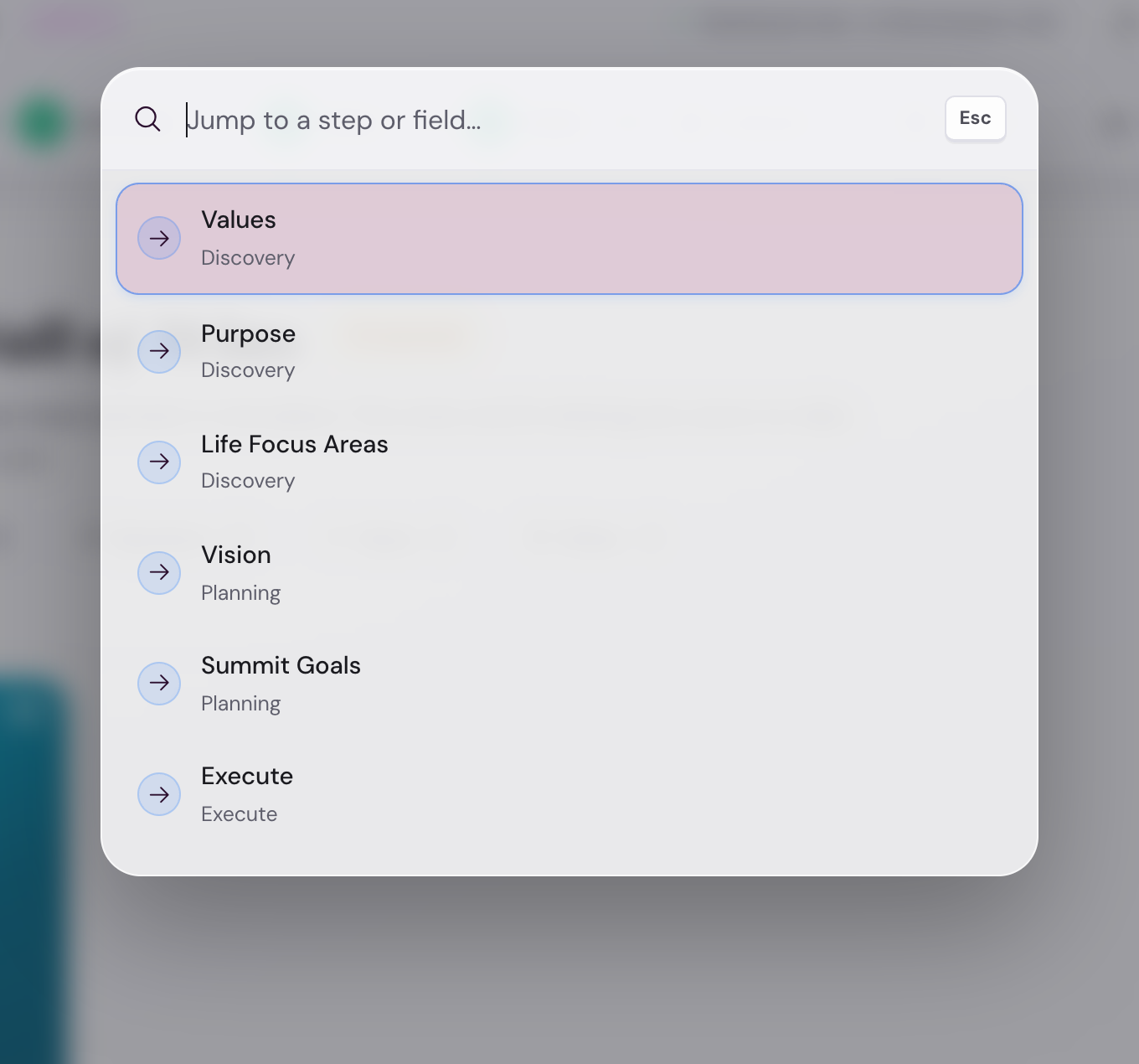
- Cmd+K (Mac) or Ctrl+K (Windows / Linux): Jump bar.
- Cmd+S / Ctrl+S: Download a
.savebackup. - Cmd+O / Ctrl+O: Load a
.savefile from disk. - Cmd+Z / Ctrl+Z: Undo (in-session, last 20 actions, does not survive reload).
- [ / ]: Previous / next cascade step (matches the footer paginator).
- ← / → with the stepper focused: Move between cascade steps.
- Alt+1 through Alt+4: Jump to phase (1 = Discovery, 2 = Planning, 3 = Execute, 4 = Wins).
- 1 / 2 / 3 on the Values rapid-sort: keep card / pass / shrink hand.
- F: Toggle fullscreen.
- Esc: Close any open modal (including the jump bar).
- ?: Show the shortcut cheat sheet.
Mobile-only note: the Ctrl/Cmd+K hint at the bottom of the screen is hidden on viewports under 600px wide; the shortcut still works if you have a Bluetooth keyboard attached.
Other things you can configure
Beta-specific
- Beta password gate. Set once when you first open the app. Stored hashed (SHA-256) in your browser. Cannot be reset by the app; ask support if you forget.
- Beta sunset banner. Appears as the beta end-date approaches. Reminds you to download a
.savebackup before the build is retired.
Privacy and data
- All goal-planning data lives in your browser's localStorage. Nothing is sent to a server I control.
- Plausible Analytics tracks anonymous page-views (cookieless, no IP retention beyond what every server logs by default). Disable: use a tracker-blocking extension; the app does not break.
- Senja feedback form is optional. Opens in a new tab; submissions go to me directly.
Where things are NOT configurable
- Fonts. DM Sans for UI, Loretta for headings. Locked.
- Number of cascade steps. Eight, plus the Wall of Wins once your first achievement lands. Locked.
- Two-day rule sensitivity. Locked at two days.
- Maximum focus areas. Three. Locked.
These constraints are part of the program's discipline, not bugs.
Where to next
- Set up the settings that matter most? Calendar export takes 5 minutes and saves the whole rhythm: jump to that section.
- Curious about the rhythms these settings configure? The Cadence page walks each one in depth.
- Specific question? The Customization and data recipes cover the most-asked.